
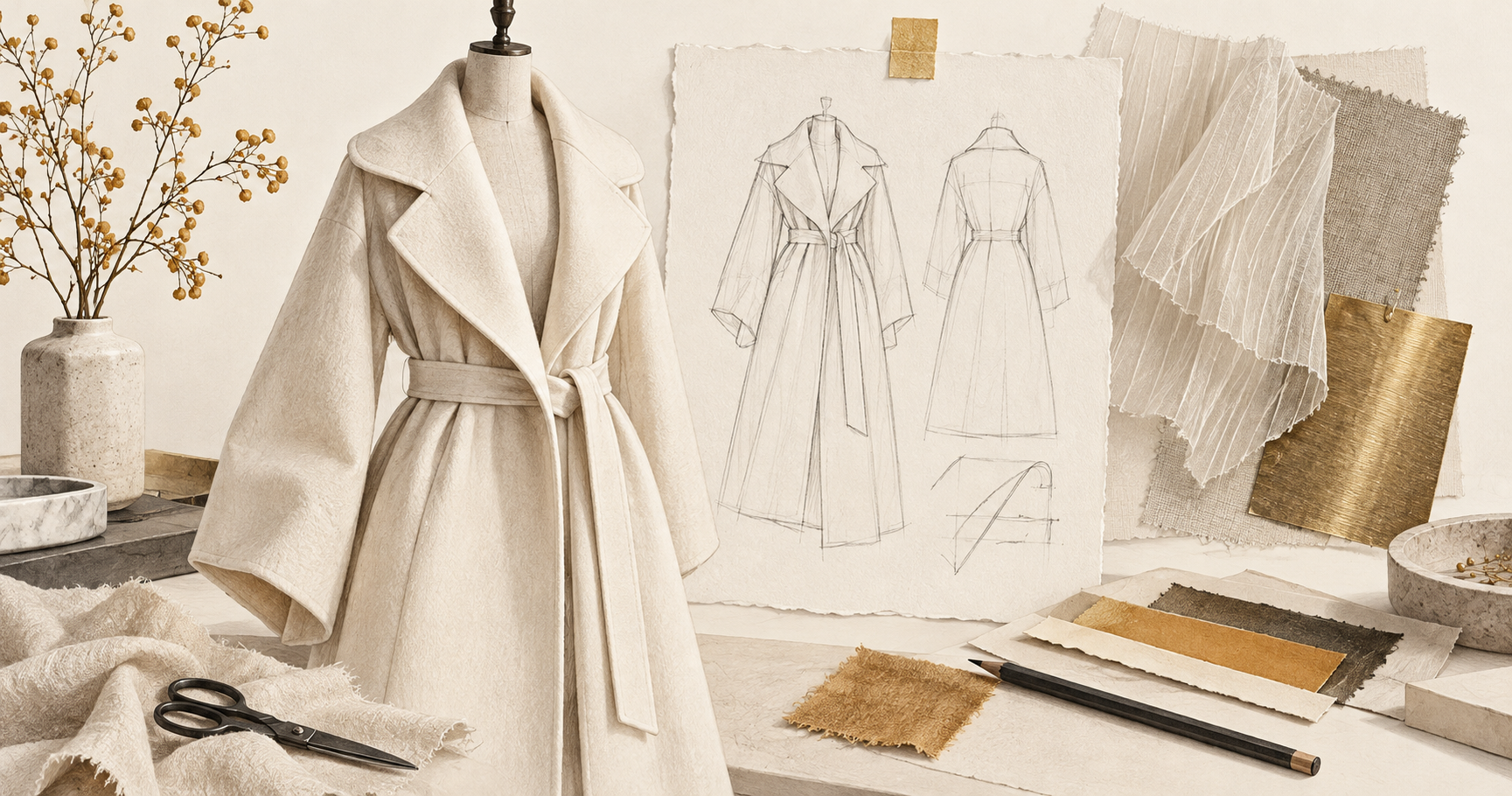
To write useful AI fashion prompts, describe the garment first: its silhouette, where each material belongs, its color palette, and the view needed to judge it. Generate a clear full-length concept before adding dramatic staging. Then refine one design decision and check whether the resulting image still communicates the same garment.
This workflow is for designers, stylists, and creators developing a visual direction. You can explore it in NanoAI's image generator. A convincing concept image can help explain an idea, but it does not establish garment fit, fabric performance, or a production-ready pattern.
There is a timely reason to practice: Adobe's October 15, 2026 Fashion Lab announcement invites creators to combine organic and synthetic influences in avant-garde clothing. Its official rules list an October 14 opening and November 1 closing date, in Pacific time. This tutorial develops a broader concept-making workflow; it is not an Adobe contest submission guide.
All illustrations in this article were created with Codex for explanation. They are not NanoAI or Adobe Firefly test outputs. The example prompts below are starting points, not measured model comparisons.
On this page
- Write AI fashion prompts from a garment brief
- Turn one concept into a useful image set
- Review the design before sharing it
- Frequently asked questions
- Try your first fashion concept
Write AI fashion prompts from a garment brief
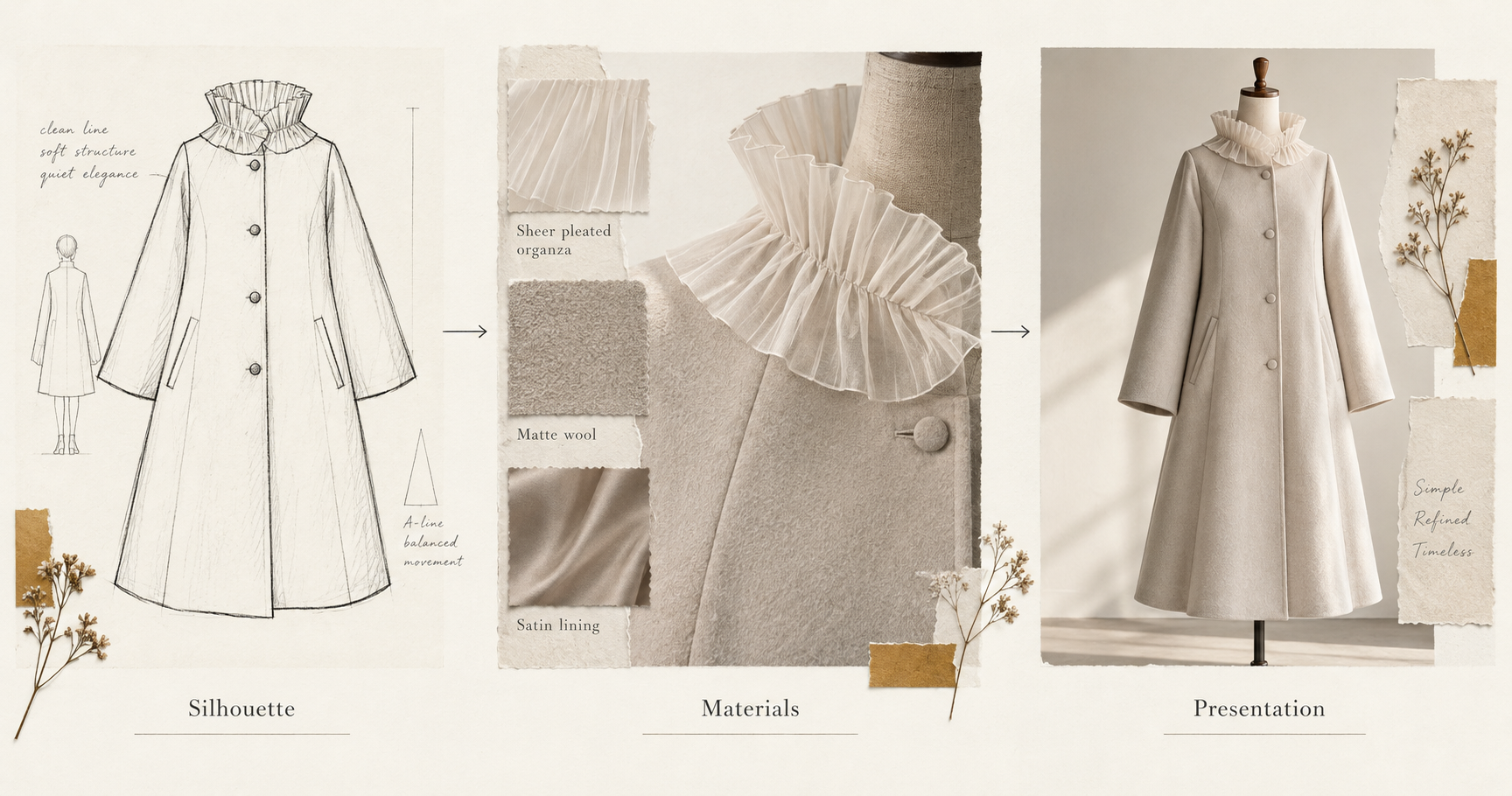
A phrase such as “futuristic luxury fashion” leaves most design decisions unresolved. Start with an object someone could describe without seeing the image: a knee-length A-line coat, a cropped jacket with rounded shoulders, or a straight skirt with a pleated side panel. Add the unusual element after the basic shape is clear.
For an organic-and-synthetic concept, separate inspiration from literal material. “Petal-shaped collar” describes form. “A collar made of fresh petals” describes a different, potentially impractical object. Either can work for fantasy imagery, but they answer different briefs. Choose deliberately so the image does not turn a garment into a pile of decorative objects.
Use this compact planning table before writing the prompt:
| Decision | Useful instruction | What it helps you judge |
|---|---|---|
| Garment and silhouette | Knee-length A-line coat with long sleeves | Whether the overall shape reads clearly |
| Material placement | Matte woven body; translucent pleated collar | Whether contrasting surfaces stay in their assigned areas |
| Color relationship | Warm ivory body with a muted silver fastening | Whether a small accent dominates the design |
| Construction cues | Straight center-front opening; two side pockets | Whether visible parts connect coherently |
| Presentation | Front view on a dress form, plain backdrop | Whether the garment can be evaluated without a distracting scene |
Adobe's clothing design guide also frames garment, fabric, silhouette, and color as useful inputs. The table above adds a practical review question to each decision so you can reject a beautiful image that misses the actual brief.
Here is an original prompt to adapt:
Create a fashion concept illustration of a knee-length A-line coat
on a neutral dress form, front view, entire hem and sleeves visible.
The body is warm ivory matte woven fabric. A translucent pleated
collar rises around the neckline like folded petals. Keep the
translucent material confined to the collar. Add a straight
center-front opening and two discreet side pockets. Soft studio
light, plain warm-gray background, clear separation of materials.
No text or logos. Emphasize the garment silhouette over scenery.
The priority order matters to your own editing process even when a model interprets the wording differently. If the coat shape is wrong, resolve that before refining shine or backdrop. If the body and collar merge into one texture, simplify the material instructions and restate their locations.
Keep a short list of non-negotiable details beside the prompt. For this concept, those might be the A-line outline, a visible full hem, and the collar-only translucent material. Treat everything else as adjustable until you have a readable design.
Turn one concept into a useful image set
Open NanoAI's image creation workbench and start in Text to Image. Choose a model and an available aspect ratio that leave space around the full garment. Review the displayed credit cost before generating. The workbench offers variation controls; a small first batch is enough to identify which parts of the brief need attention.
Use a simple sequence:
- Make the full view. Look for a readable outline and visible sleeve ends and hem. Save the strongest candidate as the concept anchor.
- Write a specific correction. Identify one visible problem, such as a collar that hides the shoulders or pockets that break the silhouette.
- Use Image Edit where supported. Upload the saved image, choose an editing-capable model, and describe the requested change. Recheck the whole garment afterward because an edit request does not guarantee that other details stay identical.
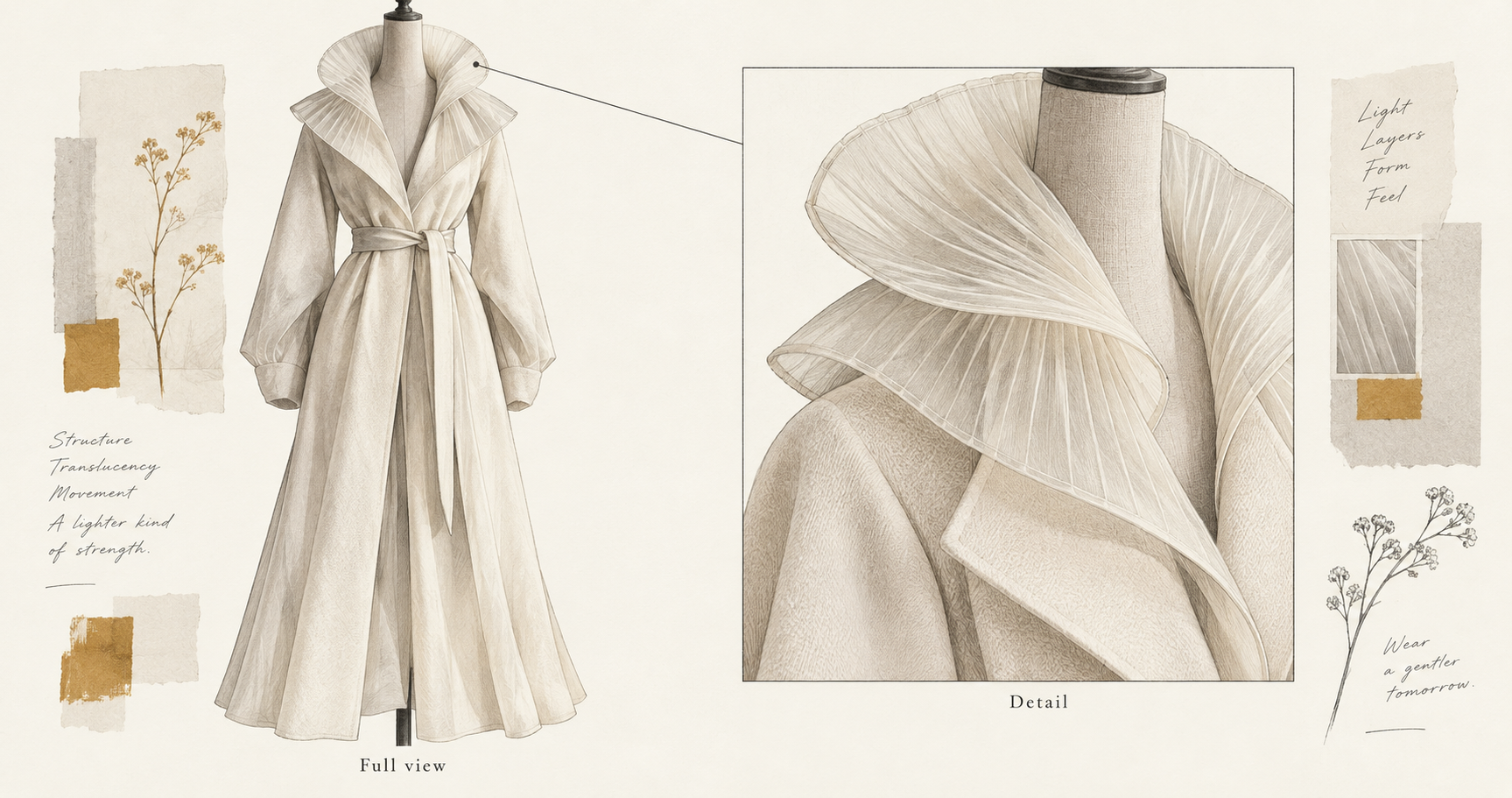
- Prepare a detail view. Crop the accepted image when the existing pixels show enough detail. A newly generated close-up is an interpretation and may introduce a different fastening or seam.
- Assemble the board. Place the accepted full view, a useful detail, the brief, and unresolved questions in your preferred document or layout tool.
A focused correction might read:
Use the uploaded coat concept as the starting image. Reduce the
height of the pleated collar so the shoulder line is fully visible.
Keep the A-line outline, ivory body, front opening and background
as close to the starting image as possible. Keep pleats translucent.
Do not add accessories, new pockets, lettering or scenery.
For a second direction, rewrite the design choice rather than adding a long string of aesthetic adjectives. Try “replace the petal-like pleats with three broad folded panels around the neckline.” This creates a clear decision for a collaborator: fine repeated folds or a few large structural forms.
Reference images can communicate visual intent, but their role needs to be explicit. A fabric swatch describes surface; a garment sketch describes shape; a lighting reference describes presentation. Adobe's style-reference documentation describes references as guidance for look and feel. NanoAI's available image-editing controls depend on the chosen model, so do not assume a separate Adobe-style reference-strength control exists in every tool.
When a front and back view disagree, label the back as an alternate interpretation instead of presenting both as one resolved design. For an early discussion, one honest view with a note about the unknown back construction is often more useful than an apparently complete but contradictory set.
Review the design before sharing it
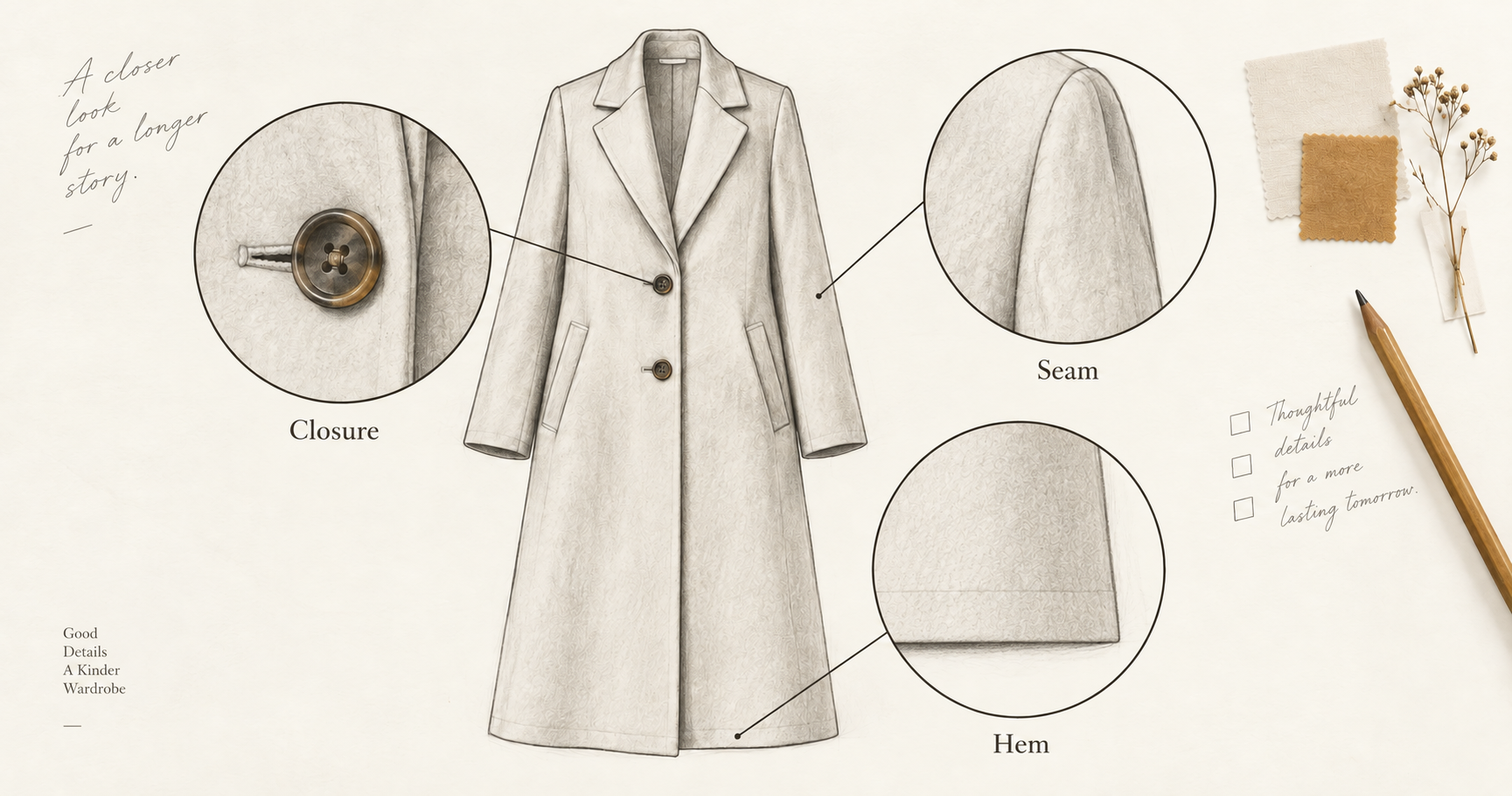
Review at two scales. At thumbnail size, check the silhouette and focal point. At full size, follow the closures, seams, and edges. A glossy surface can hide where a sleeve joins the body; a dramatic pose can conceal whether the garment actually has a coherent opening.
For the coat example, check these details:
- Does the front opening continue through the garment, or disappear into a fold?
- Do fastenings have plausible partners and consistent spacing?
- Do both sleeves connect to the body without merging with the dress form?
- Is the collar visibly separate from the matte body fabric?
- Does the hem remain continuous, with no floating fragments or unexplained cutouts?
These are visual review questions, not proof of manufacturability. Record unresolved issues in plain language: “collar support undecided” or “pocket opening needs a construction sketch.” A pattern maker or garment specialist still needs measurements, material choices, and construction decisions before physical development.
If the image will appear in a portfolio or social post, caption it as an AI-generated fashion concept. If you are selling an existing garment, use imagery that accurately represents that item; a concept image can invent details a buyer would reasonably expect to receive. Keep the original output and your final export so the source of a later crop is clear.
Export a readable board rather than shrinking every detail into one crowded image. Put the full view first and the material detail second. NanoAI's image resizer can help prepare dimensions, and the aspect-ratio guide explains the difference between changing size and changing framing. Confirm that resizing has not cut off the hem you deliberately preserved.
If your purpose is the Adobe challenge, return to its official rules before creating an entry. They require the AI-generated image or video to be primarily created using Firefly, with Content Credentials applied. A NanoAI exploration or a Codex illustration is not automatically an eligible entry. Keep the contest workflow distinct from an independent concept board.
Frequently asked questions
What should an AI fashion prompt include?
Include the garment, silhouette, material placement, palette, view, and lighting. Add construction cues only where they help communicate the design. A clear front view is a useful first step before a dramatic editorial scene.
Can I use NanoAI to explore clothing ideas?
Yes. Its image workbench provides text-to-image generation and image editing with supported models. Start with a written garment brief and inspect the output. This is concept exploration; do not assume the result verifies sizing, fit, or exact reproduction of a real garment.
How do I keep a garment consistent across images?
Save an accepted anchor image and use it as the starting point for supported edits. Repeat the essential details and compare every result with the anchor. Use a crop for detail views when possible. A fresh generated angle can change hidden construction, even with a similar prompt.
Is an AI fashion concept a sewing pattern?
No. A concept image communicates appearance. It does not supply verified measurements, pattern pieces, seam allowances, or fabric behavior. Use it to discuss the direction, then develop the technical information separately.
Can I submit a NanoAI image to Adobe's Fashion Lab challenge?
Do not assume so. The October 2026 rules require the AI-generated work to be primarily created using Firefly and include additional entry conditions. Read the linked official rules and follow the Adobe workflow for a contest entry.
Try your first fashion concept
Start with one garment and one unusual material decision. Paste the example into NanoAI's image generator, replace the coat details with your own brief, and evaluate the silhouette before polishing the scene. Keep the accepted image, prompt, and unresolved construction questions together so your next iteration has a clear purpose.