
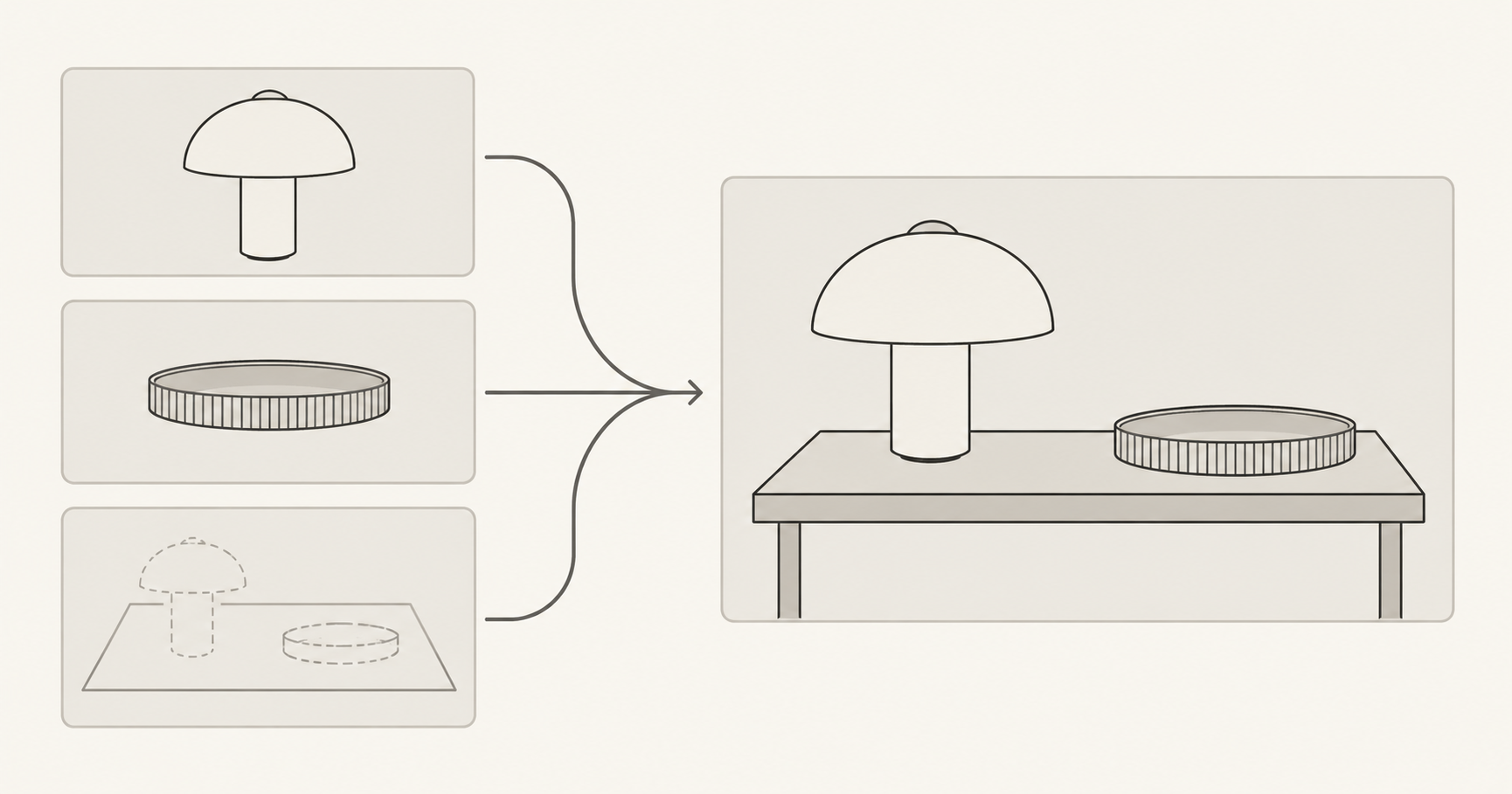
To write useful multi-reference image prompts, tell the editor what each uploaded image contributes: an object, its placement, the setting, or a visual style. Describe the final scene, resolve conflicts between references, and check the result against each assigned role. Start with the smallest set that explains your intent instead of uploading every inspirational image at once.
This is a timely image-editing task. PixelDojo's October 18, 2026 changelog describes combining reference images in its FLUX 3 Image Klein workflow. Krea's October 15 Krea 3 announcement also discusses multi-reference editing. Those are provider-specific updates, not evidence that every editor has the same limits or controls.
In NanoAI's image workbench, Image Edit currently displays reference-image uploads. This guide uses that general workflow to explain how to combine inputs deliberately. It does not assume that another platform's model, reference-strength slider, or preservation behavior is available in NanoAI.
All illustrations were created with Codex for explanation. They are not NanoAI test outputs or before-and-after model benchmarks. The prompts below are original instructional examples.
On this page
- Assign a role to every reference image
- Write the combination and resolve conflicting instructions
- Diagnose a wrong result by changing one reference at a time
- Frequently asked questions
- Try a small reference set
Assign a role to every reference image
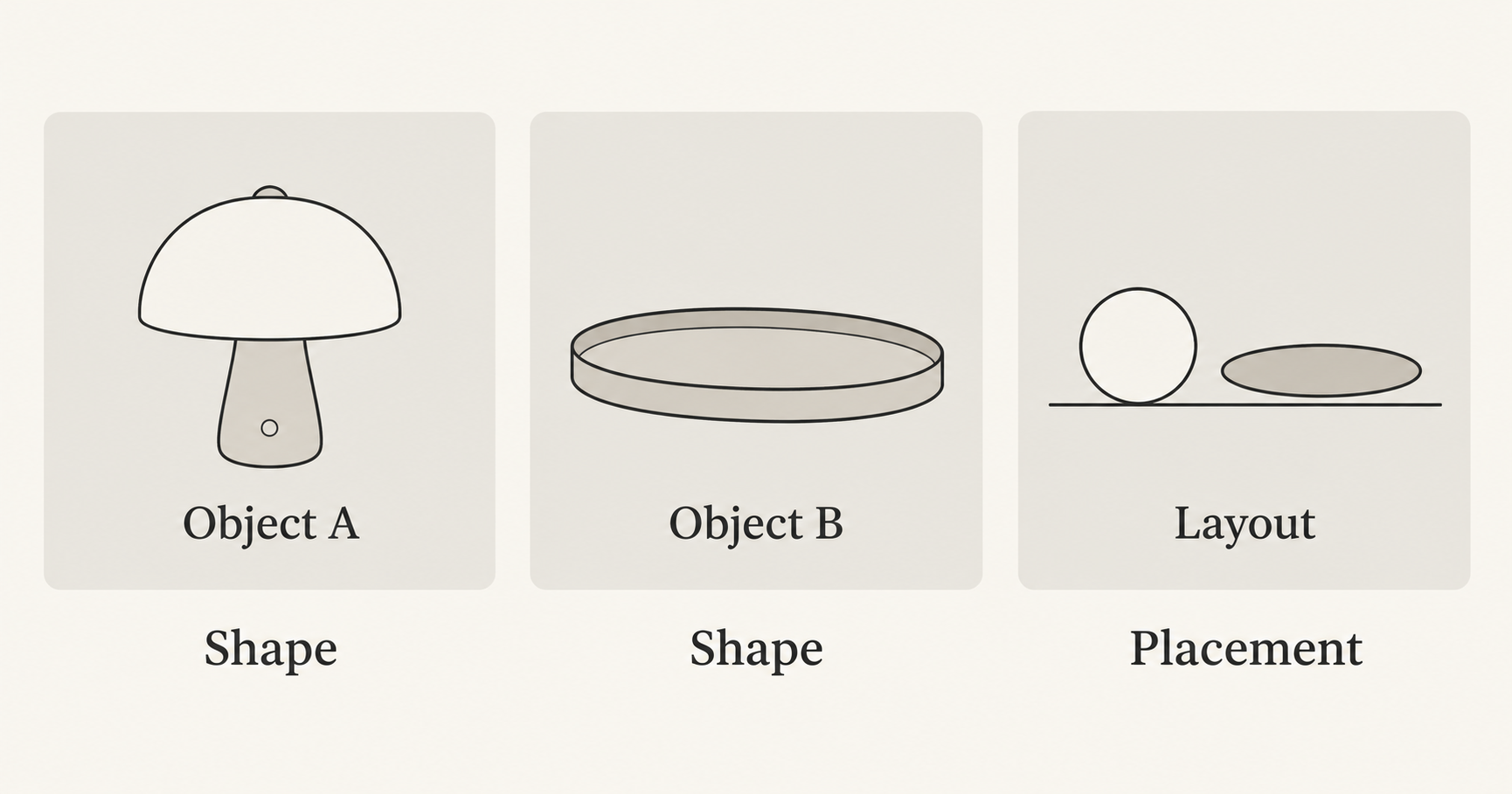
A reference photo contains more information than the single detail you may want from it. A lamp photo also shows a background, camera angle, surface, light direction, and possibly other objects. A layout sketch has a drawing style as well as spatial instructions. Without a clear assignment, those incidental details can compete with the intended result.
For an original desk-concept example, prepare three inputs that you own or have permission to use:
| Reference | Intended contribution | Details to leave behind |
|---|---|---|
| A: mushroom-shaped lamp photo | The lamp's visible shape and finish | Its original room and nearby accessories |
| B: shallow oval tray photo | The tray's outline and ribbed edge | Its original tabletop and unrelated contents |
| C: simple desk-layout sketch | Lamp on the left, tray on the right, space between | Pencil texture, sketch colors, and placeholder shapes |
The desired output is one desk scene containing the two objects, with the sketch guiding their arrangement. This differs from merely replacing a background: you are deciding which information several inputs contribute to a new composition.
Give the files useful working names, such as lamp-reference, tray-reference, and layout-sketch. Then inspect the upload thumbnails to confirm which file is in each position. File names help you keep records; do not assume a model reads them as instructions. In the prompt, identify images by the interface's displayed order and by a visible description.
Use references that make their assigned information easy to see. A clear lamp silhouette is more useful for its shape than a dramatic photo in which the shade disappears into darkness. An empty tray is easier to describe than one filled with stationery you do not want included. Crop away irrelevant surroundings when that preserves the information you need, and keep untouched originals.
Not every project needs three references. One object photo and a written layout description may be enough. Add a sketch when spatial placement is hard to communicate, or a style reference when words alone leave the look unclear. If two images perform the same job but disagree, choose one direction before generating.
Write the combination and resolve conflicting instructions
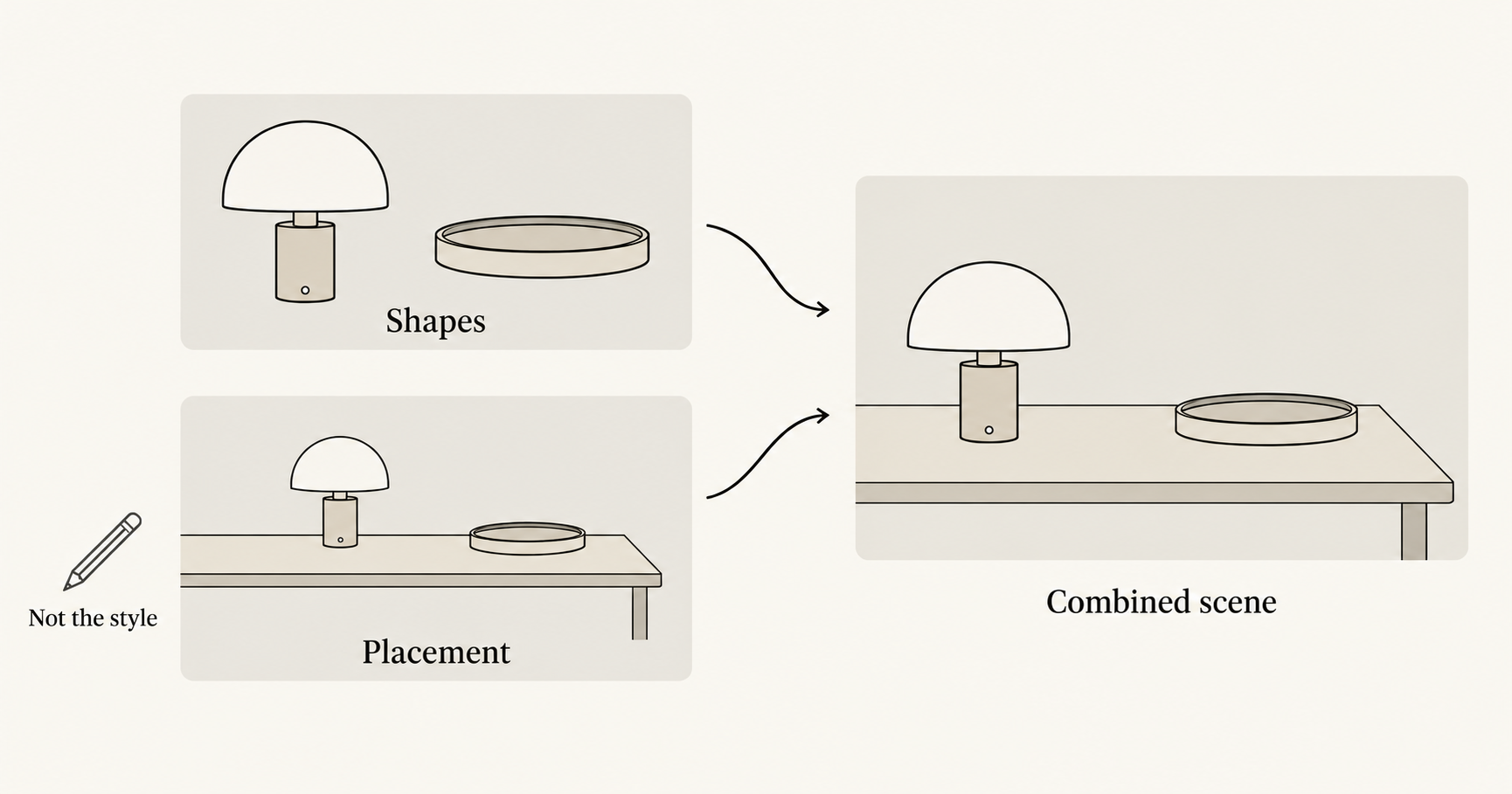
Start with a plain-language description of the finished scene. Follow it with the contribution from each input and a short instruction about conflicts. Google's image-generation documentation describes multi-image composition in terms of taking an element from one image and placing it with an element from another. The useful principle is to name those relationships explicitly rather than asking for a vague blend.
For the desk example, adapt this prompt after verifying the actual upload order:
Create one clean desk-concept image using the three uploaded references.

Image 1, the mushroom-shaped lamp photo: use this lamp's visible
shape and finish. Do not copy its original room or accessories.

Image 2, the shallow oval tray photo: use this tray's oval outline
and ribbed edge. Do not add objects from its original surroundings.

Image 3, the desk-layout sketch: use only the placement idea.
Put the lamp on the left and the tray on the right, with a clear
gap between them. Do not copy the sketch's drawing style or colors.

Final scene: a simple desk against a plain wall, eye-level view,
soft daylight, photographic presentation. Include one lamp and
one empty tray. Keep both fully visible. Add no lettering or logos.

If the sketch's placeholder shapes differ from the object photos,
use the photos for object appearance and the sketch for placement.
This prompt expresses priorities; it does not establish a technical lock. A result can still alter either object or misunderstand the sketch. You need a comparison process after generation.
Adobe's image-combiner guide likewise recommends describing what each reference contributes and how the images should come together. Its additional controls belong to Firefly. In another workbench, verify the controls you actually have rather than adding instructions for a slider that is not there.
In NanoAI, open the workbench and select Image Edit. The currently checked interface allows up to five reference images, with a displayed limit of 5 MB each. Treat that as the workbench's current upload limit, not a universal model specification. Choose an editing-capable model, check its displayed cost and output settings, and keep the prompt consistent with the uploaded set.
Several conflicts deserve an explicit decision:
- Two visual styles: choose which reference supplies style, or describe a new style in words. Do not ask for an exact photograph and an exact pencil drawing simultaneously unless a mixed-media result is intentional.
- Different viewpoints: decide on the final viewpoint. A side-view object may require the model to invent surfaces when shown from the front.
- Conflicting colors: say whether object color comes from its own photo or is deliberately being changed by a palette reference.
- Unclear scale: give a visual relationship when supported by your brief. Do not invent dimensions from perspective alone.
If exact product pixels or measurements are essential, use an editing workflow that preserves or constructs those details directly. For a photographed product in a new setting, the background-replacement guide explains when a separate product layer is more appropriate. Multi-reference generation is useful for exploring a composition, but it does not verify that the real objects have the proportions shown.
Diagnose a wrong result by changing one reference at a time
Review the output by role before judging its overall attractiveness. In this example, check the lamp against reference A, the tray against B, and the placement against C. That makes the next revision more specific than “make it closer to the references.”
A compact review note might say:
Lamp: recognizable, but the base changed.
Tray: oval outline retained; extra contents appeared.
Layout: left/right placement correct; spacing too narrow.
Next attempt: remove unrelated contents and simplify the object references.
These are example observations, not results from a NanoAI run. Your notes should describe what you actually see.
When an output goes wrong, use a small comparison:
- Save the failed candidate and its inputs. Record the model, prompt, upload order, and available settings.
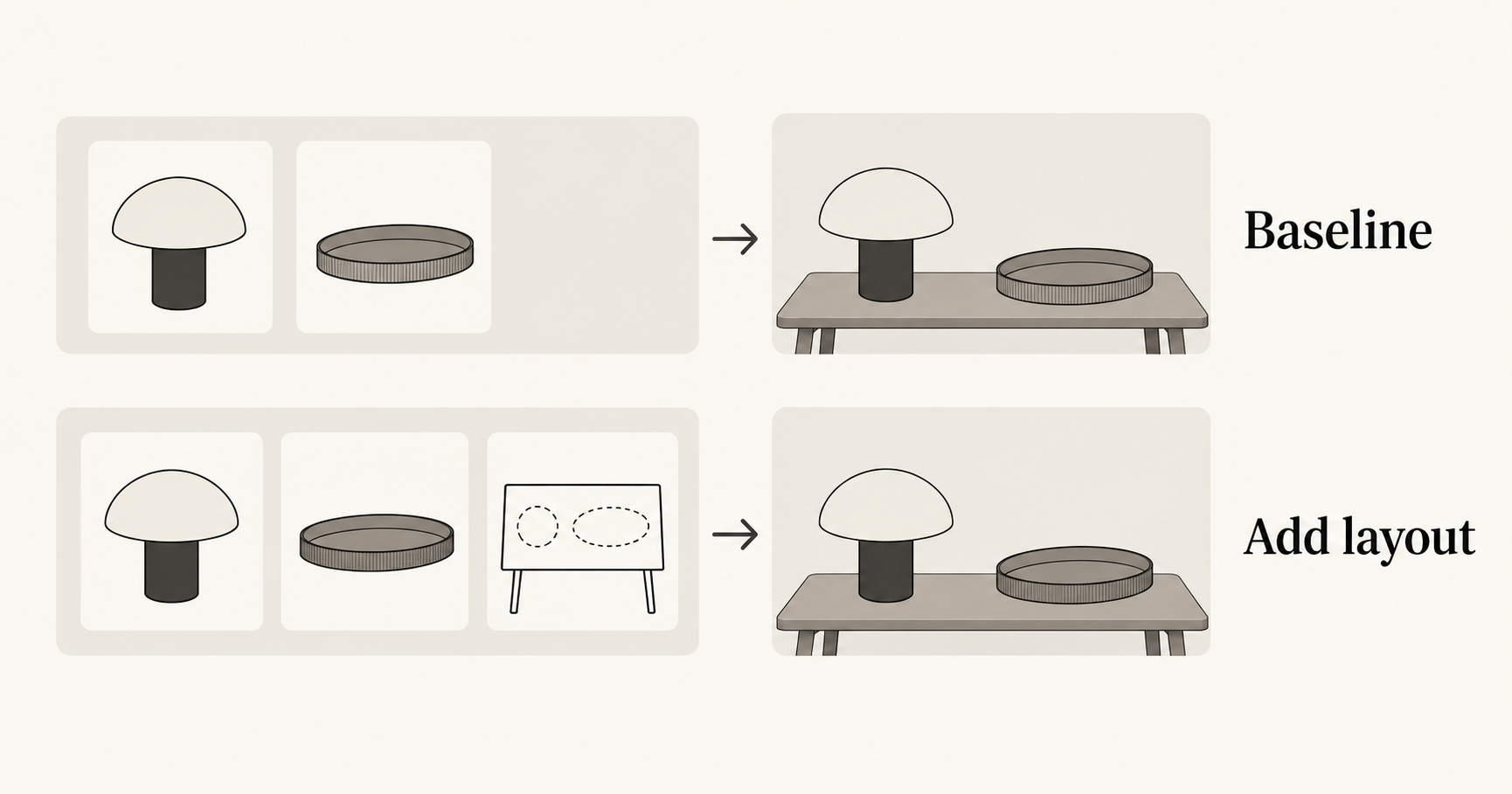
- Make a baseline with the two object photos. Describe the arrangement in words, leaving out the sketch temporarily.
- Add the layout sketch back. Keep the other choices as similar as the tool permits and state that the sketch controls placement only.
- Compare the specific difference. If pencil styling appears only after adding the sketch, simplify that reference or strengthen its role description. If the tray is wrong in both attempts, inspect the tray source and object instructions first.
- Keep or remove the added reference. A reference that introduces more ambiguity than useful information does not need to stay.
A single pair of generations is a diagnostic clue, not proof of cause: generative outputs can vary even with similar requests. If the finding matters, repeat a controlled comparison before drawing a conclusion. Avoid changing the model, all references, and the wording at once, because the next result will be harder to interpret.
Watch for unwanted information crossing between roles. The sketch's gray outline may become the lamp's material; a style photo may donate a vase; the tray photo may bring along its tablecloth. Clarify the intended contribution or remove the distracting input. A longer prohibition list is not always more useful than a cleaner reference.
Finally, inspect each important object at full size and at the intended display size. Keep the accepted output with its reference map and prompt. If you later replace the lamp image, update its description too; an old instruction referring to a rounded base can conflict with a new square-base photo.
Frequently asked questions
What are multi-reference image prompts?
They are instructions that use several images as context for one result. Each input can supply an object, layout, setting, or style. The prompt should explain those roles and describe the final relationship between them.
How many reference images should I upload?
Use the smallest set that communicates the task, within the current tool and model limits. More images can add useful information, but they can also introduce conflicting backgrounds, viewpoints, and styles.
Can I use a sketch only for placement?
You can request that role explicitly and say which details should come from other references. Check the output for unintended sketch styling or placeholder shapes. A placement instruction is guidance, not guaranteed isolation of that reference's influence.
Does uploading first make an image more important?
Do not assume that upload order alone sets priority. Identify the images clearly, explain which details each controls, and verify the selected workflow's documented behavior. Keep the displayed order consistent with the prompt.
Why does the editor add things I did not request?
They may come from incidental details in a reference or from the generated scene itself. Inspect the inputs, simplify the scene, and specify what each image contributes. Remove a reference when it adds more ambiguity than value.
Try a small reference set
Choose two clear images and write one sentence for each image's role. Open NanoAI's image editor, describe the final composition, and compare the output with that reference map. Add another input only when it supplies information the first two cannot communicate clearly.