
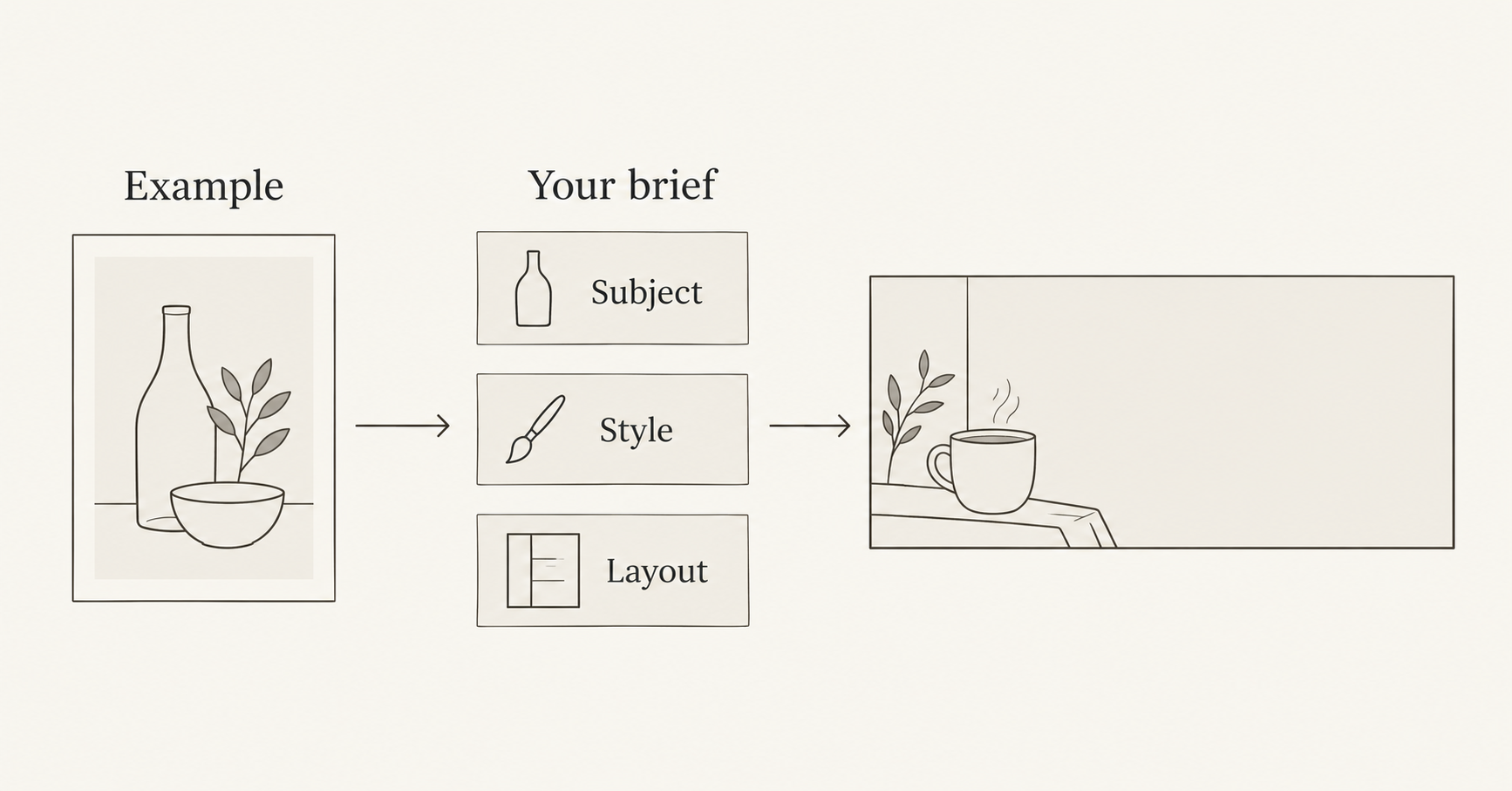
To adapt an AI image prompt, identify the visual decision you want to reuse, replace the original scene with your project brief, and translate settings into controls your chosen tool actually supports. Then judge the image against your intended use. Changing a product name alone can leave you with the wrong composition, medium, or mood.
Prompt libraries keep supplying new starting points. On October 19, 2026, Meigen’s changelog recorded 20 new public prompt entries spanning images and videos, with original creator attribution. That is a useful discovery update, not evidence that a shared prompt will reproduce the same picture in another model.
This guide turns an example into a reusable brief, with an original coffee newsletter exercise. You can begin with NanoAI’s prompt library, then use its AI image generator to explore your rewritten direction.
The illustrations below were made with Codex for explanation. They are planning diagrams, not NanoAI generation results or a comparison of image models.
On this page
- Separate the useful idea from the original scene
- Rewrite the prompt around your actual deliverable
- Save a recipe you can diagnose and reuse
- Frequently asked questions
- Start with one useful visual decision
Separate the useful idea from the original scene
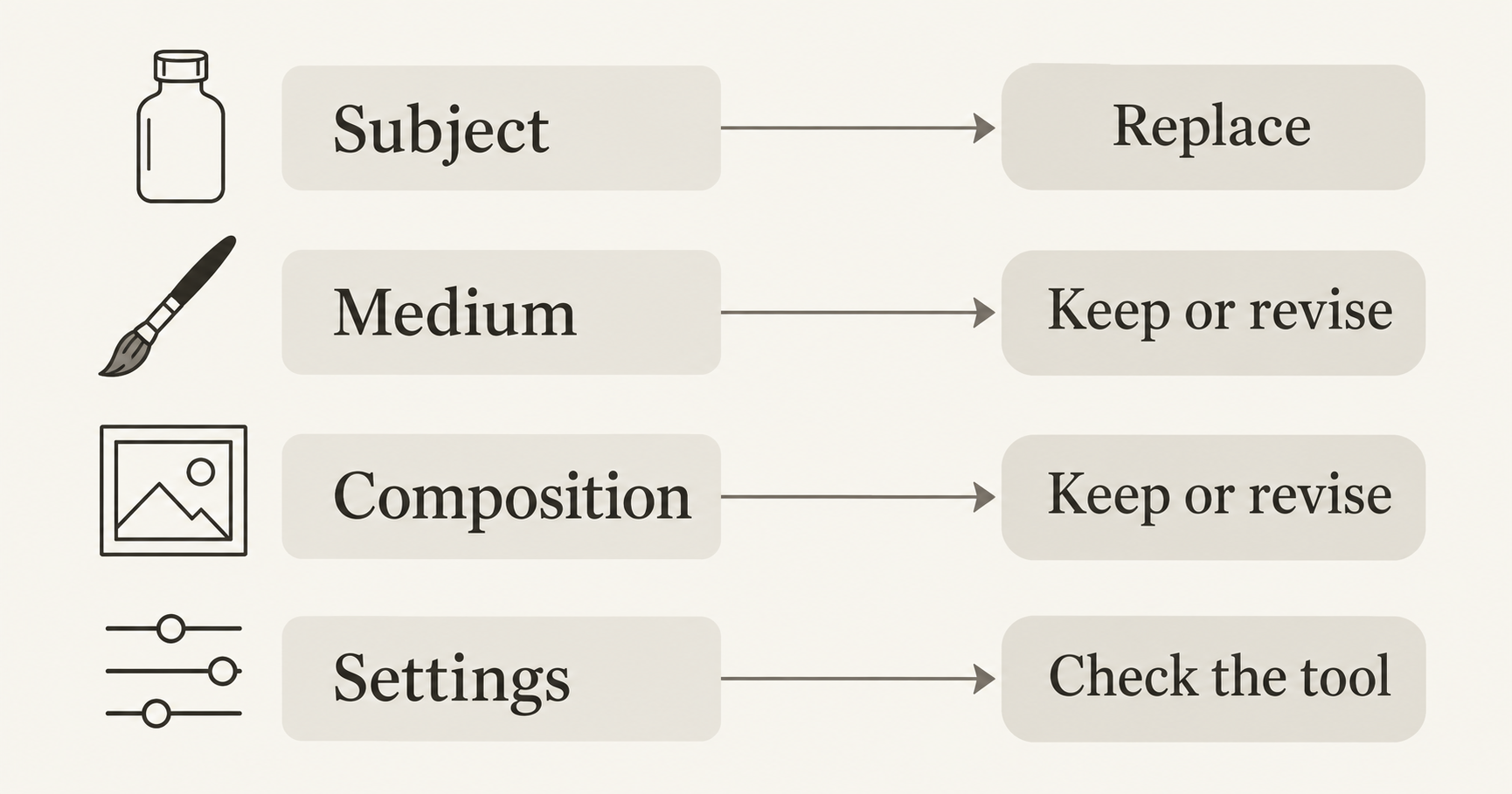
Start by describing what attracted you to the example. “The subject has room around it” is actionable. “It looks premium” leaves several decisions unresolved. You may want its side lighting, its restrained palette, its overhead viewpoint, or its empty space for copy. Those are different instructions.
Adobe’s Firefly prompting guide separates image type, subject, action, angle, lighting, and background. It also advises keeping instructions consistent. Use those categories to inspect an example before rewriting it; they help reveal why changing one noun may leave an unsuitable scene intact.
For this exercise, consider this original teaching example, written for this article rather than copied from a creator:
A glass skincare bottle on a travertine plinth, hard afternoon light, beige studio background, glossy editorial product photography, centered composition.
Suppose you need a welcoming illustration for a coffee subscription newsletter. The starting prompt offers a restrained palette and a clear focal object, but its glass bottle, luxury pedestal, photographic treatment, and central placement are optional choices.
| Prompt component | Original decision | Decision for the coffee newsletter |
|---|---|---|
| Subject | Glass skincare bottle | Coffee cup and a few beans |
| Setting | Travertine display plinth | Simple tabletop |
| Medium | Glossy product photography | Editorial ink illustration |
| Light or shading | Hard afternoon light | Restrained flat shading |
| Composition | Subject centered | Subject left; room for copy right |
| Palette | Beige studio tones | Warm ivory and dark brown |
This is an editorial choice, not a claim that one style performs better in email. The useful transfer is the restrained visual hierarchy. The remaining decisions come from the new assignment.
Separate descriptive words from tool commands
A prompt shared from another service can include instructions that belong to that service’s interface. For example, Midjourney documents --ar as its aspect ratio parameter. Do not assume that syntax activates a ratio control elsewhere.
Keep a plain-language description of the intended composition. Set the aspect ratio using the destination tool’s supported control. Check other copied suffixes, reference identifiers, weights, and seed instructions against that tool’s documentation instead of carrying them over automatically.
In NanoAI, the public image workbench exposes a model selector, an image shape control, and variation choices. Those visible controls are the place to make supported selections. A word such as “8K” in a prompt does not itself verify the dimensions of the downloaded file.
Rewrite the prompt around your actual deliverable
Before adding descriptive language, write one sentence explaining where the image will go and what it should communicate. For the exercise:
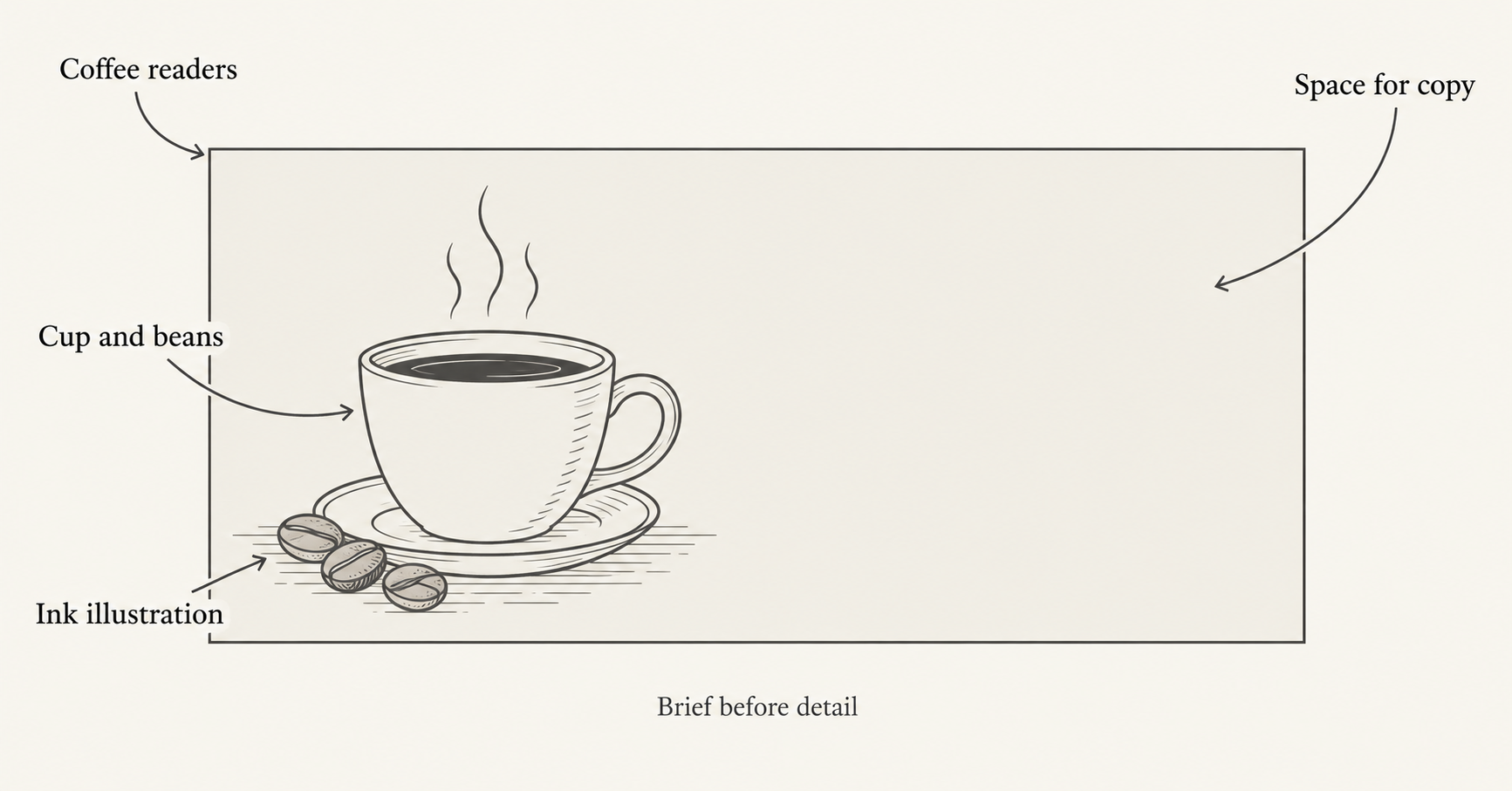
A calm coffee newsletter hero that introduces a weekend brewing ritual and leaves space for a separately placed headline.
This brief provides a reason for each visual choice. The coffee cup supplies the subject. The spare layout gives the email designer room. The illustrated treatment makes clear that the asset is an editorial concept rather than a photograph documenting a real product.
Use a brief with replaceable fields
Copy this template into your notes and fill in the brackets before generating:
Use: [where this image will appear]
Audience and message: [who it serves and what it communicates]
Subject: [main object or scene, including essential details]
Medium: [photograph, ink illustration, collage, or another treatment]
Composition: [viewpoint, subject placement, and empty space]
Color and light: [a short compatible direction]
Exclude: [specific distractions or unwanted elements]
Tool settings: [chosen model, supported ratio, variation count]
Acceptance checks: [what must be true in the delivered image]
Keep the tool settings in your working record. Put the visual instructions into the prompt box, and apply the relevant settings through the interface. For tools with a separate negative-prompt field, consult their guidance; the “Exclude” field above is a planning reminder, not a universal command syntax.
Here is the original rewritten prompt for the coffee exercise:
An editorial ink illustration for a coffee subscription newsletter.
A simple ceramic coffee cup with three coffee beans on a tabletop,
grouped in the left third of a wide frame. Warm ivory background,
dark brown linework, restrained flat shading, quiet weekend mood.
Keep the right half visually empty for a headline added later.
No lettering, logos, packaging, or decorative objects.
The rewrite states what to draw and where it belongs. It removes the original pedestal and glossy photographic treatment because the brief no longer calls for them. It also describes the blank area rather than relying on the word “minimalist” to imply it.
Generate a baseline before adding more requirements
- Open the NanoAI image workbench and select Text to Image for this text-only exercise.
- Choose a model and a supported wide ratio that suits the email layout. Review the displayed credit cost before generating.
- Paste the rewritten visual prompt. Begin with one variation to establish a baseline, or deliberately choose more if you need alternatives.
- Check the downloaded image in the actual newsletter layout, including a narrow preview. Confirm that the subject remains recognizable and the planned copy area is usable.
- Revise a specific failure. If the cup occupies the center, describe its position and smaller size more clearly before adding decorative detail.
The workbench offers up to four variations per run; that is a UI option, not a promise of four distinct or successful compositions. We checked the public controls for this guide, but did not run a paid NanoAI generation test.
Use the aspect ratio guide when the problem is image shape or cropping. If the illustration needs a headline, keep its final wording in your layout tool and use the AI poster text checklist for proofreading guidance.
Save a recipe you can diagnose and reuse
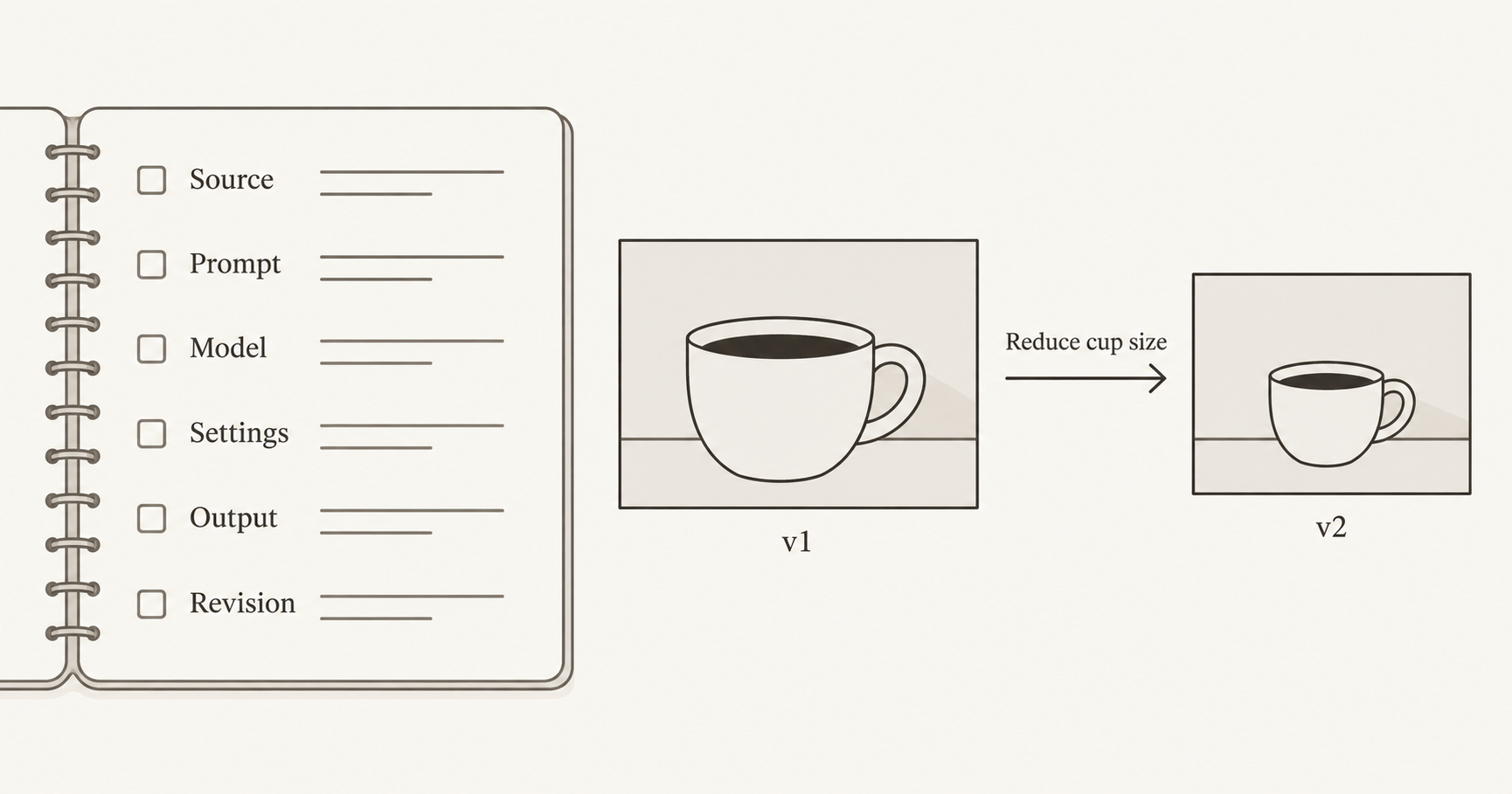
Save the decisions around the prompt, not just the prompt text. A future reader needs to know which model and controls were used, whether reference images were required, and which output the notes describe.
Use a small record like this. The entries below are illustrative placeholders, not results from a generation session:
Recipe name: Coffee newsletter illustration
Source: Original exercise, or the original creator URL
Reusable idea: Restrained hierarchy with room for copy
Adapted prompt: [save exact text]
Model: [record the selected model label]
Settings: [ratio, variations, other available controls]
References: [none, or filenames and intended roles]
Output: [downloaded filename]
Revision note: [observed problem and the next specific change]
Approval: [who checked the final layout and when]
Preserve the original source when working from a shared prompt. Attribution helps you find the context again, including references or follow-up instructions that a repost may omit. A public prompt listing alone does not establish permission to reuse its attached photographs, logos, or other source assets. Check the relevant terms and permissions before using those assets.
Diagnose the mismatch before rewriting everything
Compare the image with your acceptance checks. Name the failed requirement in ordinary language:
| Observed mismatch | Next useful action |
|---|---|
| Cup overlaps the planned headline area | Ask for a smaller subject confined to the left third |
| Image looks like a cosmetics advertisement | Remove inherited pedestal, gloss, and luxury styling |
| Palette feels cold | Describe the intended warm background and linework colors |
| Unexpected lettering appears | Restate the text-free requirement; add final copy separately |
| Output file is too small for the placement | Inspect actual dimensions and supported output options |
Changing one failed requirement at a time makes revision notes easier to interpret. It does not eliminate randomness or prove that a wording change caused every difference between two outputs. Keep the same model and supported settings while investigating a prompt problem; record a model change as a separate decision.
When a reference image is essential to the original recipe, text alone may not contain enough information to recreate its structure. Use the multi-reference image prompt guide to assign reference roles. For a real product whose exact appearance matters, use authorized product photography and inspect identity details rather than trusting an attractive generated approximation.
Frequently asked questions
Can I use the same AI image prompt in different models?
You can often reuse the plain-language description as a starting point. Check model-specific commands, required references, and available controls separately. The same text does not guarantee the same visual interpretation or identical output.
Why does a copied prompt look different from the example?
The example may depend on a different model, version, reference image, settings, edit history, or subsequent design work. Review the original context before assuming the prompt text contains the complete workflow.
Should I replace only the subject in a prompt template?
Only when the original medium, setting, lighting, and composition still fit your deliverable. For a new assignment, review every component. A centered photographic product scene may be unsuitable for an illustrated newsletter with space for copy.
Can NanoAI help me adapt a prompt from a library?
NanoAI provides a public prompt library and a multi-model image generation workbench. Use the library to find a starting direction, rewrite it using your brief, and choose the supported settings in the generator. This guide does not claim an automatic prompt adaptation feature.
Does saving a seed guarantee an identical image later?
Do not assume that it does across tools, models, or versions. Record a seed only when the tool exposes and documents it, alongside the other settings. Save the approved image file itself when you need to reuse that exact asset.
Start with one useful visual decision
Choose a starting point from the NanoAI prompt library. Write down the one visual decision you want to keep, complete the brief template, and remove instructions that no longer serve the assignment. Then open the AI image generator and evaluate the result in its intended placement.
A reusable recipe should explain what you wanted, what you selected, and what you changed. That record makes the next project easier to start without forcing it to inherit the last project’s look.