
To add accurate captions to an AI-generated video, finish the audio first, correct the transcript while listening, and then check the timed text on the exported video. Choose a separate caption file when your destination supports it and viewers need playback control; use burned-in text when captions must remain visible in the picture. Keep an editable master for corrections either way.
Caption styling is getting easier to automate. In its October 25, 2026 update, PixelDojo described captions rendered into finished Film Studio videos and timed to narration or character speech. That is a useful workflow development, but attractive text alone does not establish that every spoken word was captured correctly. The practical question remains: can someone understand the finished video accurately through its captions?
This guide covers a finishing workflow for AI video captions. You can create source visuals with NanoAI's AI Video Generator, then use an editor that supports transcription, caption tracks and the export format you need. The NanoAI generator page currently offers text-to-video and image-to-video creation; this guide does not assume it includes a caption editor or SRT export.
All illustrations below are conceptual diagrams created with Codex. They are not NanoAI outputs, software screenshots or caption-accuracy tests.
In this guide
- Make an accurate caption master from the final audio
- Choose editable captions or text baked into the video
- Check timing and readability on the exported video
- Frequently asked questions
Make an accurate caption master from the final audio
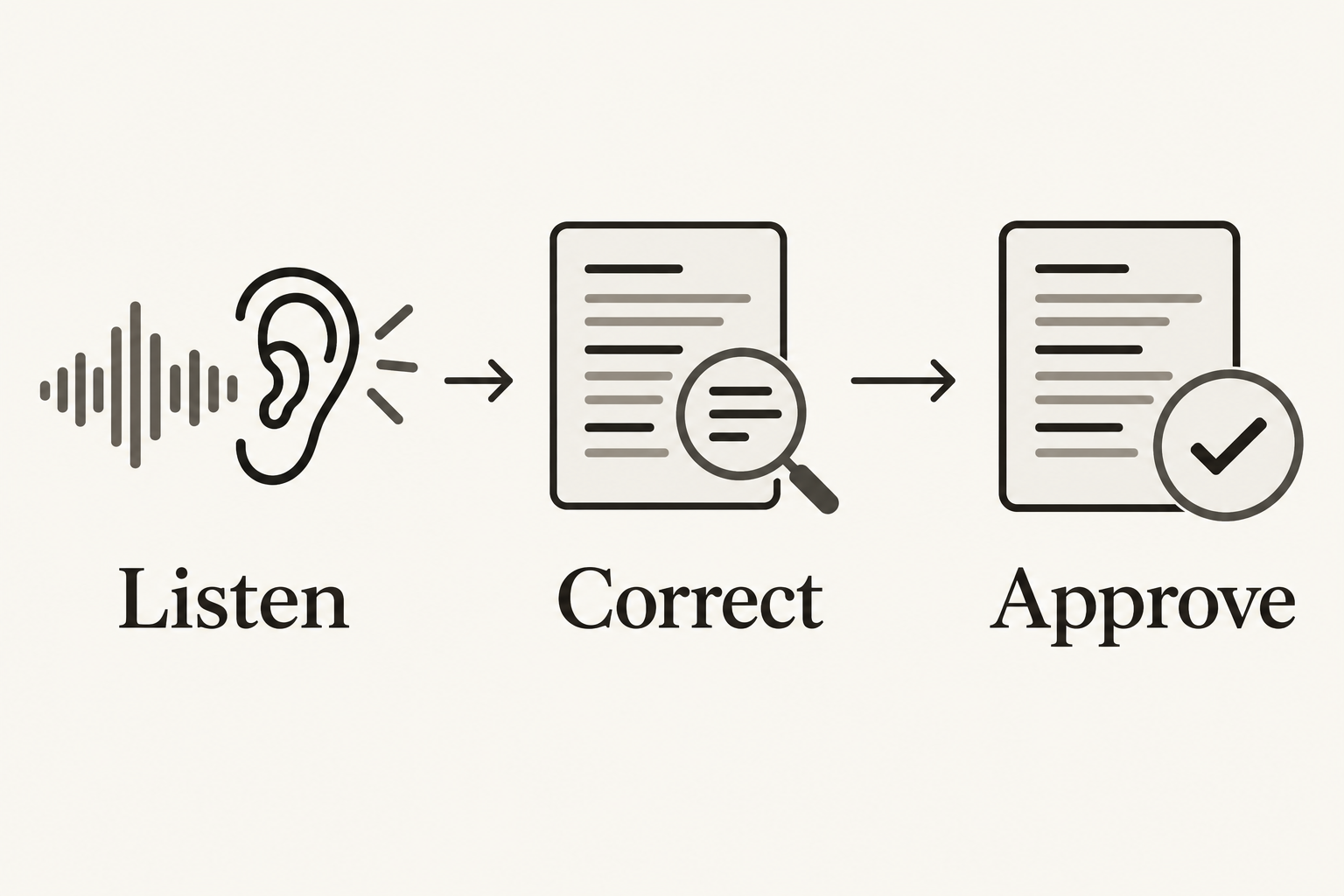
Begin with the version of the soundtrack that will actually ship. A script is a useful reference, but an AI voice may change a word, a speaker may improvise, or an edit may remove part of a sentence. Captions should follow the audible result. If the final speech is unclear, fix the speech before trying to explain it through a more confident caption.
For a simple example, imagine an invented stationery tutorial with this spoken line:
Do not seal the envelope until the ink is dry.
A transcript that drops “not” reverses the instruction. A transcript that replaces “ink” with a plausible alternative still needs correction. This is why the W3C WAI guidance on captions treats automatic transcription as a starting point that needs accuracy review. Captions also need to communicate meaningful sounds and speaker information when these are necessary to understand the audio.
Work through one short scene before processing an entire film:
- Import the finished edit. Include the approved voice, music and effects so the timing reference is complete.
- Create a transcript draft. Use your editor's transcription feature or transcribe manually. Do not approve the text simply because it reads fluently.
- Listen while checking every phrase. Pay particular attention to names, numbers, negatives, instructions and unfamiliar terms. Compare a brand spelling with an approved reference, then confirm that the audio actually says it.
- Add relevant audio context. Identify a speaker when the change would otherwise be confusing. Describe a meaningful off-screen sound when it contributes to the scene; avoid filling captions with decorative descriptions of everything audible.
- Save the corrected master. Keep its association with the exact audio version. Timing review comes next, after the words are settled.
Use a small review log instead of relying on memory:
| Review point | What to compare | Example action |
|---|---|---|
| Spoken instruction | Actual audio against transcript | Restore a missing negative |
| Name or term | Audio plus approved spelling | Correct a misheard product name |
| Speaker change | Voice and visible scene | Add an identifier if needed |
| Meaningful sound | Audible cue and story context | Describe an off-screen knock |
| Audio revision | Final export against previous master | Recheck affected text and timing |
The log records decisions; it is not evidence that an automated tool reached a particular accuracy score. If the audio changes after review, mark the affected cues for another pass. Our AI video sound design guide covers planning the underlying speech, ambience, effects and music before this caption stage.
Choose editable captions or text baked into the video
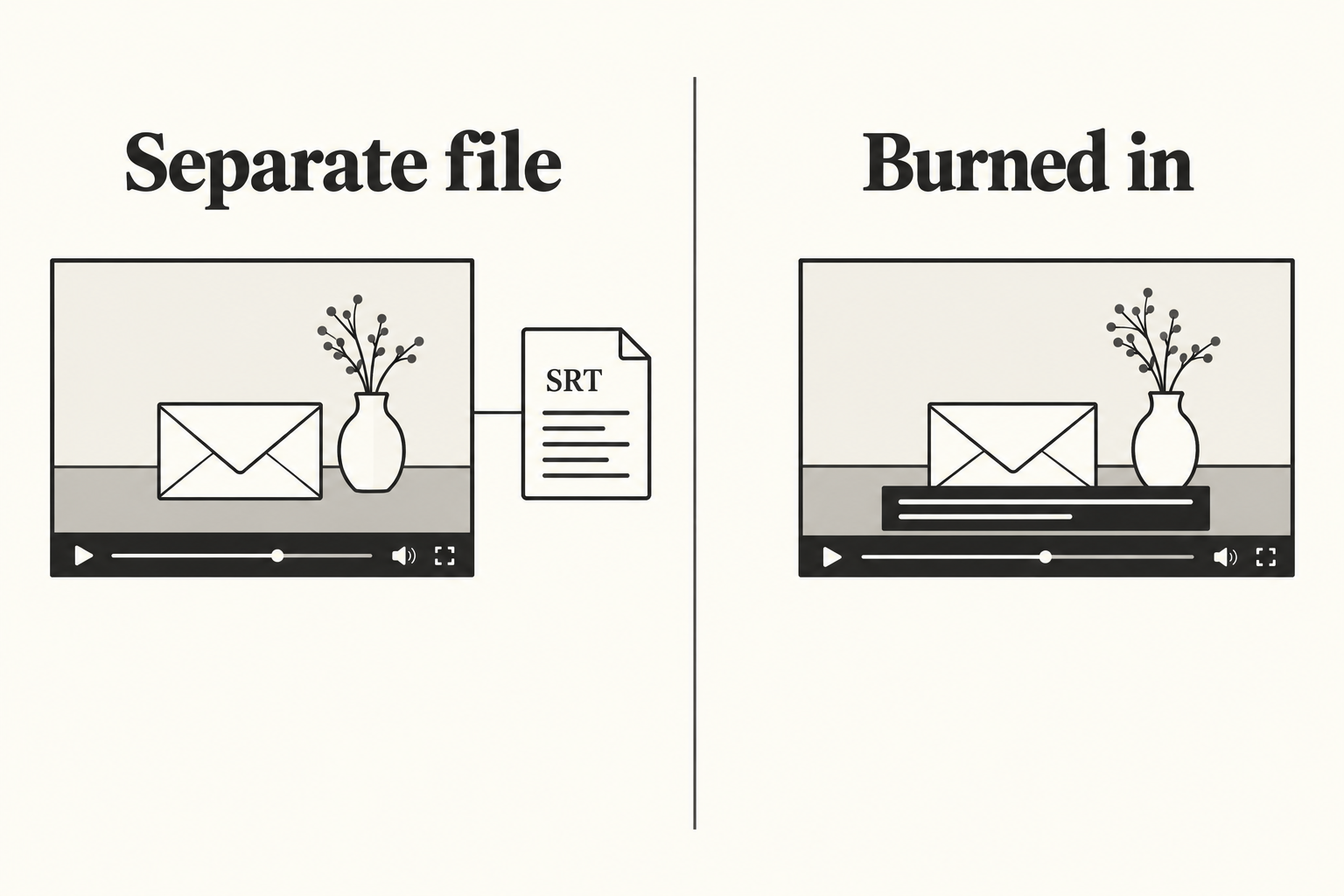
Decide how viewers will receive the captions before polishing their appearance. A separate text file and lettering rendered into the picture solve different delivery problems. An export button labelled “captions” does not, by itself, tell you which one you will get.
Adobe's caption export documentation distinguishes burn-in, sidecar and supported embedded formats. Burn-in renders the caption text into the video image. A sidecar is a separate file; which types you can export depends on the caption track and software. For an SRT-based workflow, check that your intended player or upload destination accepts that file type before committing to it.
| Delivery choice | Useful when | What to verify |
|---|---|---|
| Separate SRT file | The destination accepts SRT and exposes a caption track | Import support, language selection, synchronization and actual player display |
| Burned-in text | The text must travel with the picture wherever that file plays | Spelling, placement and size before export; corrections require a new rendered video |
| Both, as separate deliverables | Different placements have different caption needs | File labels and upload settings, so the wrong version is not published |
A plain text-and-timing file does not guarantee that your preferred font and layout will look identical everywhere. Treat the destination player as part of the review. Equally, a burned-in caption cannot be switched off independently of the image. Keep the editing project and corrected text so you can make a revised render without reconstructing the captions from scratch.
For the stationery example, a practical handoff contains:
- A clean video export without text baked into the picture.
- A corrected caption file in the destination's accepted format.
- A captioned render if that placement needs visible text in the image.
- A short note identifying the language and approved audio version.
Create the visual material first. In NanoAI, choose text-to-video or image-to-video, select a model, and use the duration and ratio controls available for that selection. A sample visual prompt could be:
A close overhead view of hands setting an unsealed paper envelope beside a handwritten note. Quiet neutral desk, soft daylight, restrained movement, no visible lettering or subtitles. Keep the envelope clearly visible throughout the shot.
This is an untested example prompt, not a promise of a particular result. Inspect any generated clip for continuity and unwanted lettering. Then assemble the approved visuals and final audio in your finishing editor, add the reviewed caption track, and export the required deliverables. A request for “no subtitles” in a generation prompt still needs visual checking.
Do not use generated lettering as the caption master. It may look like text without matching the actual speech. If your video is an explainer with several scenes, the AI explainer storyboard guide can help you decide which visuals support each spoken idea before you begin caption timing.
Check timing and readability on the exported video
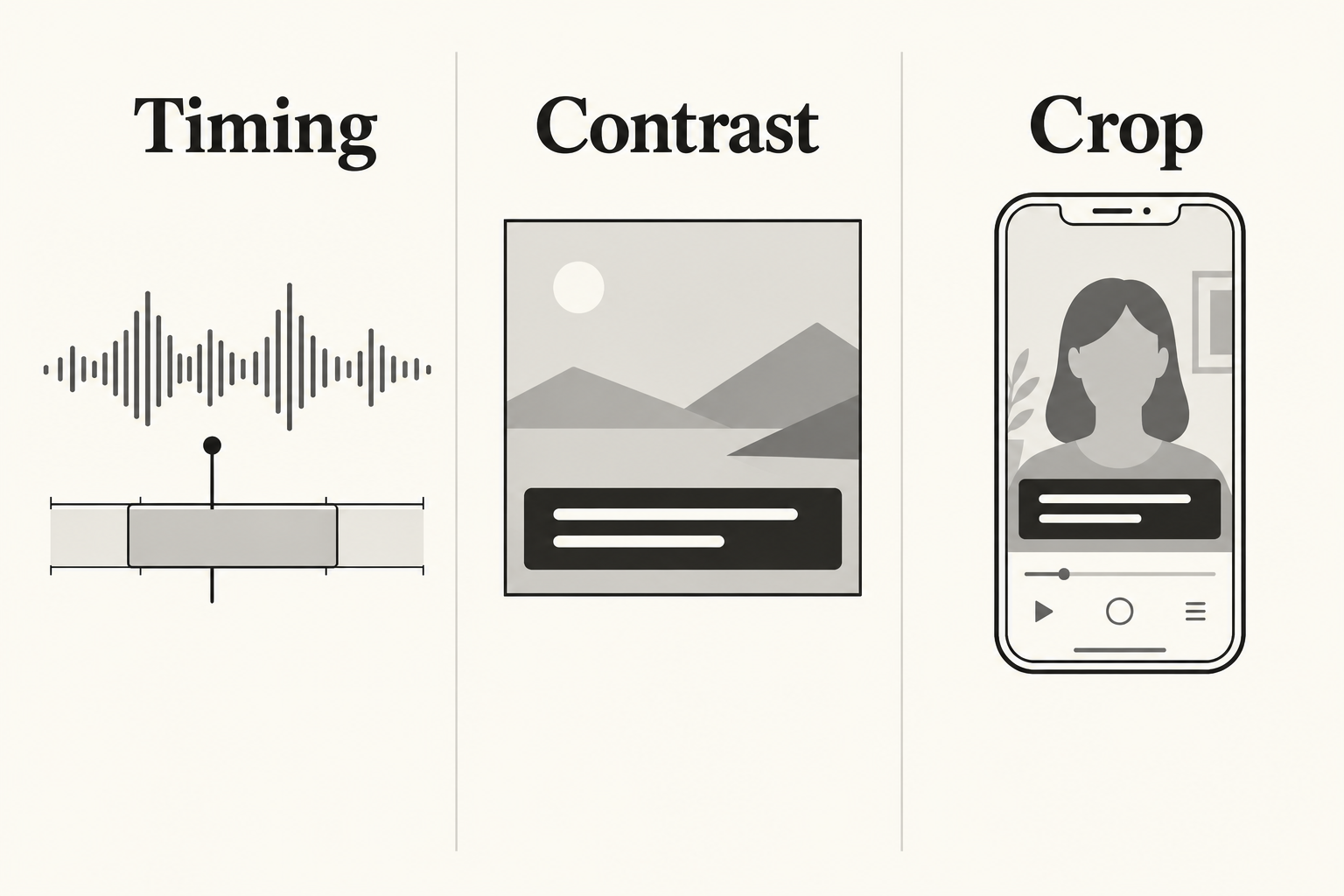
Correct words can still be difficult to follow when they arrive too late, disappear too quickly or cover the action. Review the actual export rather than assuming the editing timeline and destination will behave identically.
First, play the video with sound. Each cue should accompany the relevant speech without revealing a later line unnecessarily. Check the beginning and end of the sequence, then listen around cuts, pauses and audio edits. If an export has a consistent timing offset, fix the alignment rather than manually rewriting accurate words.
Next, review line breaks as phrases. For the invented instruction, a useful two-line arrangement might be:
Do not seal the envelope
until the ink is dry.
This is a layout example, not a prescribed cue duration. Set timing from the recorded speech and the reading experience. If the cue becomes cramped, consider a sensible split at a phrase boundary, a quieter layout, or a clearer edit. Arbitrarily deleting words to make a caption fit can change the instruction.
Finally, watch the exported video at the size and placement people will encounter. On a phone, check that captions remain legible over changing backgrounds and stay clear of interface controls. Review both portrait and landscape versions if you distribute both; a caption placement that works in one crop may cover a hand or disappear in another.
| Symptom | Check first | Possible correction |
|---|---|---|
| Text trails behind speech | Cue alignment against the final audio | Adjust cue start and end times |
| Words become hard to read | Busy or changing background | Add a stable contrasting caption treatment |
| A line feels broken mid-thought | Phrase boundary and available width | Change the line break or cue split |
| Captions cover the demonstration | Export crop and scene action | Reposition text without hiding necessary visuals |
| Two copies appear together | Burned-in render plus enabled player track | Publish the intended combination and test playback |
Do two final passes: one with sound to confirm correspondence, and one muted to check whether the captioned sequence is understandable. For a separate file, upload or import it into the actual destination and confirm it displays. For burned-in text, inspect the rendered pixels. Reopen the delivered files rather than checking only the editor project.
Frequently asked questions
Are automatically generated captions ready to publish?
Treat them as a draft. Listen against the final audio and correct words, speaker information and meaningful sound descriptions where needed. A polished caption style does not verify the transcript or its timing.
Should I use SRT or burned-in captions?
Use the format your destination supports and your viewers need. A separate SRT can support a selectable caption track when the player accepts it. Burned-in captions remain part of the picture. Keep an editable master in either workflow.
Can I write captions from the original script?
Use the script as a reference, then check it against the final spoken audio. If the words or edit changed, captions based only on the old script can misrepresent the finished video.
What if I change the narration after captioning?
Review the affected text and cue timing again. Even a small wording change or added pause can move later captions. Export and test the updated deliverables together so an old caption file does not accompany the new audio.
Does NanoAI currently provide the caption workflow described here?
NanoAI's public video page provides text-to-video and image-to-video generation. This guide uses it for source visuals and relies on a suitable external editor for transcription, caption editing and caption-file export. Check the current tool interface for the controls available to your selected model.
Approve the captions against the final audio
Start with one scene in NanoAI's AI Video Generator, then finish its soundtrack and captions in your chosen editor. Approve the words, select the delivery format, and watch the exported result in its destination. Keep the corrected master with the approved audio version so the next revision starts from a reliable reference.