
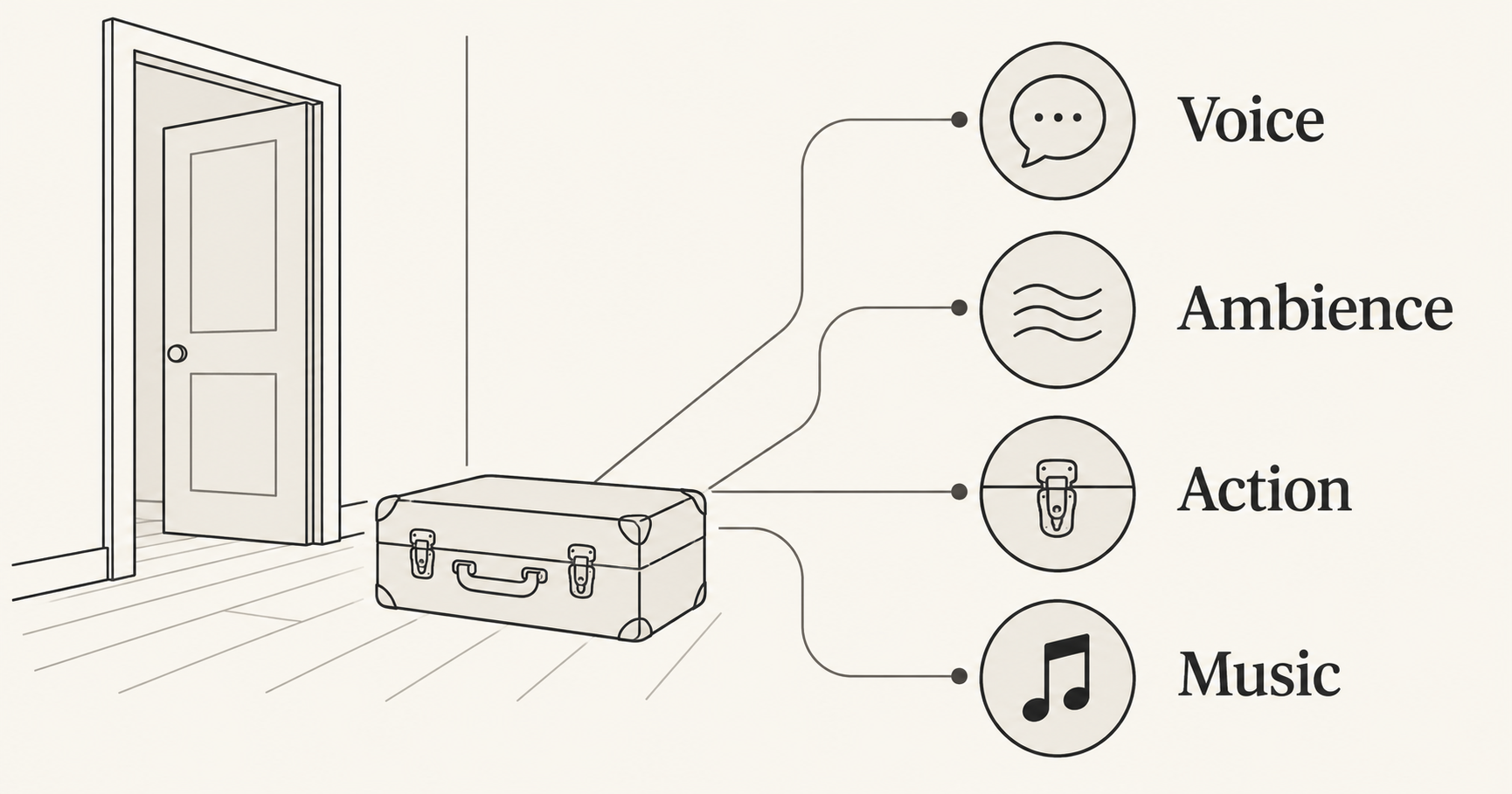
Good AI video sound design starts with a cue sheet: name what the audience should hear, when it happens, and which sound matters most. Separate speech, environmental background, action sounds, and music. Then choose a workflow that can produce those elements and review the finished clip with your ears as carefully as your eyes.
This matters even when a model generates sound alongside video. HeyGen's video announcement, updated October 22, 2026, describes creating scene audio together with the picture. That is a capability of its product, not evidence that every video model or workbench offers the same audio controls.
This guide gives creators a reusable sound plan for short scenes. You can develop the visual material in NanoAI's video generator, then finish audio in a suitable editor when needed. The example is fictional, and the Codex illustrations explain the method; they are not generated video frames, measured sound levels, or NanoAI test results.
On this page
- Plan the sounds before writing the video prompt
- Choose a workflow that gives you the control you need
- Review timing, clarity and meaning in the finished clip
- Frequently asked questions
- Build one scene with a deliberate sound plan
Plan the sounds before writing the video prompt
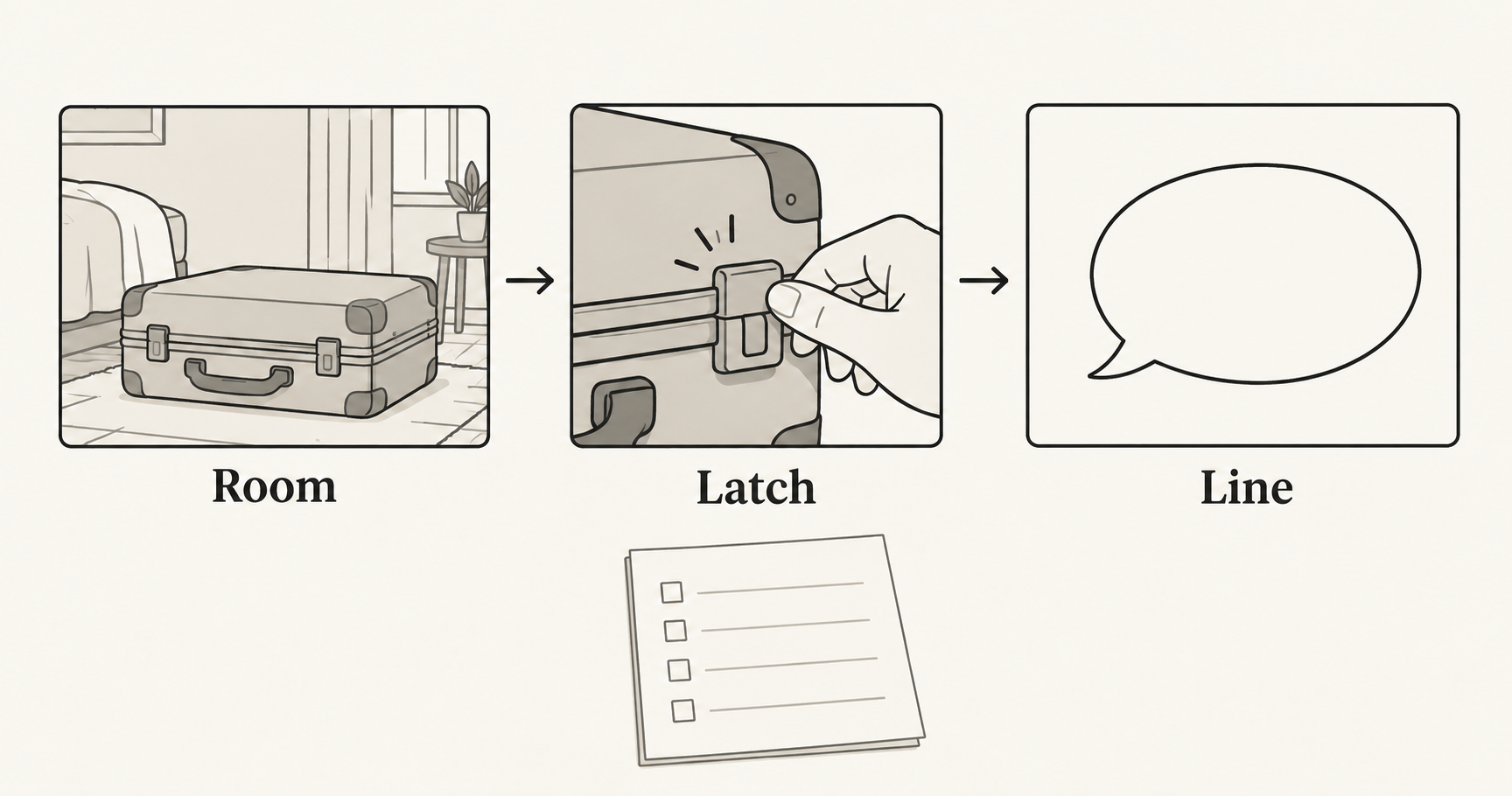
Write down what the sound contributes. An empty room may need a quiet background to feel inhabited. A visible latch closing needs an event that agrees with the action. A spoken sentence needs enough space to be understood. Music can establish a tone, but it does not have to fill every moment.
Use these four categories as a planning aid:
| Sound layer | Its job | A useful instruction |
|---|---|---|
| Speech | Communicate exact words | State the line, speaker position, and intended delivery |
| Ambience | Establish the surrounding place | Describe a quiet indoor room or distant outdoor traffic |
| Action sound | Connect a particular event to the picture | Name the latch click and its relationship to closure |
| Music | Support the mood or structure | Describe its role, or deliberately leave it out |
These categories describe listening tasks, not a promise that a generator exports four separate tracks. A single combined audio file can contain all four. Check what the chosen service actually returns before planning detailed changes to individual layers.
A small scene with a usable cue sheet
For an original fictional scene, imagine a closed suitcase beside an open doorway. A person outside the frame closes its latch, then says, “Ready to go.” We are not demonstrating a real suitcase mechanism or advertising a particular product.
| Picture event | Sound cue | Priority | Acceptance check |
|---|---|---|---|
| The suitcase rests in the room | Quiet indoor background | Low | The room feels present without masking anything |
| The latch reaches its closed position | One short click | Brief foreground event | The click agrees with the visible closure |
| The action finishes | Off-screen voice: “Ready to go.” | Main information | The complete line is clear and correctly spoken |
| The shot ends | Background continues naturally | Low | There is no abrupt cutoff or invented extra event |
This cue sheet uses event order rather than invented timestamps. After you have the actual clip, place cues against its real actions in your editor. If the action changes during generation, update the sound placement or reject the take; do not force the original timing onto a different event.
For a workflow that supports native audio instructions, an untested starting prompt could be:
A quiet indoor doorway with a suitcase in the foreground.
The camera is fixed. An off-screen person closes the visible
latch once. A short click occurs as the latch closes.
After the click, a nearby off-screen voice calmly says,
"Ready to go." Quiet room ambience remains underneath.
There is no music or other speech.
The off-screen voice is a deliberate production choice: this scene does not need a visible speaking face. If you show someone speaking, checking mouth movement against the actual words becomes a separate requirement.
Avoid replacing the cue sheet with “cinematic audio.” That phrase leaves the source, sequence, and priority of sounds unresolved. A concrete event gives you something to accept or correct.
Choose a workflow that gives you the control you need
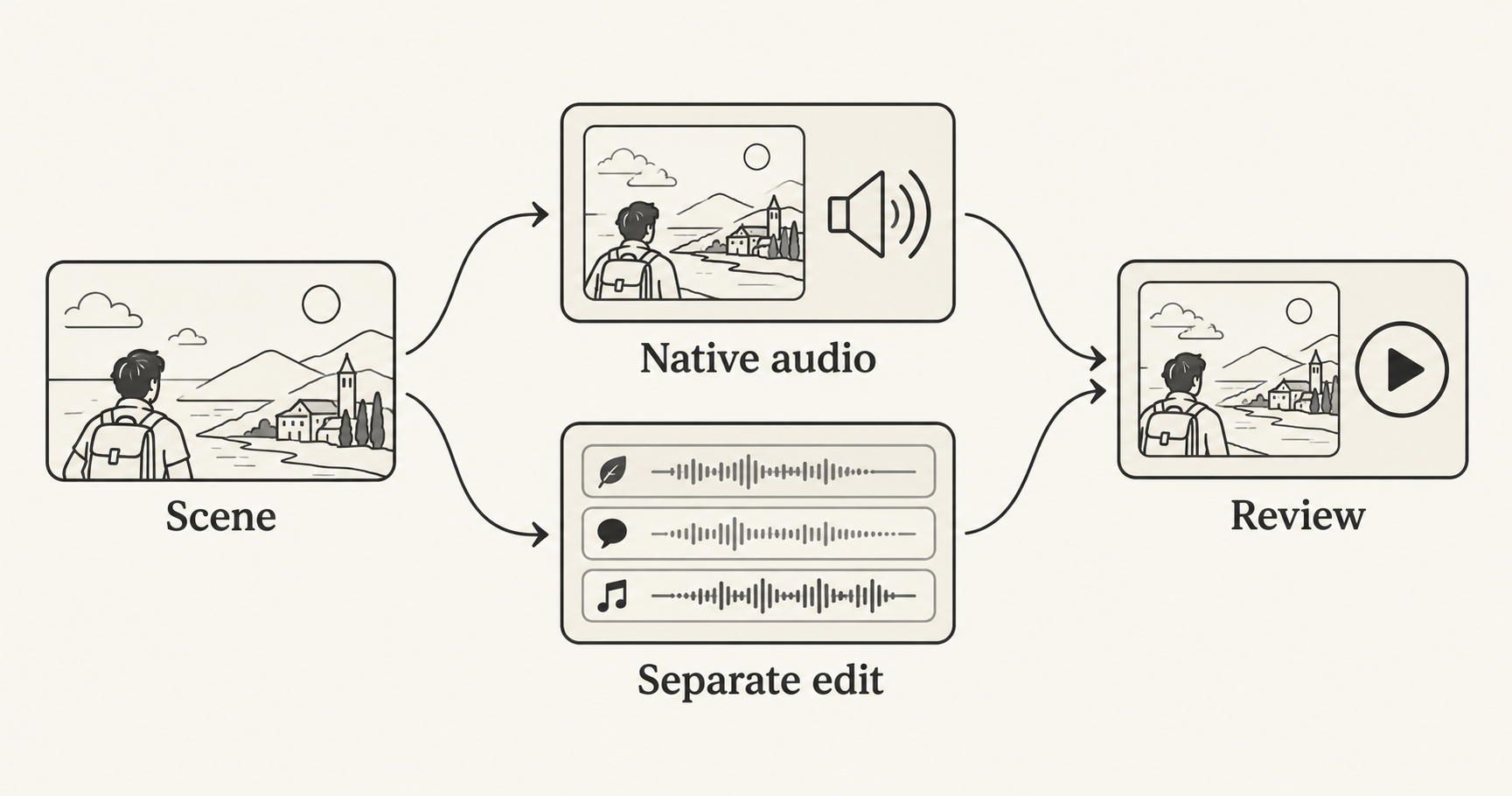
Choose according to the revisions you expect. An exploratory scene can use a combined generated soundtrack if the selected model supports it. A client-approved line, tightly timed effect, or soundtrack that needs frequent revisions may be easier to manage as separate assets in an editor.
| Route | Useful when | Check before committing |
|---|---|---|
| Native picture and audio | Exploring a complete short scene | Whether the selected model supports audio and how to revise it |
| Video plus separate audio edit | Exact wording or adjustable timing matters | Whether you can obtain suitable voice, effects, and editable tracks |
| Mixed approach | Some generated sound works, but other elements need replacement | Whether the original mix can be muted or replaced cleanly |
Runway's Agent documentation explicitly distinguishes video models with and without native audio, alongside separate audio and voiceover tasks. The practical lesson is to verify the selected route, rather than inferring audio behavior from a platform name.
A mixed soundtrack is not automatically easy to repair. If unwanted music and speech arrive together, lowering the whole track also lowers the words. Before generating a large batch, understand whether you receive a combined track, separate files, or editable layers. Do not assume a prompt can provide the control of a multitrack editor.
Use NanoAI for the visual part you can verify
The public NanoAI video workbench exposes Text to Video and Image to Video modes, a model selector, duration choices, aspect ratio, and a displayed credit cost. We checked these controls without making paid generation calls. This tutorial does not claim that NanoAI provides an audio mixer, separate audio tracks, or the HeyGen model described above.
- Choose Text to Video for an invented visual scene, or Image to Video when the selected model supports your prepared reference.
- Set the available duration and ratio, and review the displayed cost.
- If native audio behavior has not been verified for your selected workflow, keep the visual prompt focused on the picture. Retain the sound directions in your cue sheet for editing.
- Inspect the resulting clip, including any audio it contains, before deciding which sound assets you still need.
For the separate-edit route, the visual request could be:
Fixed camera on a suitcase beside an open indoor doorway.
An off-screen person closes the visible latch once.
The suitcase stays in place throughout one continuous shot.
Keep the latch action clearly visible, with no lettering.
This is an instructional example, not evidence that a model can render the mechanism correctly. If it adds an unexpected latch or changes the case shape, choose another take or a simpler shot. Sound cannot repair an incorrect visible action. For planning several visual shots, use the product video brief guide.
Leave room for the words
In an editor, arrange the approved voice first, align the latch effect to the accepted action, and add the room background underneath. Add music only if it serves the scene.
Adobe's Premiere documentation describes ducking music and ambience around other audio types. Ducking means reducing a background layer while a more important sound is present. It can help speech remain clear, but listen to the transitions and adjust them; an automatic setting is not an approval decision.
There is no universal volume number for this fictional scene. Use the requirements of the actual delivery platform and check the exported mix. Keep the voice recording, sound sources, and editing project so a wording change does not require rebuilding everything.
Review timing, clarity and meaning in the finished clip
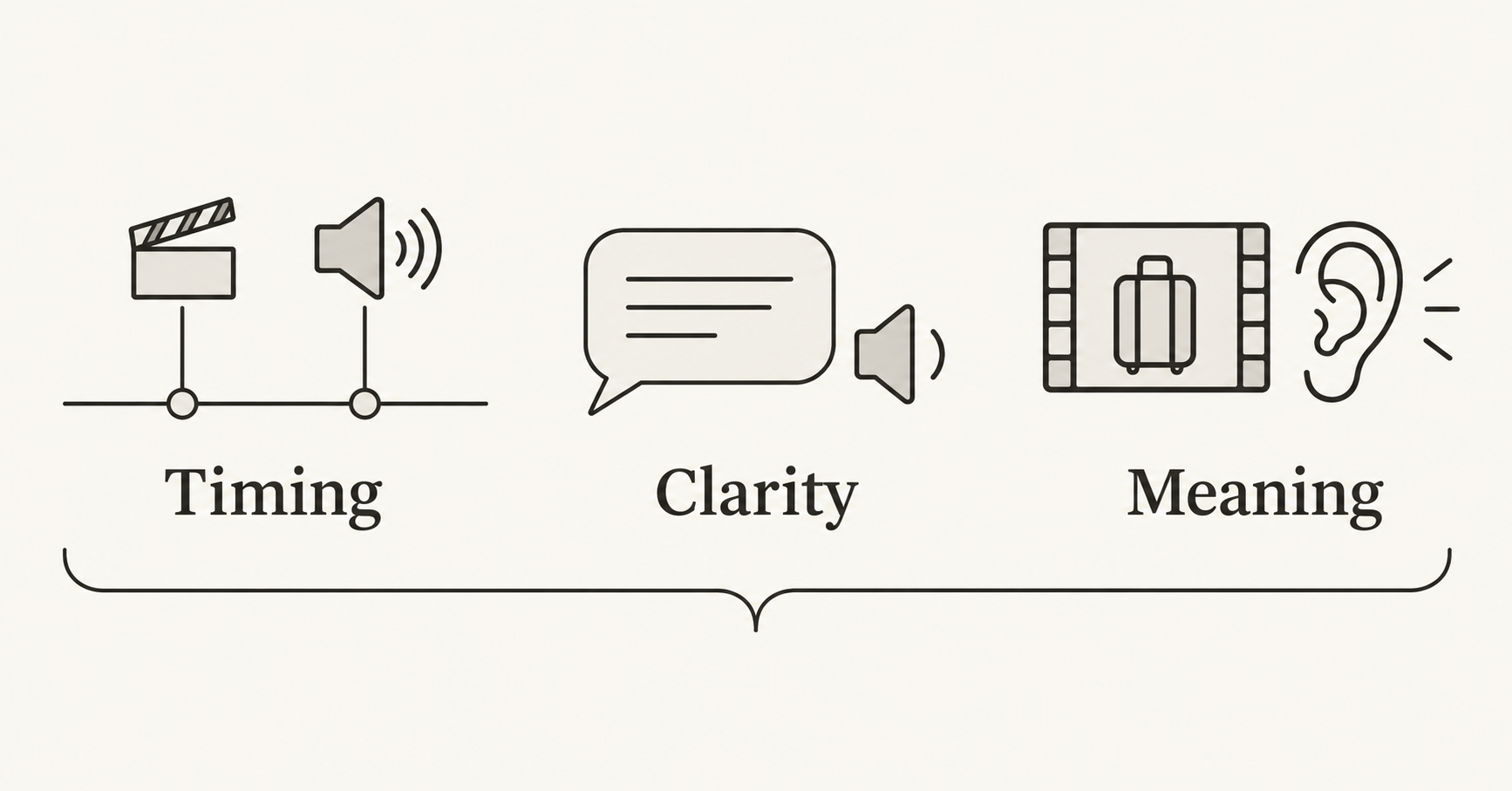
Review the exported file, not just the timeline. Use three passes that isolate different problems:
- Timing: watch the picture with sound. Does the latch click occur at the closure? Does speech begin after the action as planned? Listen across cuts as well as within shots.
- Clarity: listen without watching. Can you understand every word? Do music or background sounds compete with the line? Are there unexplained extra voices or effects?
- Meaning: watch again and ask what the soundtrack implies. A heavy metallic slam may suggest a different mechanism from a small latch. A celebratory crowd may imply an event that never appears.
Keep a short correction log rather than describing every failure as “bad audio”:
| Problem heard | Next action |
|---|---|
| The click arrives before the latch closes | Align the effect to the actual action, or replace the take |
| Background music covers the line | Lower or duck it, then listen to the complete phrase again |
| Generated speech changes the approved wording | Replace the voice or regenerate and recheck every word |
| Background sound jumps at a cut | Adjust the transition or use a suitable continuous background |
| The sound implies a different material or event | Choose a more appropriate effect or remove it |
Check on headphones and the intended viewing device when possible. Preview once with audio muted too: important spoken information should remain available through accurate captions or accompanying text. Caption exact words from the approved final audio, not an earlier script that may have changed.
If you are explaining a factual process, check the combined meaning against your source. The explainer storyboard guide covers that accuracy review. Attractive sound and polished footage do not establish that a demonstration is true.
Frequently asked questions
Can AI video generators make sound automatically?
Some models generate native audio; others do not. Check the selected model and the product that exposes it. A provider announcement does not establish the behavior of every tool using video generation.
What should an AI video sound prompt include?
Specify the sound source, its relationship to the picture, its order, and its priority. Keep exact dialogue in quotation marks and state when music or extra speech is unwanted, if the chosen workflow supports those instructions.
Is generated dialogue the same as voiceover?
Not necessarily. Dialogue can belong to someone inside the scene, while voiceover can narrate from outside it. Choose the intended role explicitly and verify the words, placement, and any visible mouth movement.
What if the video is good but the audio is wrong?
If your workflow permits it, mute or replace the original audio and build a new mix from approved assets. Check first whether unwanted sounds are combined with material you want to keep; separate editing can be harder when everything is baked together.
Does NanoAI provide the audio editing steps in this guide?
This guide uses NanoAI for verified video-generation controls. It does not assume an integrated audio editor or separate soundtrack export. Use a suitable editor for cue placement, voice replacement, mixing, and final listening checks.
Build one scene with a deliberate sound plan
Write a cue sheet for one short scene, prepare its visual request in NanoAI's video generator, and finish only the sound layers the scene needs. Approve the picture and soundtrack together before expanding the sequence.