
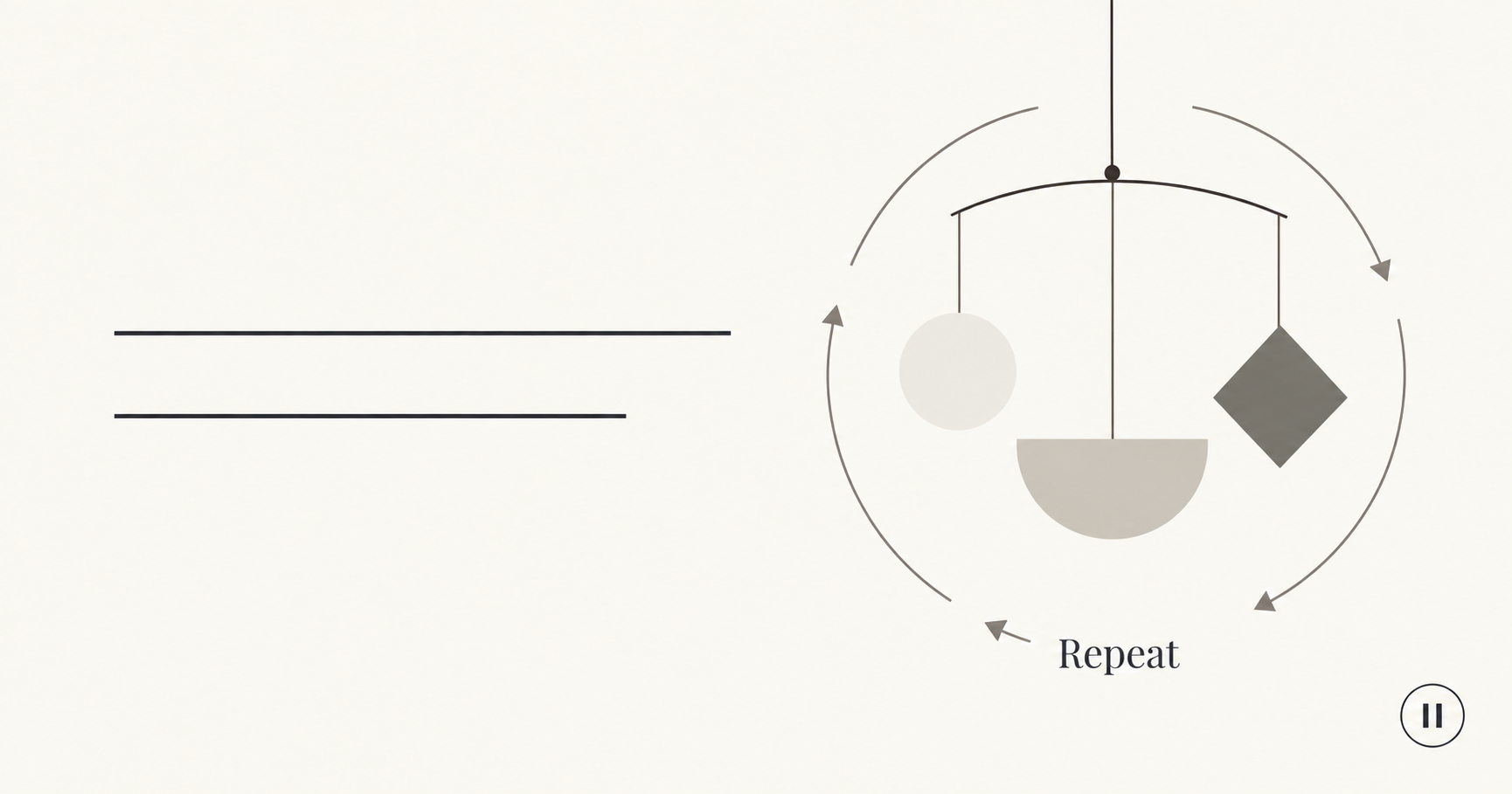
To make AI video loops feel continuous, plan how the action returns to its starting state, generate a simple source clip, and inspect the transition from the final frame back to the first. A player that repeats a file does not repair a visible jump. Choose the loop edit from the footage you actually receive, then test it behind the real page headline and controls.
There is a timely reason to consider this format. PixelDojo's October 24, 2026 changelog describes a homepage hero loop as part of its sizzle-reel workflow. That is a feature of its service, not a promise that every generator automatically delivers a seamless website background.
This guide uses an original fictional hanging-paper-mobile scene. You can explore a reference image in NanoAI's image workbench and create source footage in its video generator. Trimming, reversing, transitions, and website playback need suitable editing and implementation tools. The Codex illustrations are planning diagrams, not NanoAI video frames or tested loop results.
On this page
- Plan motion that can return to its starting state
- Generate one source clip, then choose the loop edit
- Review the seam inside the actual website layout
- Frequently asked questions
- Start with one quiet motion
Plan motion that can return to its starting state
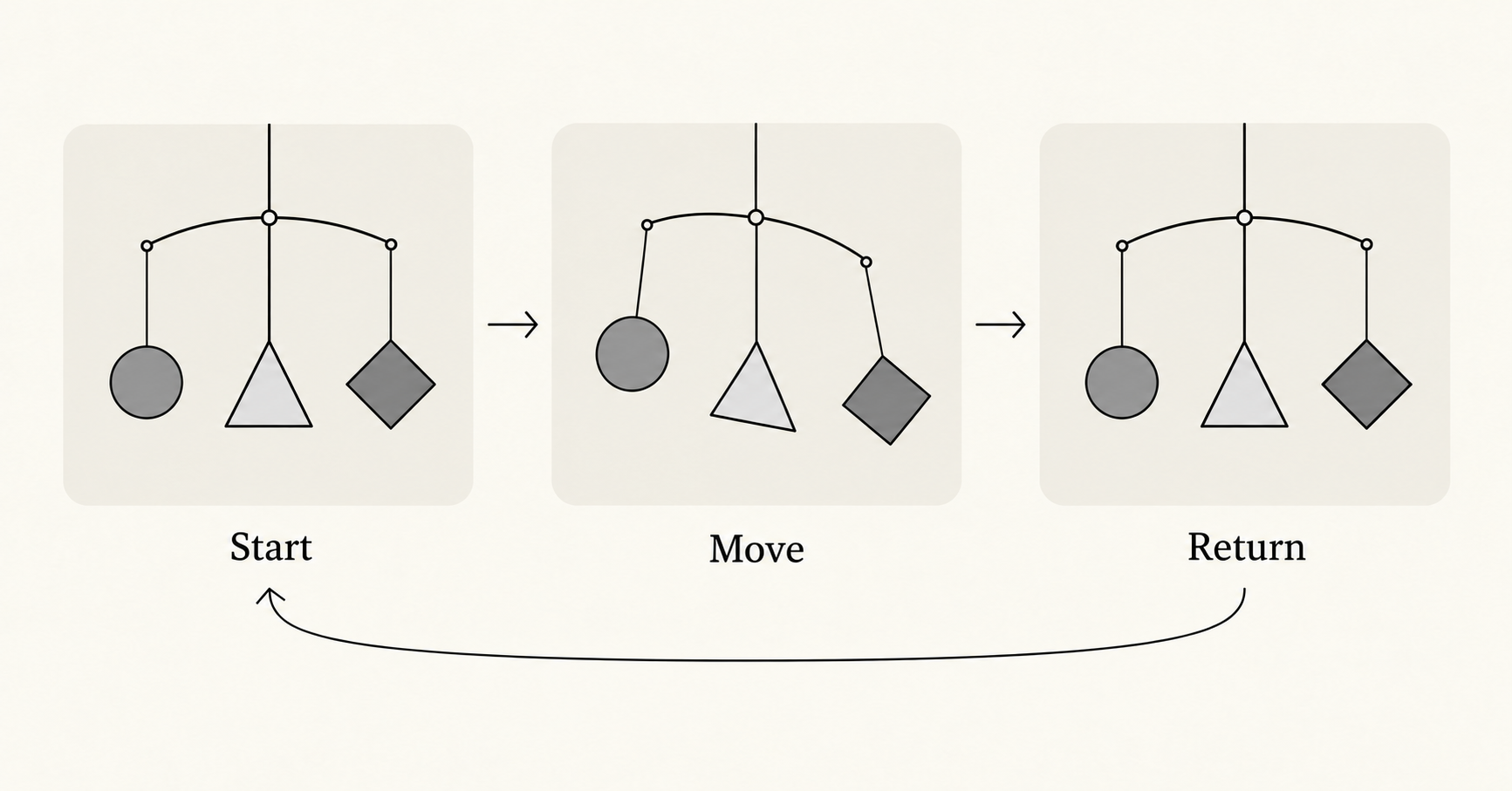
Choose a motion with a plausible return. A suspended object can sway away and back. A shape can complete a rotation. A slow camera push toward a subject, however, ends at a different view; simply restarting it can make the subject snap backward.
The start and end need more than similar objects. Compare framing, position, lighting, background, and the direction and speed of movement. Matching two still frames does not necessarily match the motion passing through them. A sudden stop at the seam can be noticeable even when the pictures look alike.
For a decorative website hero, begin with restrained motion that supports the page rather than explaining a complicated sequence. The headline and next action should still make sense when the video is paused or replaced with a still image.
| Candidate motion | Why it may be useful | What could expose the seam |
|---|---|---|
| A gentle sway and return | A small action can revisit its initial arrangement | Different speed or direction at the join |
| A full rotation | The object can return to its initial orientation | Inconsistent shape, lighting, or rotation speed |
| A flowing texture | Fine detail may offer flexible edit points | A recognizable feature suddenly jumping |
| A person walking out of frame | Can suit a narrative shot | The person reappearing when playback restarts |
| A camera moving steadily closer | Creates a reveal | The viewpoint resetting to the distant position |
These are planning judgments, not measured success rates. Select an action you can evaluate clearly before asking for elaborate movement.
Write a loop brief with an acceptance condition
For our invented paper-mobile example, use this small production note:
Role: a quiet decorative background behind a website headline.
Subject: three simple paper shapes hanging from a mobile.
Motion: a small, slow sway that returns toward its initial position.
Camera and light: fixed viewpoint and steady soft lighting.
Layout: mobile on the right; open space on the left.
Acceptance: no obvious jump, shape change, or brightness flash
when the selected edit repeats.
Fallback: an approved still image with the same composition.
Keep the actual headline outside the generated video so it can remain editable and readable. For a real product, add identifying details to the brief and review them throughout the clip. A smooth loop with an altered product is still unsuitable.
Generate one source clip, then choose the loop edit
Prepare a clean starting frame when appearance and placement matter. Runway's image-to-video guidance distinguishes the image's visual information from the prompt's motion instructions and recommends beginning with a simple request. That is provider-specific guidance for constructing a testable instruction, not a guarantee of how every model behaves.
For a prepared paper-mobile image, an untested starting prompt could be:
The camera remains fixed. The hanging paper shapes sway
gently away from their initial positions and ease back toward
the starting arrangement. Movement stays small and calm.
The background and lighting remain steady throughout
one continuous shot.
The request makes the intended return explicit, but does not establish that the generated clip will meet it. Inspect the exported footage before selecting loop boundaries.
A practical NanoAI source-footage workflow
- Prepare a suitable reference, or explore an invented composition in the AI image generator.
- Open the video workbench. Choose Image to Video when the selected model supports your reference; use Text to Video for an invented scene when appropriate.
- Review the available model, duration, ratio, and displayed credit cost. Generate a simple motion rather than combining a camera move, transformation, and location change.
- Inspect the result for stable shapes, light, and background before moving it into an editor. Save the original clip alongside any edited version.
We checked these public workbench controls without making paid generation calls. This article does not claim that NanoAI includes a dedicated loop editor, a reverse control, or guaranteed first-and-last-frame matching.
Pick the edit that fits the action
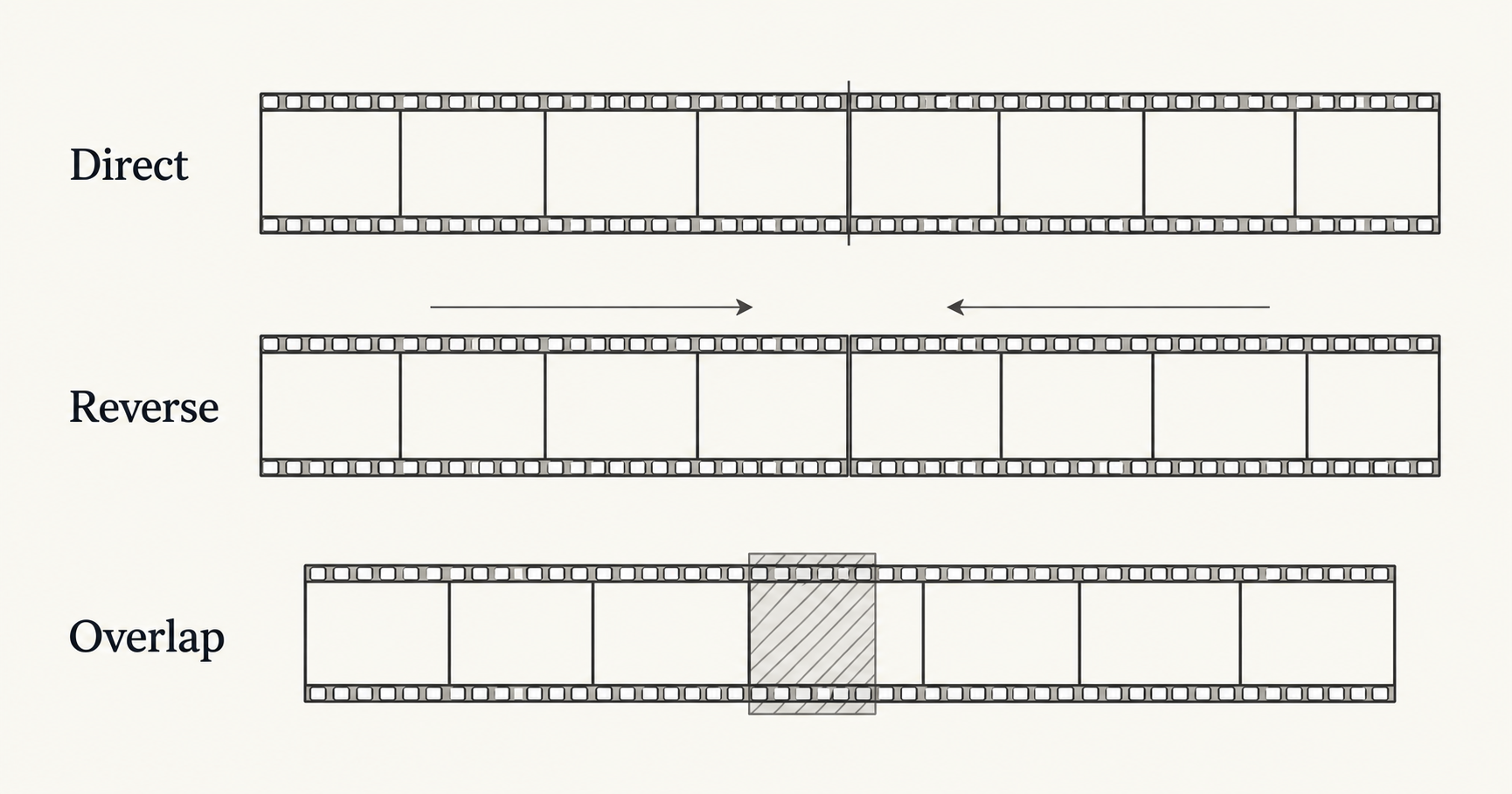
Start with the least complicated route that works. Adobe's looping guide describes duplicating clips, adding a transition, and alternating forward and reversed playback. Those are editing options with different visual consequences.
| Method | Try it when | Inspect carefully |
|---|---|---|
| Direct repeat | The selected ending connects naturally to the beginning | Position, lighting, and motion across the cut |
| Forward then reverse | The action looks plausible backward, such as a gentle sway | A hesitation or mechanical reversal at the turning point |
| Overlap with a dissolve | A subtle blend is preferable to a hard reset | Double edges, transparent-looking objects, or a brightness pulse |
In your editor, place two copies of the candidate section consecutively and play across their join. Trim to more compatible boundaries. If trying reversal, reverse the second copy and inspect both the turning point and the return to the first copy. Avoid an accidental extra hold from duplicated endpoint frames.
A dissolve may soften a join while introducing a different distraction: a crisp paper edge can appear twice during the overlap. Treat it as a candidate to inspect, not a universal fix. For an object with a clear silhouette, a simpler motion or different take may be better.
Reversal also changes the meaning of an action. It can make falling liquid rise, a closed box reopen, or a spoken line run backward. Use it only when the visible action remains appropriate. For a decorative muted hero, remove unwanted source audio; if sound is part of the experience, plan that loop separately using the sound-design guide.
Do not generate more footage solely to reach a fashionable loop length. The usable action, placement, and delivery requirements determine the edit. The duration of a single generation and the duration of the finished repeating asset are different decisions.
Review the seam inside the actual website layout
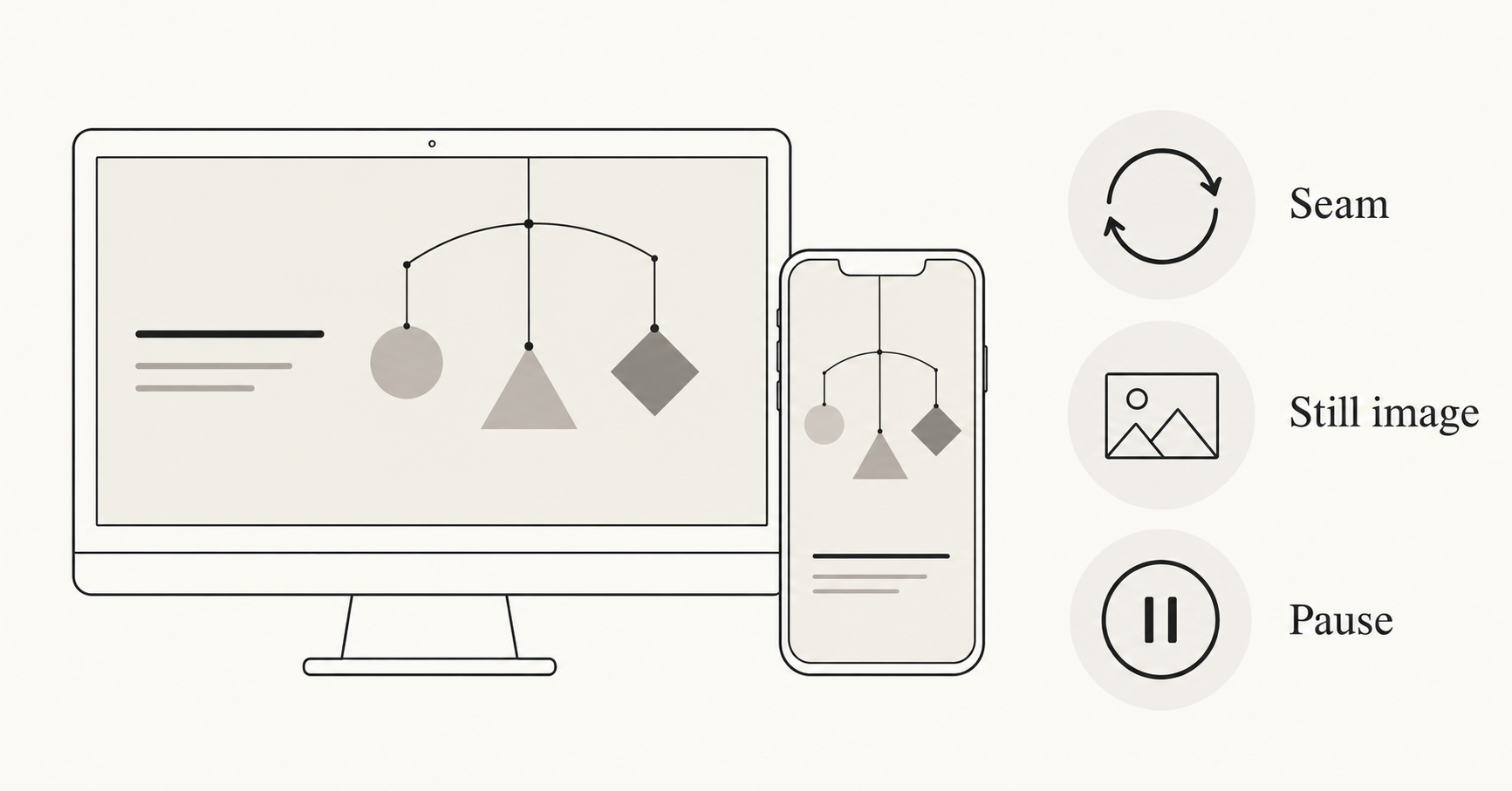
A clip can look acceptable in an editor and fail inside a website hero. The page may crop the subject, place text over its motion, or display a different background while the file loads. Test the exported asset in a draft of the actual layout.
Use this review sequence:
- Watch repeated playback. Inspect several joins at normal speed, then examine the boundary frames. Look for position jumps, exposure flashes, speed changes, and unexpected pauses.
- Read the headline while it moves. Confirm that the scene leaves useful space and does not repeatedly draw attention away from the message.
- Check wide and narrow layouts. Keep the subject and essential controls visible in both. Refer to the aspect-ratio guide when planning a separate crop or composition.
- Check the still-image version. The first impression should still work when motion is unavailable or unwanted.
- Check playback controls and loading. Test the pause action and the actual page on the intended devices and connection conditions.
MDN's autoplay guide explains that browser playback policies vary and describes muted media and poster-image fallbacks. Muting a clip does not guarantee that every visitor will see it autoplay. Ask whoever builds the page to handle the nonplaying state deliberately.
Provide a clear way to pause decorative motion and a still alternative for visitors who prefer reduced movement. MDN documents the reduced-motion preference, which a site can use when adapting its presentation. A still image is an acceptable final design if it serves the page better.
| Observed failure | Useful next action |
|---|---|
| The subject snaps at the restart | Try different boundaries or a more repeatable motion |
| The seam creates a brief ghost image | Reduce or remove the overlap; compare a direct cut |
| Mobile layout clips the moving shapes | Revise the crop or prepare a separate composition |
| The opening view is blank before playback | Check the poster image and loading behavior |
| The loop dominates the headline | Reduce movement or use the approved still |
Keep the source, final export, still image, and acceptance notes together. Passing this review means the asset works for the intended presentation; it does not prove faster loading, higher conversions, or increased watch time. Those require separate measurement in the actual site.
Frequently asked questions
Does a loop setting make an AI video seamless?
No. It repeats the file. The ending still needs to connect visually and temporally to the beginning. Review the actual transition instead of relying on the setting's name.
Should I use the same first and last frame?
Similar boundary frames can help, but motion direction and speed also matter. A duplicate frame can create a short hold, and a model may not preserve the requested state exactly. Check the exported join.
Can I reverse any clip to make it loop?
No. Reversal can work for some abstract or gentle motions, but it makes many physical actions and speech unnatural. Inspect the action's meaning as well as the edit.
How long should a website hero loop be?
Use enough time for the selected motion to feel natural without adding unnecessary footage. Match the available source and website delivery needs. A duration advertised by another tool is not a universal requirement.
Can NanoAI generate a finished looping website hero?
This workflow uses NanoAI to create source visual material. A suitable editor handles the loop treatment, and the website handles playback, cropping, pause behavior, and still-image fallbacks. Inspect each stage separately.
Start with one quiet motion
Choose one repeatable action, prepare a reference, and open NanoAI's video generator. Approve the repeat transition and the page presentation before expanding the idea into a larger campaign.