
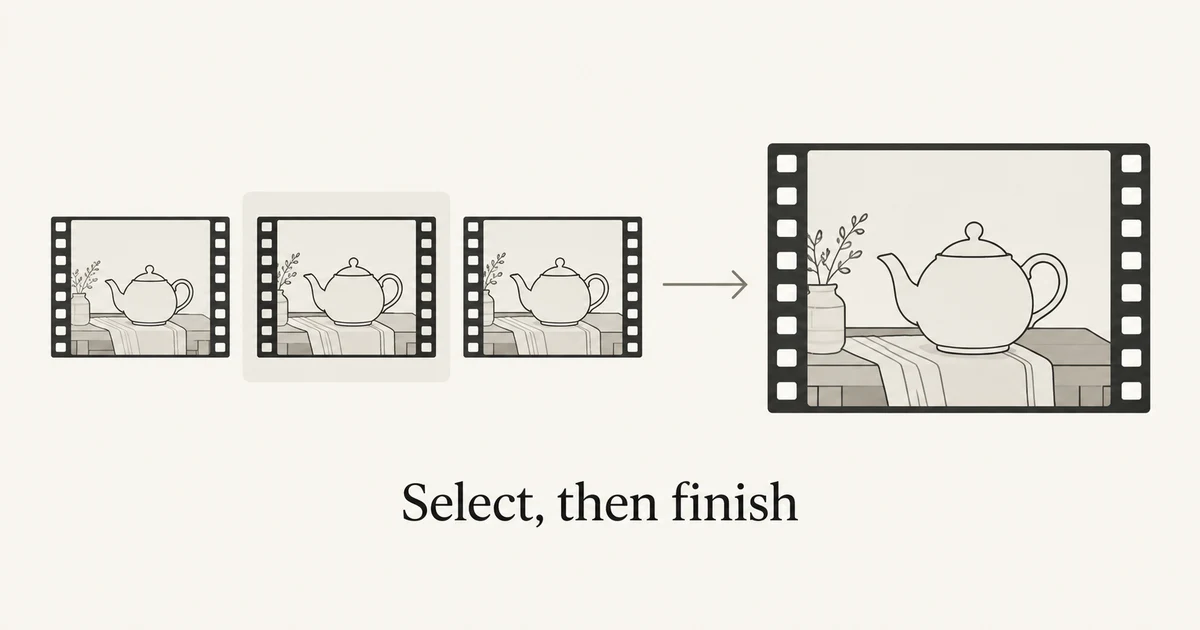
Use AI video upscaling after you have selected a clip with the right action, framing, and subject appearance. It can enlarge frames and estimate additional detail, but a higher-resolution file does not establish that a distorted object, incorrect word, or unwanted camera move has been fixed. Approve the take first, then judge whether a finishing pass improves the delivered video.
Pika's October 29, 2026 H3 Flex announcement makes this workflow timely: it describes exploring at a draft resolution and upscaling a selected result for delivery. Its official model card distinguishes native 480p/768p output from higher-resolution finishing provided through Pika's hosted service. Those are Pika-specific capabilities, not features automatically available in every video generator.
NanoAI's AI video generator creates clips from text or an input image. This guide uses it for the source-clip stage; it does not claim that NanoAI offers Pika H3 Flex, a dedicated video upscaler, or a linked draft-to-4K finishing button.
The illustrations are conceptual drawings made with Codex. They are not NanoAI or Pika generation samples, measured quality comparisons, or results from a video-upscaling test. The teapot example is an untested planning exercise.
On this page
- Choose upscaling, regeneration, or interpolation
- Approve the source take before paying for the finish
- Compare the finished export at the same viewing size
- Frequently asked questions
- Start with a take worth finishing
Choose upscaling, regeneration, or interpolation
Start by naming the defect you want to solve. “Better quality” can mean sharper edges, a different composition, smoother motion, or simply a file that meets a delivery specification. These requests involve different operations.
Microsoft's Clipchamp super-resolution guidance explains that AI upscaling estimates detail while enlarging frames. Treat the added detail as an estimate: a larger rendering is not independent evidence of what a real product looks like.
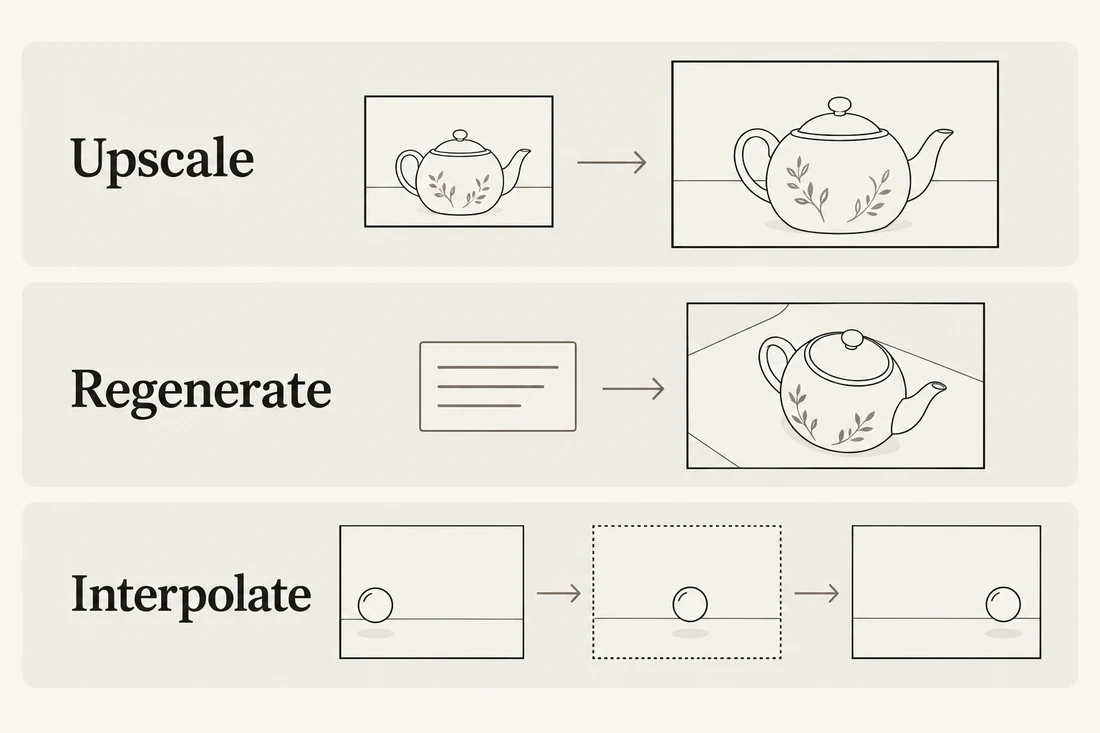
| What you want to change | Operation to evaluate | What to check afterward |
|---|---|---|
| Increase dimensions while retaining the selected scene | Video upscaling or a supported finishing workflow | Subject details, edges, texture, and motion over time |
| Replace a wrong action, object, or camera direction | Revise the generation or replace the shot | Whether the new take actually satisfies the brief |
| Add intermediate frames or create a slow-motion version | Frame interpolation | New motion artifacts and whether timing still fits |
| Change which part of the scene is visible | Crop, reframe, or generate a new composition | Whether essential content survives the new framing |
Topaz's Quick Start documentation treats enhancement and frame interpolation as distinct filter tasks and recommends inspecting a preview before exporting. A preset may combine operations, so read its active settings rather than assuming that “upscale” only changes dimensions.
A larger frame is different from a new take
Suppose the teapot handle bends into the body halfway through a clip. An upscale may make the bent handle more detailed. The decision is therefore about the source take: revise or replace it before treating resolution as the remaining problem.
Now suppose the handle is coherent, the shot is correctly framed, and the chosen destination needs a larger frame. That is a more suitable candidate for an upscale preview. You have a defined finishing task rather than hoping one operation will solve several unrelated defects.
The same distinction applies to labels and typography. If generated lettering is wrong, use a workflow that allows you to correct or replace it. Making incorrect lettering sharper does not make it accurate. For words that must be exact, consider adding approved, editable text during the final edit.
Ask what “4K” means in the workflow
A 4K delivery option does not, by itself, tell you the resolution at which the original scene was generated. Read whether the tool creates a native output at that size, enlarges an existing result, or runs another generative stage. Keep that distinction in the project notes.
Also record actual dimensions instead of relying only on a preset name. A horizontal and a vertical delivery require different framing. If the ratio needs changing, resolve the composition first; upscaling alone does not create a thoughtful new layout. The image aspect-ratio guide explains the underlying difference between shape and pixel dimensions, although video finishing requires its own temporal checks.
Approve the source take before paying for the finish
Use a small approval gate between exploration and finishing. The purpose is to avoid processing takes you already know you cannot use. It does not guarantee savings: costs, generation settings, and finishing charges depend on the service.
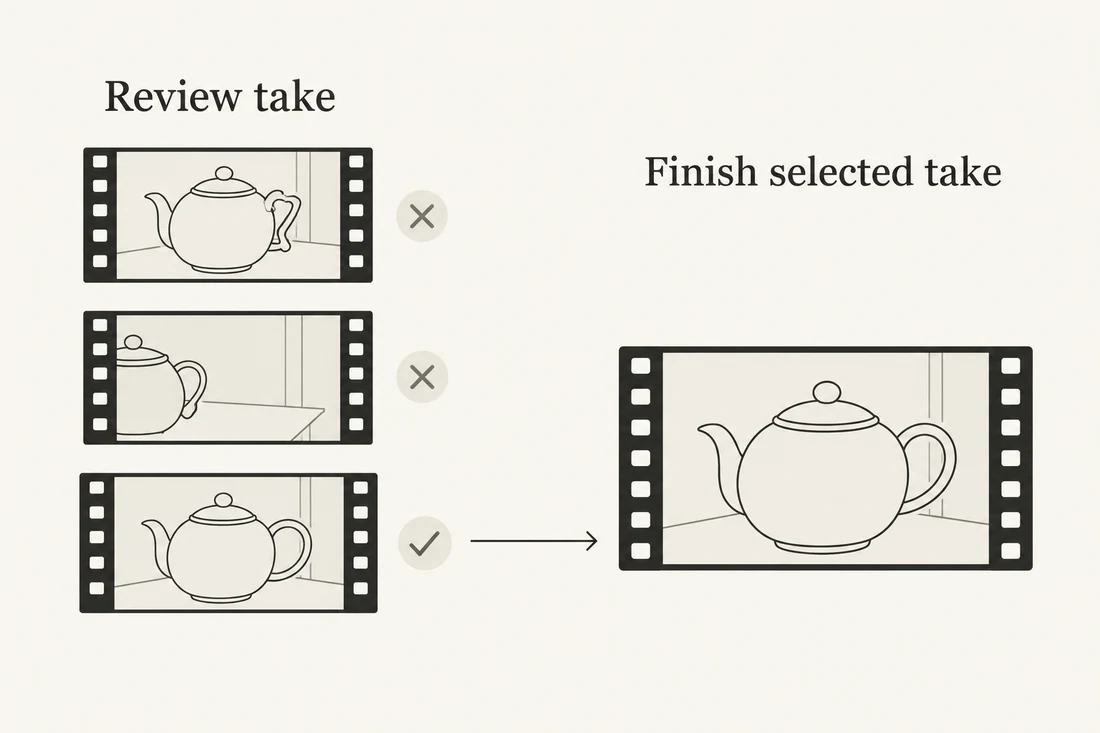
Imagine a fictional ceramics shop needs a short clip of a teapot on a breakfast table. The message is the calm setting, not a claim about heat retention or pouring performance. A close camera move is enough; a complex hand interaction is unnecessary for this brief.
A possible source-shot direction is:
A ceramic teapot rests on a simple breakfast table. The camera moves slowly closer in one continuous shot. Keep the teapot upright, with the spout and handle clearly visible. The surrounding objects stay still and the lighting remains consistent. Leave breathing room around the teapot throughout the movement.
This is a starting brief, not a tested recipe or a promise of exact preservation. If the item must match a real product, use an approved reference where the selected model supports image input and compare the result against it.
In NanoAI, follow these steps for the source clip:
- Open the video generator. Choose text-to-video for an invented concept, or image-to-video when an existing starting image matters.
- Select an available model, duration, and ratio. Read the current cost on the generation button; controls and capabilities vary by model.
- Enter one clear shot request. Review the returned clip at normal speed, then inspect suspect moments.
- Keep the accepted source file and its settings. If finishing elsewhere, confirm that service's input requirements before transferring it.
- Request a short preview or limited finishing pass when the chosen service supports one. Approve it before processing additional material.
Do not deliberately damage a good source to make it a “draft.” Keep the best original available. The draft-first idea means postponing optional finishing until the creative decision is made; it does not require every tool to expose a special draft mode.
Keep a short finishing record
Write a compact handoff note next to the selected file. It should answer what was approved and what the next operation is allowed to change.
| Field | Teapot example |
|---|---|
| Selected source | The take with a coherent handle and unobstructed spout |
| Creative approval | Camera move and composition accepted |
| Remaining request | Evaluate a larger export for the intended placement |
| Must preserve | Teapot silhouette, visible decoration, crop, and timing |
| Reject if | Surface patterns crawl, handle changes, or edges acquire distracting halos |
| Delivery check | Open the actual export and preview the destination |
This record separates a creative revision from a finishing decision. If a reviewer later asks for an overhead view, return to composition or generation. That is a new shot request, not a reason to keep adjusting sharpening strength on the existing angle.
Compare the finished export at the same viewing size
Inspect the source and the finished candidate at a matched display size. A larger preview can feel more impressive simply because it occupies more of the screen. Then inspect detail at an appropriate close view to identify artifacts that the delivery view may hide.
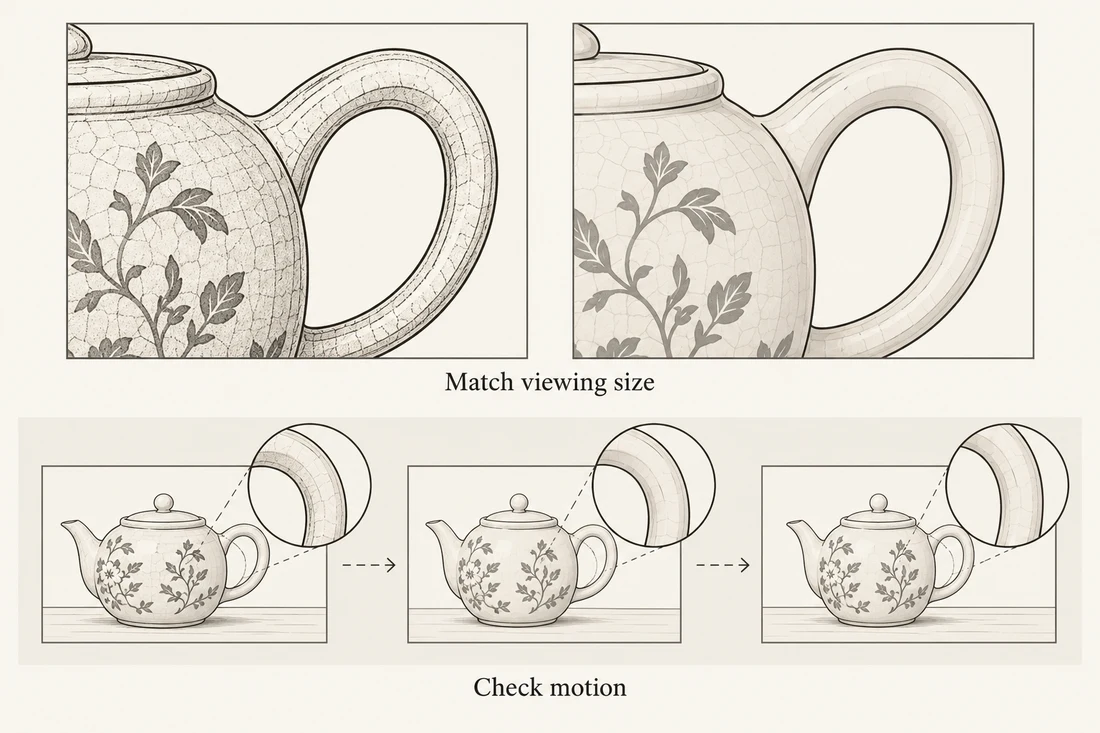
For the teapot example, compare the handle opening, spout edge, painted decoration, and transition from the object to the background. These areas give the reviewer concrete things to watch. Do not judge improvement only by increased crispness.
Watch the whole clip as well as paused frames. Look for surface detail that changes from frame to frame, edges that shimmer, or textures that appear stuck to the screen while the camera moves. If an output looks clean in one frame but distracting in motion, it has not passed the video review.
Use this sequence for the final check:
- Match the playback view. Compare the same scene section at the intended display size.
- Inspect identifying details. Check shape, markings, text, and boundaries against the approved source and any real reference.
- Play through motion. Review the beginning, movement, ending, and any cut into neighboring footage.
- Confirm the exported file. Check actual dimensions, duration, frame rate, and audio in the file you will deliver.
- Preview the destination. Check its current upload requirements and the result after processing, including any crop or compression.
The Clipchamp guidance also notes that selecting an upscale target does not automatically select the same final export resolution. More generally, confirm each stage of the workflow instead of assuming that a preview setting describes the delivered file. Read the specific tool's current export behavior.
Keep audio in the review even when the request concerns image quality. Check that the finished file retains the intended soundtrack and synchronization. If the selected operation changes frame rate or timing, review those consequences explicitly rather than treating them as incidental.
If you cannot see a useful difference in the intended placement, retain that finding. A larger master may still serve a documented delivery need, but “larger” alone is not a reason to claim that viewers receive a better result. Keep both the approved source and the chosen export so later revisions can begin from a known file.
Frequently asked questions
Does AI video upscaling repair a bad generation?
It may alter the appearance of some defects, but it is not a reliable substitute for approving the underlying shot. Wrong objects, unwanted action, inaccurate text, and broken geometry should be treated as source or editing problems before finishing.
Is a 4K export proof of native 4K generation?
No. The file's dimensions describe the delivered frame. The workflow documentation must tell you whether it was generated at that size, upscaled from another output, or produced through a separate stage. Keep the source and export details together.
Does upscaling also increase the frame rate?
Not necessarily. Spatial enlargement and intermediate-frame generation are different tasks. Some presets combine them, so check the active filters, output frame rate, and timing rather than assuming a resolution change implies smoother motion.
Can I upscale a video directly in NanoAI?
This guide does not claim a dedicated NanoAI video-upscaling feature. Use NanoAI for the supported source-generation workflow and evaluate a separate finishing tool when enlargement is required. Confirm its actual inputs, output controls, and cost.
Should every social clip be finished in 4K?
Choose dimensions for the intended destination, source quality, and visible benefit. Check the platform's current requirements and inspect its processed playback. A larger file can be unnecessary when it does not improve the final placement or satisfy another delivery requirement.
Start with a take worth finishing
Create and approve the source clip before choosing an optional upscale. Use NanoAI's AI video generator for one focused shot, record why the take passes, and carry that file into a finishing workflow only when the delivery calls for it.