
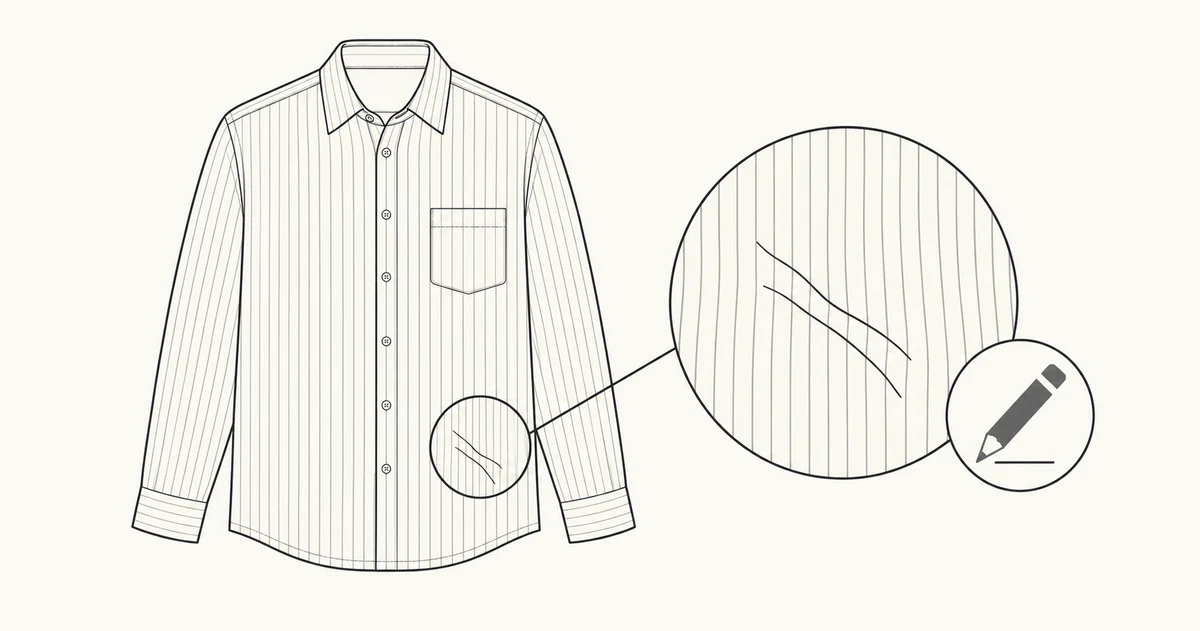
To remove wrinkles from clothes in photos with AI, start from a clear photograph, identify one unwanted crease, and request a limited edit while naming the garment details that must stay. Compare the result with the original before using it. If smoothing changes the cut, pattern or apparent condition of the item, reject that result; a cleaner-looking shirt is useful only when it still represents the same shirt.
This is a timely editing task rather than a newly discovered technique. Photoroom's October 23, 2026 clothing-photo guide discusses dedicated and prompt-based wrinkle-removal tools. Its publication is the recent editorial context here, not evidence that one service works best for every photograph. This tutorial takes a different approach: build an explicit edit boundary and an acceptance decision for one image.
You can explore a prompt-based correction in NanoAI's image workbench, using Image Edit and a supported model. There is no assumption of a dedicated ironing button, fabric-preservation lock or selection brush. When you need a precise selected-area workflow, use an editor that actually provides that control.
The shirt example and prompts below are original, hypothetical instructions. The Codex illustrations explain the decisions; they are not before-and-after NanoAI tests or proof of retouching performance.
In this guide
- Decide which fabric lines belong in the photograph
- Write a wrinkle-removal brief with visible boundaries
- Review the edited fabric before preparing the listing
- Frequently asked questions
- Start with one small correction
Decide which fabric lines belong in the photograph
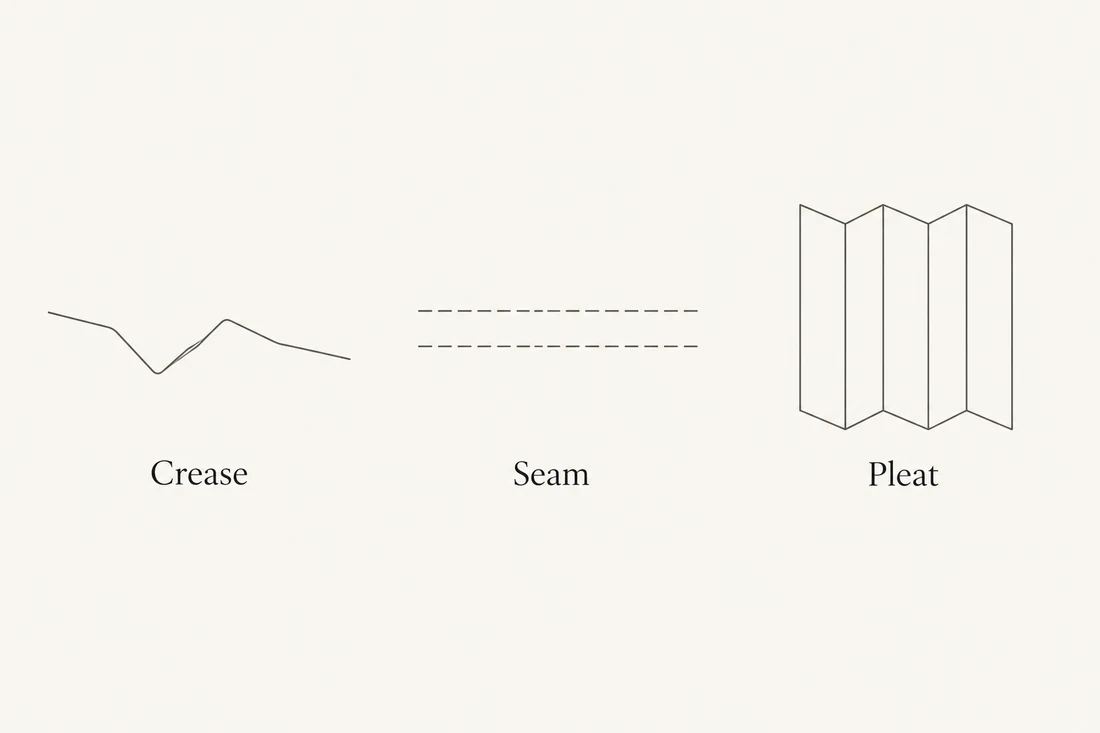
Before uploading anything, decide what the line in the image represents. A temporary fold from storage, a sewn seam and a deliberate pleat can all create dark lines. They do not justify the same correction. The goal is to reduce a distraction you can identify, rather than ask the model to reinterpret the entire fabric surface.
Imagine a cotton shirt photographed from the front. It has narrow vertical stripes, a chest pocket and a visible row of buttons. A horizontal packing fold crosses the lower front. Your brief is to reduce the appearance of that fold, while keeping the shirt's construction and photographed presentation.
Write down what you know about the item before treating the image:
| Visible feature | Decision before editing | Reason |
|---|---|---|
| Lower-front packing fold | Consider reducing it if it is a temporary presentation issue | This is the intended correction |
| Pocket edge and stitching | Keep | They describe how the shirt is made |
| Repeated vertical stripes | Keep their actual spacing and path | A changed repeat creates a different pattern |
| Deliberate gathered or pleated area | Keep unless the garment itself is being redesigned | The folds may be part of the design |
| A tear, stain or permanent wear mark | Document it accurately | Retouching should not hide the condition a buyer will receive |
Use the real item, another accurate photograph or the seller's product information to resolve uncertainty. A model cannot decide from your intention alone whether a dark line is a removable packing fold or a damaged section. If you cannot tell, keep it visible until you can verify it.
Also check whether the source image contains enough information to judge the correction. A crushed shadow may conceal the stripe edges. A blurred pocket cannot serve as a reliable reference for tiny stitches. In that situation, taking a clearer photograph may be a shorter route than repeatedly generating plausible replacements.
Keep the original file untouched. Make a working copy and note the target in plain language: “horizontal crease below the pocket, on the lower front.” This location is more useful than “make the shirt perfect.” If you are developing an invented garment rather than photographing an existing one, use the separate AI fashion prompt guide; that is a design task with different acceptance criteria.
Write a wrinkle-removal brief with visible boundaries
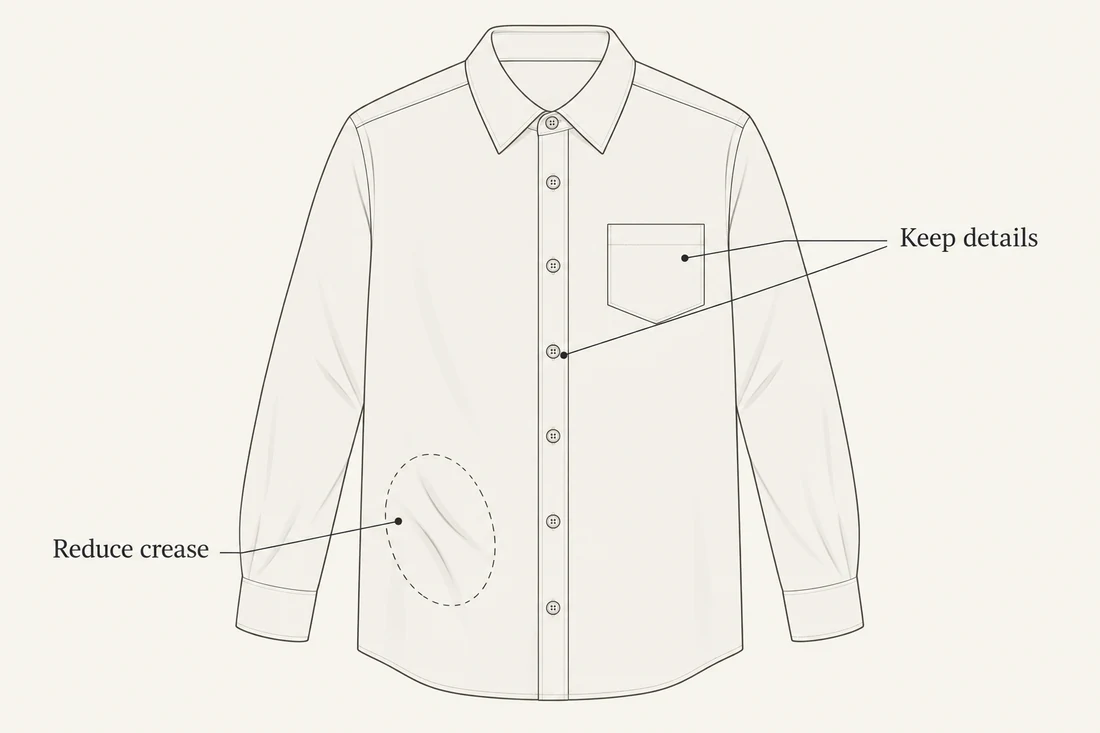
An effective brief separates the correction from everything you are not trying to redesign. State the location, the degree of change and the surrounding details that matter. A broad instruction such as “iron all the clothes and improve the lighting” leaves you with several changes to diagnose at once.
For the hypothetical striped shirt, use a prompt like this:
Edit the uploaded photograph of the striped cotton shirt.
Reduce the distracting horizontal packing crease on the lower
front below the chest pocket. Keep a natural fabric appearance;
do not make the surface uniformly smooth.

Keep the photographed shirt outline, pocket shape, button row,
stripe pattern and visible stitching as close to the original
as possible. Keep the original color, lighting, background and
camera view. Do not add lettering, accessories or new details.
This is an untested starting point. Adapt it to what is actually visible in your photograph. Preservation wording communicates the goal; it does not prevent the generator from changing other pixels or guarantee an accurate reconstruction beneath the crease.
In NanoAI, follow the controls available in the current workbench:
- Open the AI image generator and editor and choose Image Edit.
- Add the garment photograph as the reference. Start with the one image that shows the correction clearly.
- Choose an editing-capable model and review the displayed cost and output settings. Keep the source framing when it helps comparison.
- Enter a specific brief, then review the generated candidate against the original. Do not assume that a plausible preview means the pattern survived unchanged.
- If the correction misses its target, return to the original photograph and revise one part of the request. Avoid building successive edits on a version that already contains a changed pocket or stripe.
No paid generation was performed to validate these example prompts. NanoAI's interface was checked for Image Edit, reference-image upload, model selection, image size and variation controls; that interface check does not establish wrinkle-removal accuracy.
If the edit keeps spreading into nearby details, a selection-based editor may be more suitable. Adobe's documentation on selections for generative editing describes selecting an image region before applying a generative change. That is a Photoshop workflow, not a claim that NanoAI has the same masking controls.
Use the narrowest practical intervention. For a crease beside a pocket, define a region that gives the tool enough surrounding fabric to work with while avoiding unnecessary construction details. Review the boundary afterward. A selected region gives you a control to work with; it still requires inspection of the output.
Keep background replacement for a later, separate decision. Combining a fabric correction with a new backdrop makes it harder to see which operation changed the item. If you need that next step, the product background replacement guide explains the difference between generative restaging and preserving an original product layer.
Review the edited fabric before preparing the listing
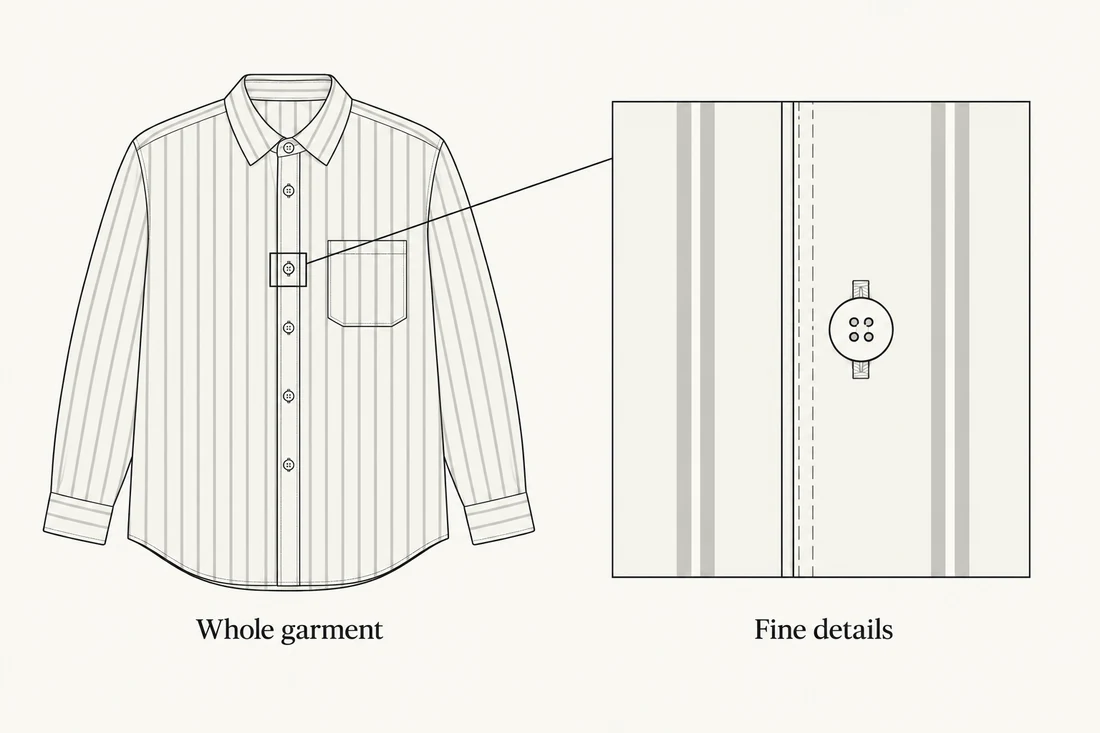
Judge the candidate against your written edit target, not against the smoothest image in the set. In the shirt example, success means that the lower-front fold is less distracting without a new pocket, a different stripe repeat or a changed overall shape.
Make the comparison in a consistent layout. Open the original and candidate at the same displayed size, then inspect the affected area more closely. Keep the original visible while reviewing. Switching between different crops or enlargements can make a proportion change difficult to notice.
Use three questions to reach a decision:
- Did the requested correction happen? Locate the original crease, not a different fold that happened to disappear.
- What else changed nearby? Follow each stripe across the treated region and inspect where the pocket, button row or seam meets it.
- Does the whole image still describe the same item? Look at the outline, drape and visible condition, including areas outside your intended correction.
Record an action rather than an unsupported quality score:
| Candidate observation | Decision | Next step |
|---|---|---|
| Crease reduced; visible garment details still match | Candidate for use | Inspect the exported file and intended placement |
| Crease remains; garment otherwise matches | Correction incomplete | Try a clearer target description from the original |
| Stripe bends into an invented break or repeat | Reject | Reduce the editing scope or use a controlled retouching method |
| Pocket edge or button position changes | Reject | Return to the source rather than repairing the altered garment repeatedly |
| Original detail is too obscured to verify | Do not guess | Obtain a clearer photograph or photograph the item again |
An image that passes at thumbnail size can still fail on a detail view. Conversely, a slightly visible natural fold may be preferable to an artificial, textureless patch. The amount of smoothing is a presentation choice; the identity and condition of the garment are the reference constraints.
Once the correction is accepted, prepare the destination file. Use NanoAI's image resizer if you need to change dimensions, and inspect the result after resizing. Confirm that framing still includes the garment edges you need to show. Check your destination's current image requirements separately; this workflow does not certify marketplace approval.
Save a small handoff note with the source and final export: the garment identifier, the requested correction, the tool and settings used, and any unresolved detail. For a real listing, keep an accurate condition photograph available as well. That record makes the next edit easier to judge without turning an attractive retouch into a new source of product information.
Frequently asked questions
Can AI remove clothing wrinkles without changing the fabric?
It can produce a useful candidate, but a prompt does not guarantee exact preservation. Compare the pattern and construction with the source. If those details cannot tolerate generative changes, use a controlled retouching workflow or improve the original photograph.
Should every fold be removed?
No. A fold may show intentional construction, fit or natural drape. Decide which line is a temporary presentation issue before requesting its removal. Leave uncertain features intact until you can check the real garment.
Why do stripes look different after smoothing?
A generative edit may reconstruct part of the image rather than merely reduce a shadow. If the repeat, direction or spacing changes, the result can misrepresent the fabric. Reject it and return to the original with a narrower correction.
Does NanoAI have a dedicated clothes-ironing tool?
This guide uses NanoAI's general Image Edit mode. It does not claim a dedicated wrinkle-removal button, selection mask or fabric-preservation setting. Choose from the models and controls currently available in that mode and inspect the output.
Can wrinkle removal replace taking another product photograph?
Sometimes an edit is sufficient for a small presentation issue. If blur, deep shadow or a hidden detail prevents verification, a new photograph provides information that generated detail cannot establish. Use that option when the real item's appearance is uncertain.
Start with one small correction
Choose one clear garment photograph and identify one fold you can confidently classify. Open NanoAI's Image Edit workbench, adapt the brief to that exact location, and compare the candidate with the original before preparing a listing file. Keep the correction only if the photograph still describes the same garment.