
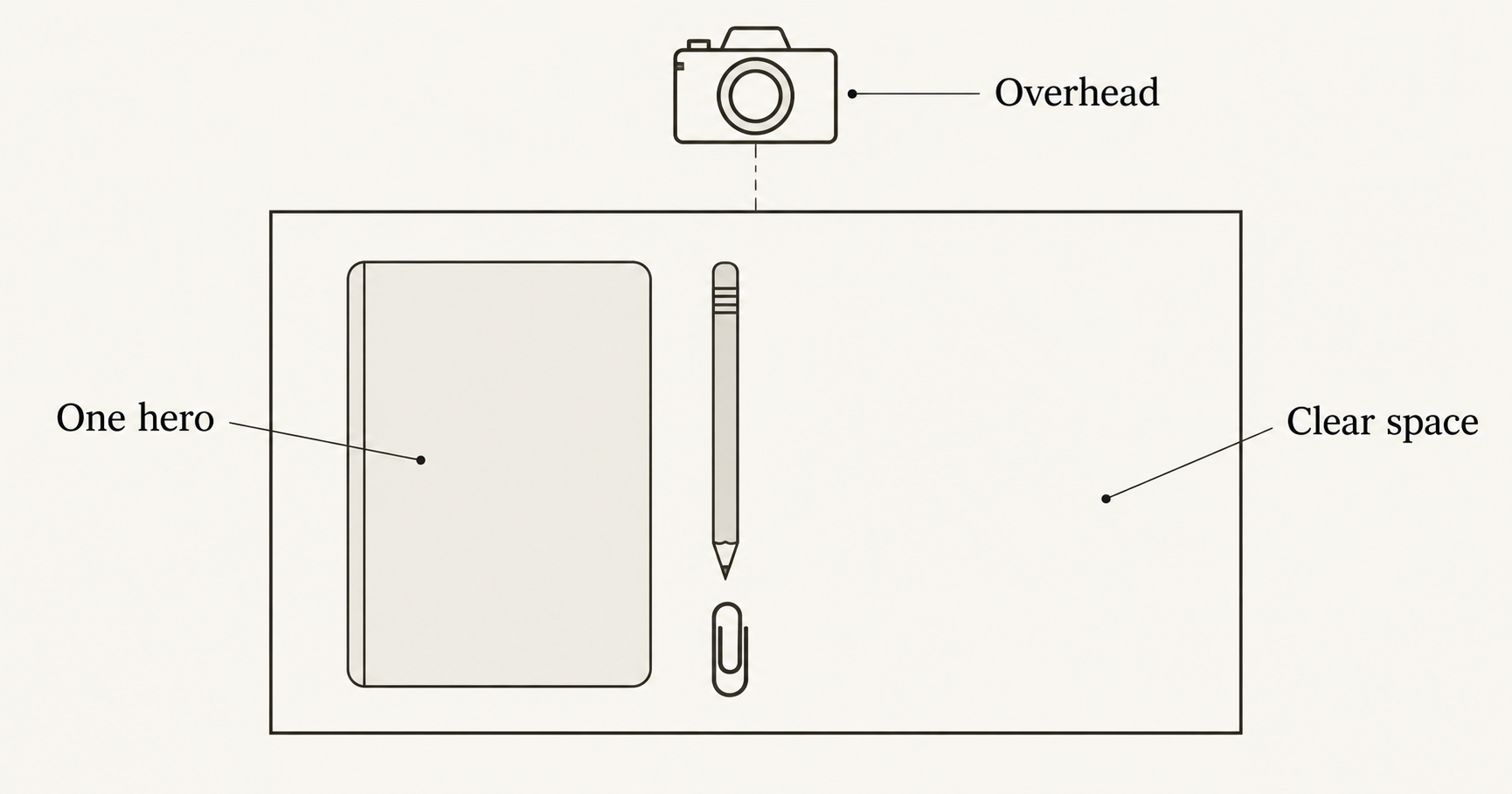
To create AI flat lay product photos, specify a directly overhead view, list the objects that belong in the scene, and describe their arrangement on a single surface. Give the main product a clear outline and enough space around it. Before using the image, check object count, perspective, product details, and whether styling props could be mistaken for items included in a purchase.
On October 20, 2026, PixelDojo’s official changelog listed Flat Lay Product Photo among its new tools. The update makes this a timely workflow to examine; it does not establish the same dedicated feature or controls in NanoAI.
You can explore an overhead concept with NanoAI’s image generator and editor. This guide uses an original stationery scene to explain composition and prompting. The diagrams were made with Codex for instruction, not as NanoAI test results or photographs of a real product.
On this page
- Choose a flat lay view that suits the product
- Map the hero, supporting objects and empty space
- Write a flat lay prompt and choose the right mode
- Check the scene before using it as a product image
- Frequently asked questions
- Plan one simple overhead scene
Choose a flat lay view that suits the product
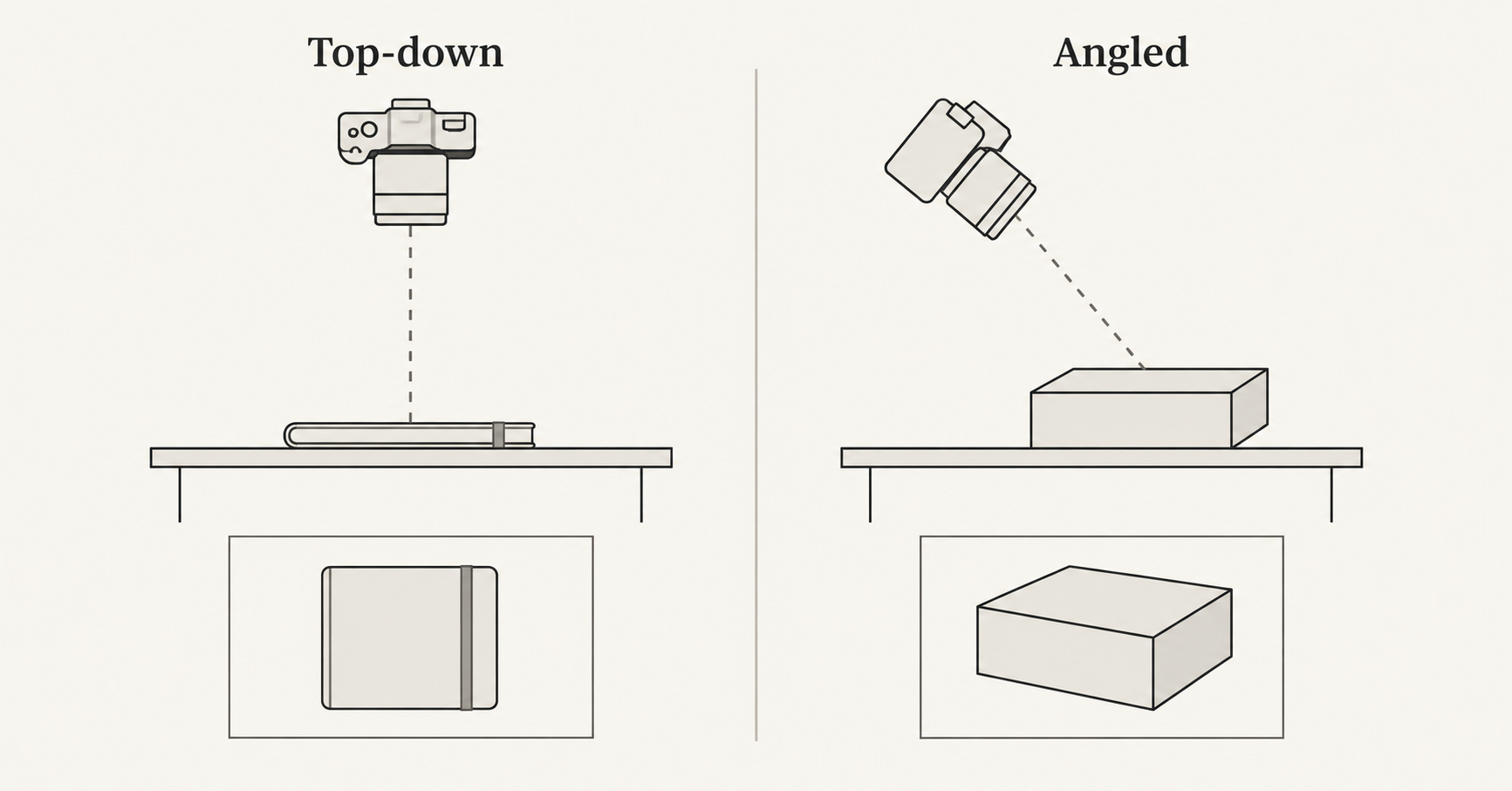
A flat lay presents objects arranged on a surface and viewed from above. It is useful when their outlines, arrangement, or visible front faces communicate the idea. A notebook cover, a folded shirt, or a small collection of stationery can work well as an overhead composition.
The camera angle is a separate decision from the arrangement. A tidy scene photographed diagonally is still an angled scene. Asking only for “products neatly arranged on a table” leaves that choice open.
Adobe’s product-shot guide explicitly distinguishes straight-on, angled, overhead, and flat lay views in prompt descriptions. For an overhead request, use direct language such as “camera directly above the tabletop, looking straight down.” Do not combine that with a low-angle view or a visible horizon.
| What the viewer needs to understand | Useful view to consider | What an overhead image may leave out |
|---|---|---|
| Notebook cover and arrangement | Flat lay | Binding thickness and page edges |
| Folded garment silhouette | Flat lay | Fit on a person and hidden construction |
| Box height and front-panel information | Angled or front view | Vertical faces may be hidden from above |
| How a tool is held or used | In-use scene | Grip, movement, and human scale |
Choose the view for the information, not just the aesthetic. If a bottle’s identifying label faces forward, a strict overhead shot may show its cap while hiding the label. Use an additional front view instead of forcing every product into the same composition.
For a real item, prefer a source photo that already shows the intended side. A front-only photo cannot reveal an unseen top surface. A model may invent that information when asked to change the viewpoint; a plausible invention is not verification of the product’s construction.
Map the hero, supporting objects and empty space
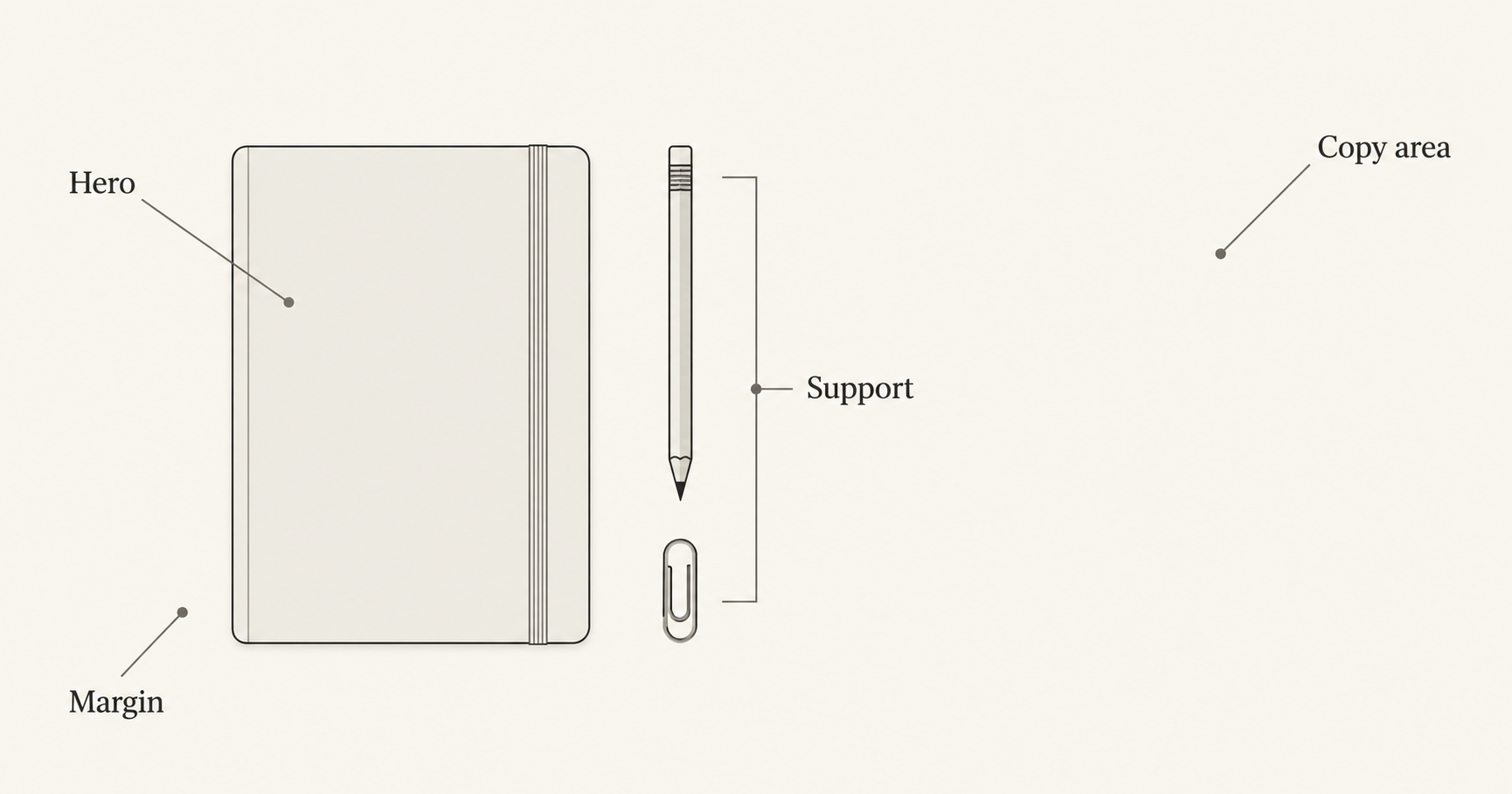
Create a short scene inventory before writing the prompt. For this original exercise, the image promotes the idea of a quiet writing session:
- Main subject: one closed, unbranded notebook.
- Supporting objects: one pencil and one paper clip.
- Surface: a plain, matte tabletop.
- Placement: notebook on the left, pencil beside it, clip below the pencil.
- Reserved space: the right third stays empty for later design work.
These are creative planning choices, not a photographed bundle or an offer for sale. When adapting the exercise to a listing, decide which objects are actually included. If the pencil is only a prop, make that distinction clear in the surrounding presentation. For a purchase image where that distinction could be confusing, omit the prop.
Pick an arrangement that serves the image
A regular grid helps separate multiple items for inspection. A loose grouping can suggest an activity or mood. A single main subject with a small supporting cluster gives the eye a starting point. None is universally best; select the structure that communicates the specific task.
For the notebook scene, keep the pencil clear of the cover edge so it does not obscure the product outline. Leave a visible gap between the clip and pencil. Keep all three objects inside the frame rather than allowing an accidental crop to hide a corner or tip.
Use simple spatial relationships: “beside,” “below,” “parallel to,” and “with a clear gap.” They express the layout more directly than a string of mood words. Exact distances in a prompt are requests, not a measured layout system, so inspect the result rather than assuming the spacing is precise.
Reserve space before adding decoration
Empty space has a job. If a headline will appear on the right, keep that region free of objects and busy patterns. Add final copy in your layout tool after choosing the image. Check the composition with the actual headline rather than judging empty space in isolation.
Avoid adding leaves, ribbons, scattered petals, and fabric simply because they appear in other product photos. Each addition competes with the main subject and creates another object to inspect. Begin with the smallest inventory that communicates the scene.
Write a flat lay prompt and choose the right mode
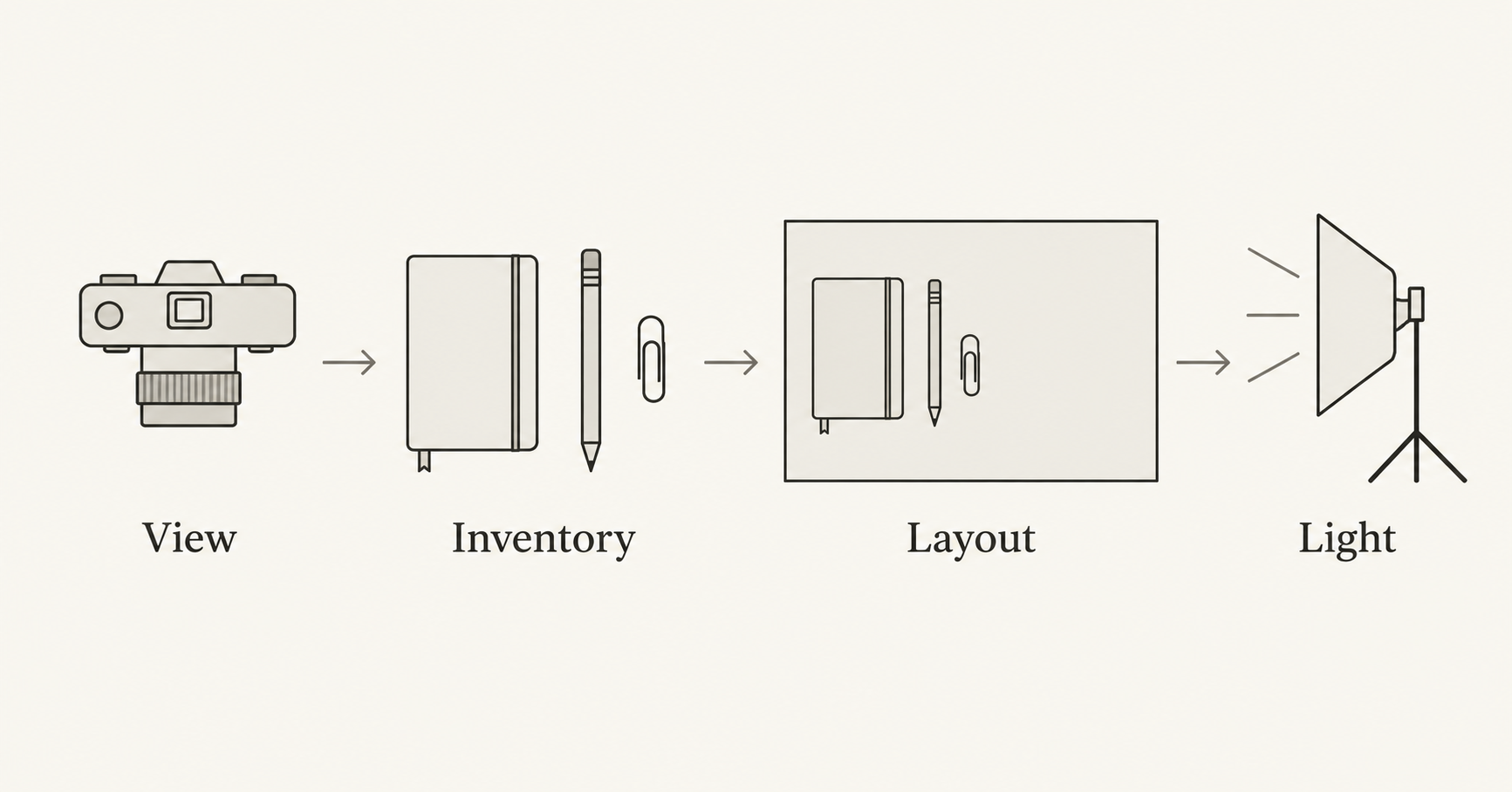
Turn the plan into four parts: view, inventory, layout, and light. This keeps the request specific without making every sentence a new instruction.
Here is an original text-to-image concept prompt. It describes an invented notebook, not a real SKU:
A photographic flat lay stationery concept, camera directly above
one matte tabletop, looking straight down. No horizon line.

Include exactly one closed, unbranded charcoal notebook, one plain
wooden pencil, and one metal paper clip. No other objects.

Place the notebook in the left half of a wide frame. Put the pencil
parallel to its right edge with a clear gap, and the paper clip below
the pencil. Show every object completely. Leave the right third empty.

Warm ivory surface, soft diffused light from the upper left,
subtle contact shadows consistent with that direction.
No lettering, logos, hands, packaging, or decorative graphics.
The word “photographic” requests an appearance; it does not turn the generated image into photographic evidence. Likewise, the requested count and positions still need checking.
Use Text to Image for a concept
- Select Text to Image for the invented scene above.
- Choose a model and an available aspect ratio suited to the intended placement.
- Paste the prompt and review the displayed credit cost.
- Generate a candidate, then assess the view and arrangement before adjusting decorative details.
- Save the accepted file and the settings used for it.
The public interface offers variation choices from one to four. Start with one if you want to inspect a simple baseline; choose more deliberately when alternatives are useful. We verified the public controls, but did not run a paid NanoAI generation test for this article.
Use Image Edit when an existing item supplies the appearance
For your own product photo, choose Image Edit and upload a suitable source within the limits currently displayed. Explain which item the reference supplies and ask for the planned surroundings and placement. The public UI currently accepts up to five images, with a displayed 5 MB limit per image; a UI limit does not guarantee every model handles every input equally.
Photoroom’s Flat Lay documentation illustrates a different, dedicated clothing workflow built around a source image and tool settings. NanoAI’s general Image Edit mode should not be described as inheriting those specialized controls.
When exact product appearance matters, use the product background replacement guide for preservation options. If you add a separate layout sketch, the multi-reference prompt guide explains how to state its role without treating it as another product reference.
Check the scene before using it as a product image
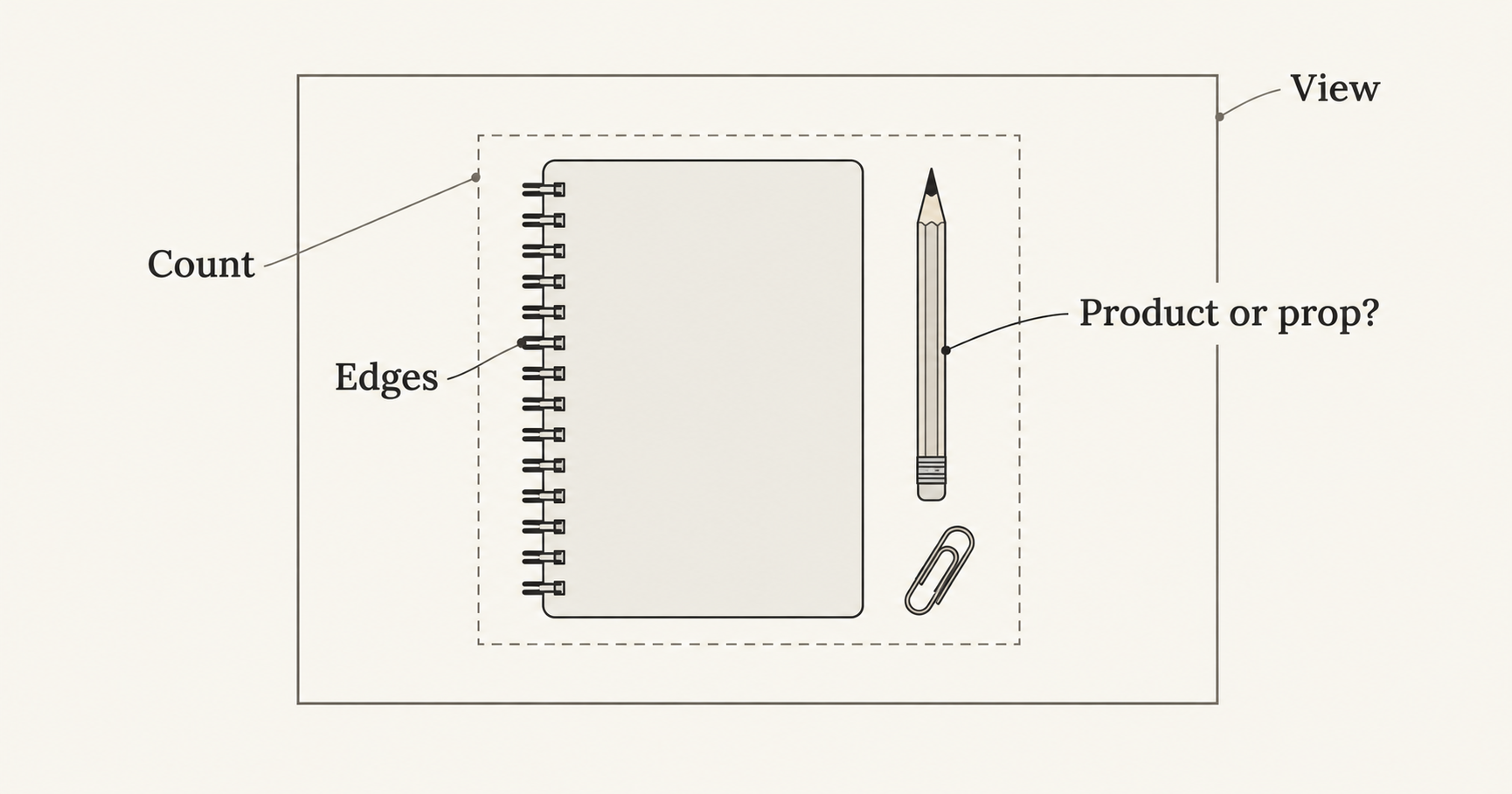
Review the composition in a consistent order. Start with what is present, then inspect how it is drawn, then evaluate the final placement.
| Check | What to inspect in the notebook exercise | A useful next action |
|---|---|---|
| Inventory | One notebook, one pencil, one clip | Remove unrequested objects or simplify the prompt |
| View | Straight-down presentation, without a conflicting horizon | Restate the overhead viewpoint and remove angled-view wording |
| Separation | Pencil and clip do not merge with notebook edges | Request a clearer gap or use a simpler arrangement |
| Geometry | Cover corners, pencil shaft, and clip remain coherent | Reject distorted details; return to the source when applicable |
| Lighting | Objects appear to rest on one surface | Simplify the light and inspect contact shadows |
| Meaning | Props do not imply an inaccurate bundle | Remove the props or clarify their role in the final presentation |
For a reference-based image, compare the product against the untouched source. Pay attention to features that identify the actual item, such as cover proportions, binding type, seams, labels, or attachments. The independent diagrams in this article explain different checks; they are not evidence that one product stayed consistent across generations.
A flat lay cannot establish dimensions, material quality, or included accessories merely by looking convincing. If a real listing needs those facts, verify them against the product information and appropriate source photographs.
Finally, place the image in its intended design and preview it at the size readers will see. Confirm that the main subject is recognizable and no important edge disappears in the crop. Check the aspect ratio guide if the image needs a different shape; avoid stretching it to fit.
Frequently asked questions
What are AI flat lay product photos?
They are generated or edited images that present a product arrangement from above. They can help explore layouts and marketing concepts. Their accuracy as a representation of a real product depends on the source material and a separate review.
Is a flat lay the same as an angled product shot?
No. A flat lay uses an overhead view of objects arranged on a surface. An angled shot can reveal height and vertical faces. Choose the viewpoint that shows the information your audience needs.
Can I turn a front-facing product photo into a flat lay?
You can request a new viewpoint, but hidden surfaces may be invented. For a real product, start with an overhead source photo when possible, or photograph the missing view rather than treating a generated angle as verified detail.
How many props should I include?
Use only those that help communicate the scene. The exercise uses two supporting objects to make the layout easy to inspect; that is not a universal rule. Remove props that obscure the product or make an offer look misleading.
Does NanoAI have a dedicated flat lay button?
This guide uses the verified Text to Image and Image Edit modes in NanoAI’s general image workbench. It does not claim a dedicated Flat Lay tool or the specialized controls described on other services.
Plan one simple overhead scene
List the main subject, any necessary supporting objects, the viewing angle, and the area that must stay empty. Open NanoAI’s AI image generator, create a concept or work from an appropriate reference, and check the result against that plan before using it.