
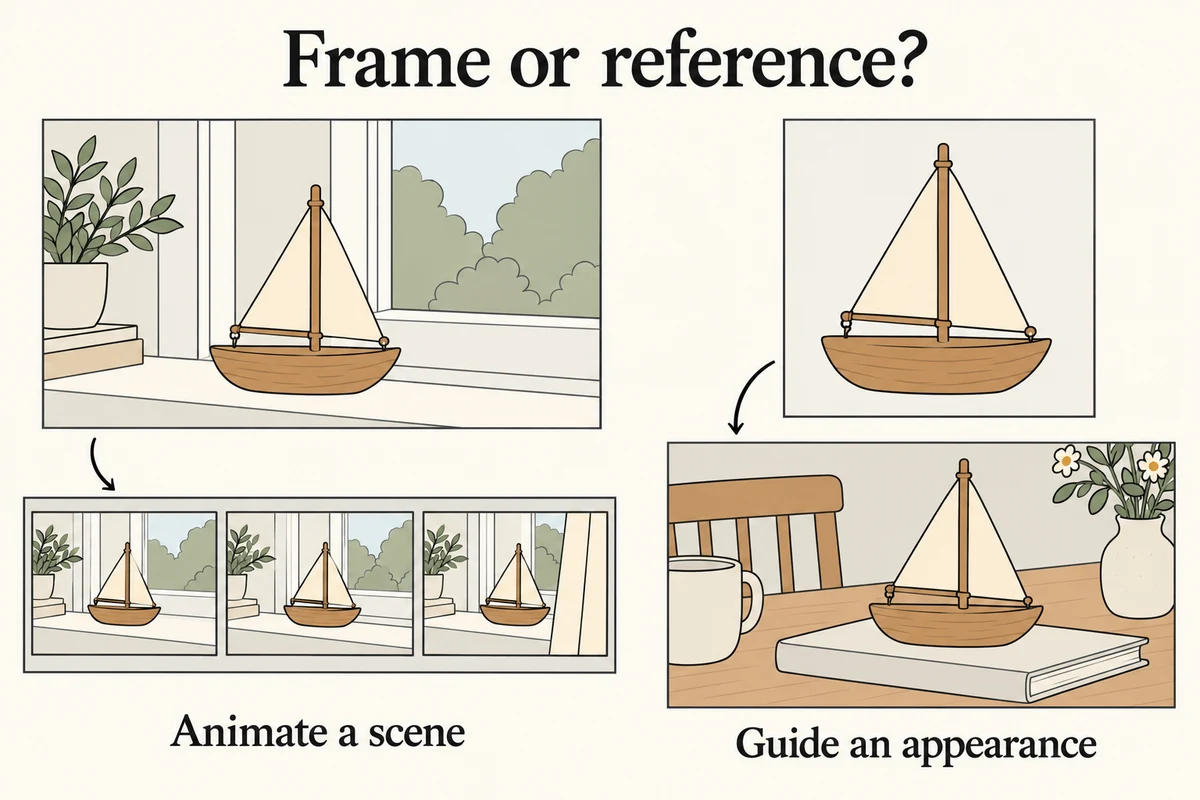
Choose image-to-video when you want to animate an existing scene, with its composition serving as the starting point. Choose reference-to-video when you want an image to guide a subject's appearance inside a newly composed shot. For image-to-video vs reference-to-video, the useful question is: “Does this upload define the opening scene, or tell the generator what something looks like?” Check the actual mode; some systems combine appearance references with explicit first-frame controls.
On October 29, 2026, Pika announced H3 Flex with reference-based video generation among its capabilities. That recent announcement makes input roles a useful subject to revisit, rather than assuming every image upload works the same way. The announcement describes Pika's offering; it does not establish which controls another workbench exposes. Pika's official announcement.
This guide uses a fictional wooden toy sailboat to explain the choice. Prompts are untested instructional examples. All illustrations were generated with Codex as explanatory artwork, not captured from NanoAI or any video model.
On this page
- Decide whether the image is a frame or a reference
- Prepare the input for the role you need
- Review the opening and the rest of the clip separately
- Frequently asked questions
- Animate your chosen opening scene
Decide whether the image is a frame or a reference
Imagine that you have two photographs. One shows a toy sailboat on a windowsill, already framed and lit as you want the video to begin. The other shows the sailboat alone against a plain background. Both contain the same object, but they communicate different instructions.
The complete windowsill scene is a useful input when your task is “make this view move.” The isolated object is useful when your task is “put this recognizable sailboat into a new scene.” Feeding the second image into a mode that animates its source scene can produce a moving catalog-style view when you actually wanted a new setting.
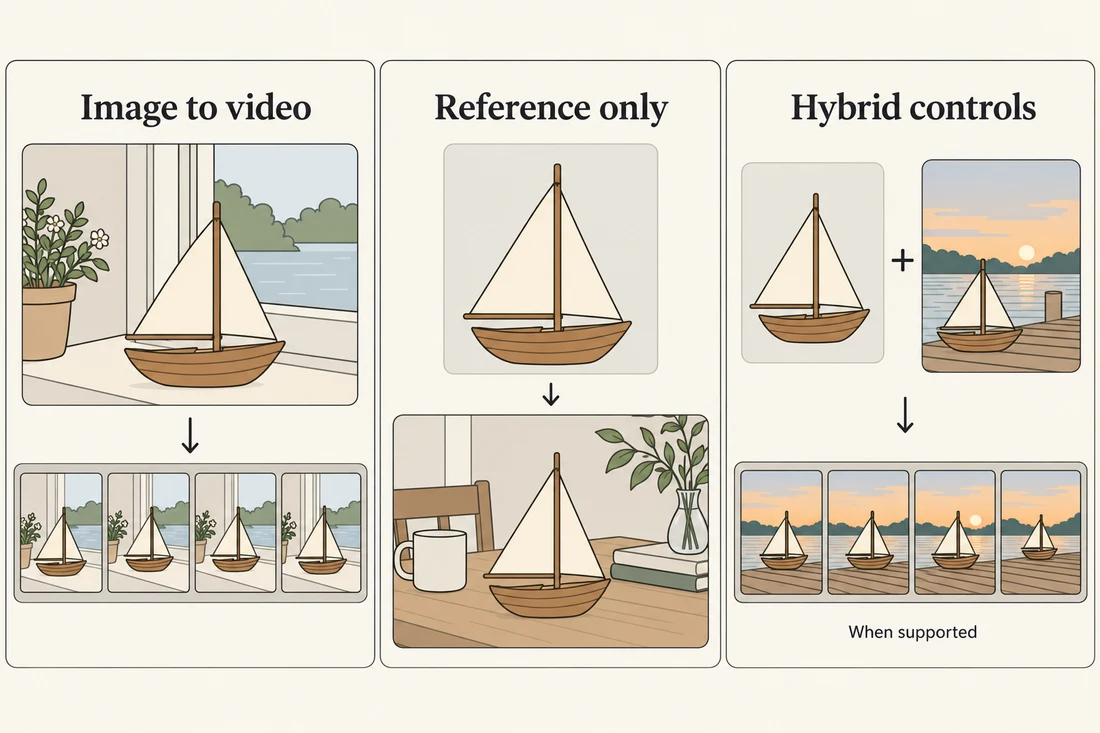
| Input role | What you are asking the image to supply | Suitable example | Main question before generating |
|---|---|---|---|
| Image-to-video | The source scene to animate | A gentle camera move toward the sailboat on the prepared windowsill | Is this already the composition I want to start from? |
| Reference-only video guidance | The appearance of a subject in a newly composed scene | The same toy placed on a breakfast table | Does this mode use the image as appearance guidance without fixing the opening frame? |
| References plus frame controls | Appearance guidance together with explicit scene or timing constraints | A subject reference plus a specified opening view | Does this particular tool support that combination? |
Provider documentation gives a concrete example of the distinction. xAI describes its image-to-video mode as animating the supplied image. Its reference-to-video guide distinguishes appearance guidance from a fixed opening and documents combinations with frame controls. These are descriptions of those documented modes, not a universal interface standard. xAI image-to-video documentation, xAI reference-to-video documentation.
“Reference image” can also be a broad interface label. An upload called a reference may still be used as a starting frame. Read the selected mode's explanation and inspect its available controls before deciding what the upload means.
Use a simple decision rule: if the existing background and arrangement are essential to the opening, prepare a complete frame. If the existing setting should be replaced while the subject remains recognizable, look for documented appearance-reference behavior. If both are essential, check for an explicitly supported combination. A more elaborate prompt cannot create a control the workflow does not provide.
Neither path guarantees that the object stays perfectly unchanged. Image-to-video can alter details during movement, while reference-guided generation can reinterpret shape, materials, or proportions. Treat the input as a creative constraint whose result still needs review.
Prepare the input for the role you need
Write one sentence before selecting a file: “This image supplies ___.” Naming that responsibility prevents a common mismatch between an asset and the job assigned to it.
When the image supplies the opening scene
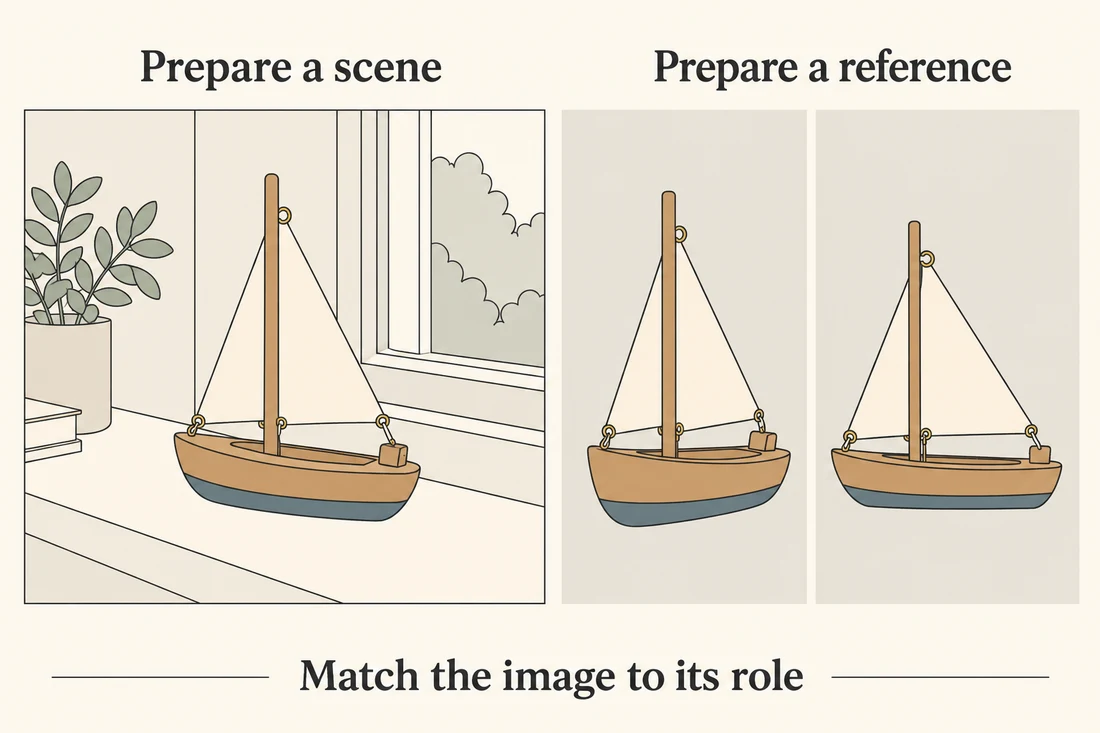
For the windowsill example, prepare a frame showing the entire sailboat in the intended setting. Resolve the crop, visible background, lighting, and object placement before animation. Leave enough space around the subject for the modest movement you intend to request.
If you need to change the composition, do that in an image editor first. You can explore a concept frame in NanoAI's image workbench, then inspect the exported image before using it as video input. A generated concept should not be presented as a photograph of a real product.
Try a motion-focused instruction such as:
The camera moves slowly closer to the wooden toy sailboat on the windowsill. The boat remains stationary. Keep one continuous shot with calm, consistent daylight.
The source frame already communicates the boat, setting, and arrangement. Requesting a new location in the same prompt introduces a second job: transforming the scene. If relocation is your primary goal, reconsider the input role rather than adding contradictory descriptions.
When the image supplies appearance
For a reference-only workflow, choose a clear view that makes the important identifying features easy to see. In our fictional example, those might be the curved wooden hull, single mast, and plain cream sails. Avoid relying on text instructions to recover features hidden by a hand or a heavy crop.
If the chosen service accepts multiple references, add another view only when it supplies useful missing information and falls within that mode's limits. Multiple views are not automatically supported because a different image editor allows several uploads.
An example brief for a service with documented reference-only video guidance is:
Use the supplied toy sailboat as an appearance reference. Compose a new shot of it resting on a plain breakfast table beside a window. Keep the curved wooden hull, single mast, and plain cream sails recognizable. Use a slow sideways camera move; the toy stays still.
This asks for a new scene while identifying what should carry over. It is not an instruction to reproduce the source photograph as the opening frame. It also leaves unseen surfaces uncertain; an additional angle may help, but it does not establish exact three-dimensional reconstruction.
Apply the supported workflow in NanoAI
The public NanoAI video generator, checked November 2, 2026, exposes Text to Video and Image to Video. For the prepared windowsill scene:
- Choose Image to Video.
- Use the Start Frame upload to add the approved scene image and confirm its preview.
- Choose a model and inspect the settings currently offered for that selection.
- Enter a restrained motion instruction, then check the displayed credit cost before generating.
- Save the source image, prompt, selected settings, and resulting clip together.
This guide does not claim that NanoAI exposes a separate reference-to-video mode or the hybrid controls described in other providers' documentation. A model's capabilities elsewhere do not establish what is available in this interface. When you need an appearance-led scene change, one practical route is to prepare and approve the new scene as a still image first, then animate that scene through the available image-to-video workflow.
Review the opening and the rest of the clip separately
Input choice and motion quality answer different questions. Start by checking whether the result used the image in the intended role, then examine what happened during the shot.
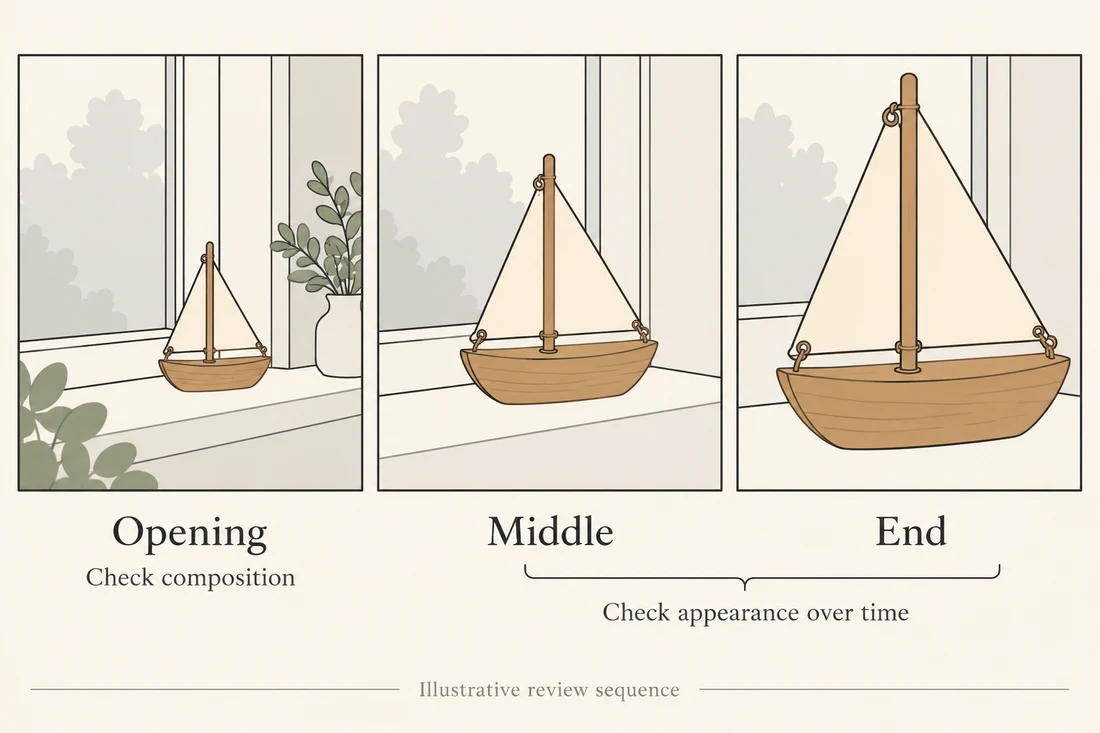
For a source-scene workflow, compare the opening with the uploaded composition. Does it begin in the intended setting, with the subject positioned and framed appropriately? Do not assume every model promises a pixel-identical first frame. Apply the behavior documented by the selected tool and the precision your deliverable requires.
For reference-only generation, an opening that differs from the source photograph may be correct. The relevant checks are whether it follows the newly requested scene and whether the subject's identifying features are recognizable. Rejecting every changed background would defeat the purpose of that input role.
Then watch the entire clip. Pause at the beginning, middle, and end, but also inspect the movement between those points. A mast can bend briefly and recover before the final frame. Three acceptable stills do not prove that the continuous motion is usable.
Use a short diagnosis note to choose the next action:
| Observation | What to investigate next |
|---|---|
| The source's plain backdrop becomes the whole opening, although a new setting was required | Check whether the upload was treated as a starting scene instead of appearance guidance |
| The opening composition is appropriate, but the sail changes shape later | Review the requested movement and subject detail; simplify the action for the next attempt |
| A new scene is correct, but the hull looks like another toy | Inspect the clarity of the appearance reference and whether the mode supports that role |
| A required opening frame is ignored | Check for an actual first-frame control rather than assuming a reference upload pins it |
These are diagnostic possibilities, not proof of why a model produced a particular output. Record the visible problem and change one major variable at a time. If you replace the input, rewrite the prompt, and switch models simultaneously, the next clip will be harder to learn from.
For exact brand or product requirements, use a production method that can preserve the required details and inspect the finished asset against the approved source. A plausible generated sailboat is not evidence of the real toy's dimensions or behavior. If you need several shots, use the product video brief template to carry the same acceptance requirements through the sequence.
Frequently asked questions
Is image-to-video the same as reference-to-video?
They can overlap in casual wording, but documented modes may assign different roles to the upload. A source image can provide the scene being animated; an appearance reference can guide a subject inside a newly composed scene. Check the selected workflow rather than the label alone.
Can I use a product cutout for image-to-video?
Yes, when the selected tool accepts it, but consider the desired opening. If you want the cutout's plain background animated, it can be a suitable source scene. If you need a lifestyle setting, prepare that composition first or use a workflow that explicitly supports reference-guided scene creation.
Can I combine references with a first frame?
Some documented systems support this combination. Availability depends on the provider, model, and interface. Confirm the specific controls and input limits before preparing a multi-image brief; do not infer support from an unrelated editing mode.
Does reference-to-video guarantee the same character or product?
No. Appearance guidance can still produce changed features, proportions, or materials. Check the identifying details throughout the clip and use a more controlled production method when exact preservation is essential.
Which option should I use in NanoAI today?
For an approved still scene that you want to animate, use the visible Image to Video workflow. This article's interface check did not establish a dedicated reference-to-video mode. Prepare a new approved still composition first when the setting needs to change.
Animate your chosen opening scene
Choose one scene image, write down the details it must preserve, and request one modest movement. Open NanoAI's video generator to animate that starting scene, then compare both the opening composition and the subject's appearance over time.