
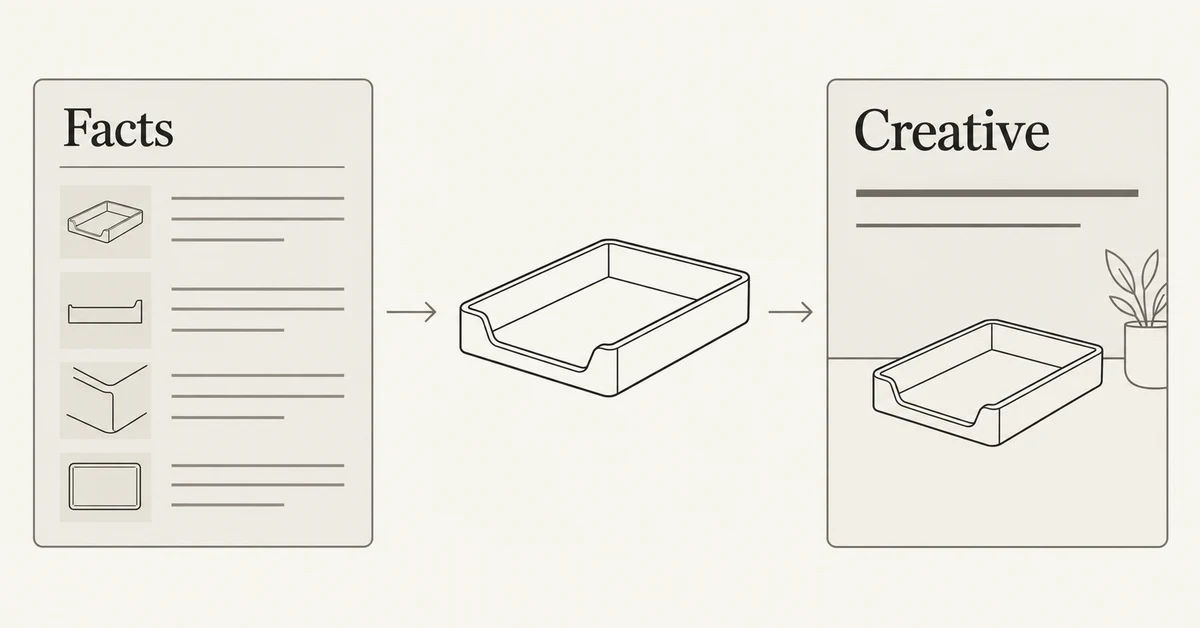
To make accurate AI product ads, approve the product facts before generating the visual. Keep a short record of the exact item, supported wording, offer details, and source for each statement. Then check the finished advertisement against that record, including what the picture appears to promise. A convincing image does not verify a product feature.
Krea's October 29, 2026 Ad Studio announcement provides a recent reason to formalize this step. Its workflow reads a website to build a brand kit and product information, then lets the user edit that information and approve selling points. The lesson for a manual workflow is to review the inputs before turning them into more assets. This article does not claim that NanoAI reads product URLs or automatically validates claims.
Use the process below while preparing visuals in NanoAI's image workbench. It separates factual approval from creative direction and provides a reusable review sheet. The desk-organizer example is fictional; its specifications and copy illustrate the method rather than describe a product for sale.
All illustrations were generated with Codex as conceptual diagrams. They are not NanoAI generation tests, real product photographs, or evidence supporting a product claim.
On this page
- Build a source-backed product fact sheet
- Separate product facts from visual choices
- Check the complete ad against its sources
- Frequently asked questions
- Generate from an approved brief
Build a source-backed product fact sheet
Start with the specific item the ad will send people to. A family of similar products can share a name while differing in size, materials, included accessories, or available colors. Identify the version before collecting attractive phrases from several pages.
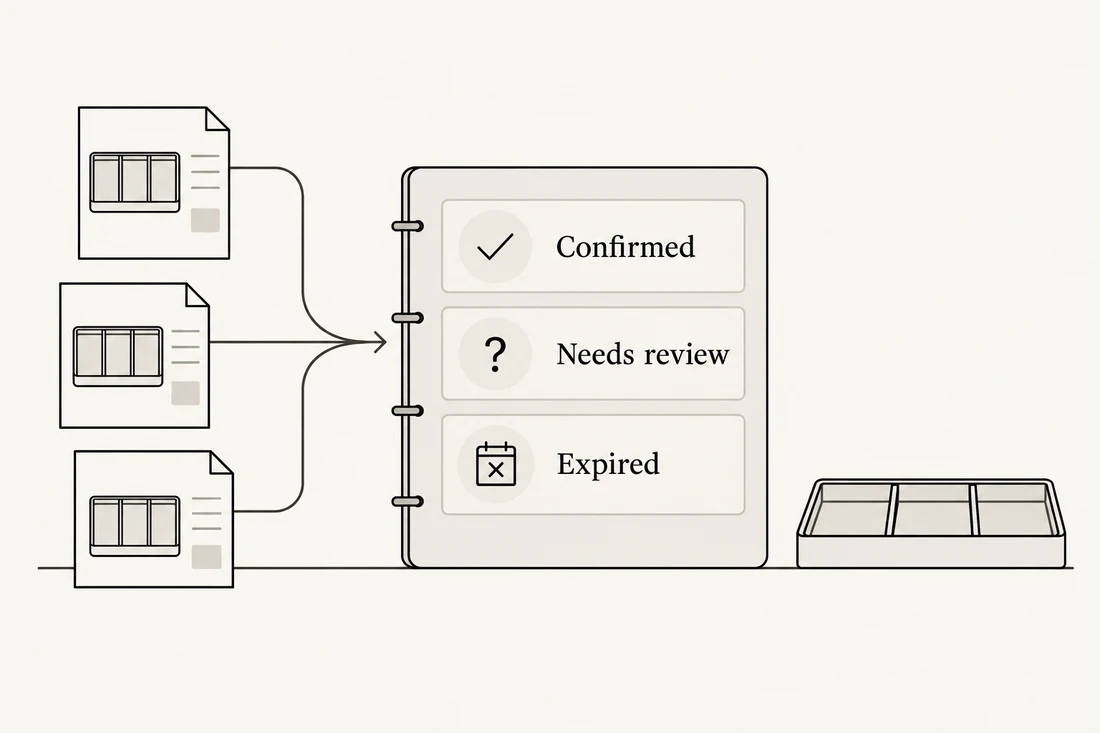
For a small project, one table is enough. Save a source location and the date you checked it. Use a current approved product page, specification sheet, packaging record, or other appropriate business source. A source must actually support the proposed wording; a page containing a related adjective is not enough.
| Field | What to record | What could go wrong |
|---|---|---|
| Item and version | Exact product or variant used in the campaign | Facts from a larger or newer version enter the ad |
| Visible appearance | Approved photo and identifying details | An attractive generated image depicts a different item |
| Proposed statement | The exact wording you want to use | A loose paraphrase becomes a stronger promise |
| Supporting source | Where that wording is supported | The cited material only supports part of the statement |
| Review state | Confirmed, needs review, or expired | A draft note is treated as approved copy |
| Offer conditions | Current price or promotion details, if used | A previous offer survives into a new campaign |
Do not ask a generator to fill empty cells. Mark an unknown as unknown and leave the corresponding statement out until it is resolved. A finished-looking ad can make an unsupported suggestion feel authoritative, so keep incomplete facts visible in the production notes.
An illustrative desk-organizer record
Imagine the approved fictional product information describes one gray desk tray with three compartments. The supporting photo shows the same item. It says nothing about recycled content, scratch resistance, or accessories being included.
A usable record could be:
| Proposed content | Status for this fictional example | Production decision |
|---|---|---|
| One gray tray with three compartments | Confirmed in the example brief and photo | Keep this appearance in the visual |
| “Three compartments for small desk items” | Supported by the example specification | Eligible for editorial review as copy |
| “Made from recycled material” | No supporting information supplied | Do not add it |
| “Pens included” | Not established | Do not show an included bundle or say it is one |
| A discount from an older draft | Not confirmed for the current campaign | Remove until the offer is checked |
This is an editorial approval record, not a laboratory test or independent verification of a supplier. If the underlying information is uncertain, changing its status in a spreadsheet does not make it reliable. Resolve that uncertainty with the appropriate source owner.
Separate product facts from visual choices
A fact sheet answers what the ad may communicate about the item. A visual brief answers how to present it: background, light, framing, mood, and room for final text. Keeping them separate makes revisions easier to inspect.
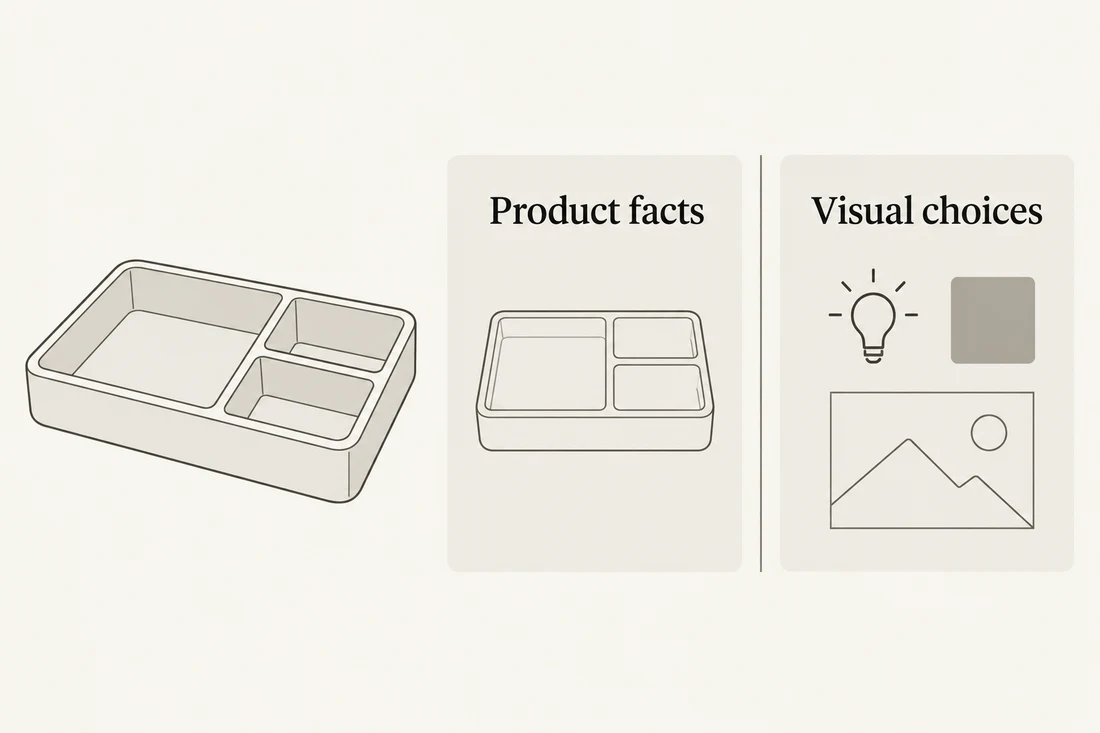
For the organizer example, “three compartments” belongs with product facts. “Soft side light” belongs with visual direction. A new lighting treatment should not silently change the item into glossy metal or add an extra compartment.
Write a short generation instruction using only the approved appearance and the creative choices you actually need. For an image-edit workflow that supports your reference, a starting request might be:
Use the uploaded desk-organizer reference as the product source. Show one tray, keeping its gray color, three compartments, visible outline, and proportions consistent with the reference. Place it on a simple desk with soft side light. Leave clear space above it for text added later. Do not add lettering, packaging, badges, extra compartments, or accessories.
This is an untested prompt example. Requesting preservation is not a guarantee that product pixels remain unchanged. If a real campaign needs the exact photograph retained, keep that product separately in a suitable layout or compositing workflow. The product-background guide explains the distinction between editing around a product and regenerating its appearance.
Use the workbench for the task it supports
NanoAI currently exposes Text to Image and Image Edit modes, model selection, image-size controls, and a variations selector. For an existing item, check the chosen model's reference-input workflow before using it. For an invented concept, text-to-image can help explore a visual direction, but that concept should not become a supposedly exact representation of a real SKU.
A practical sequence is:
- Approve the fact sheet and source photograph outside the generator.
- Open the image workbench and choose the appropriate supported mode.
- Enter a focused visual request, select the available settings, and review the displayed credit cost before running it.
- Compare each candidate against the approved reference rather than selecting only for visual appeal.
- Add the approved wording, actual logo, and current offer as editable layout elements when precision matters.
For the lettering stage, the poster-text guide covers hierarchy and proofreading. Correct spelling and factual support are different checks: a perfectly rendered phrase can still describe the wrong feature.
Adobe's Rewrite FAQ notes that generated text can be incorrect or misleading and recommends reviewing and double-checking it. Treat a polished rewrite as proposed wording, not a new source for product information. Compare it with the approved statement before accepting it.
If you ask for shorter copy, look for changes in scope. “A place for small desk items” and “Fits every desk accessory” do not make the same promise. The latter introduces a broad claim the original sentence did not establish. Keep the narrower wording unless you have support for the stronger one.
Check the complete ad against its sources
Review the picture and the words together. A visual can suggest quantity, scale, material, included items, or an outcome even when no sentence states it. Your review should therefore cover the overall message rather than only the headline.
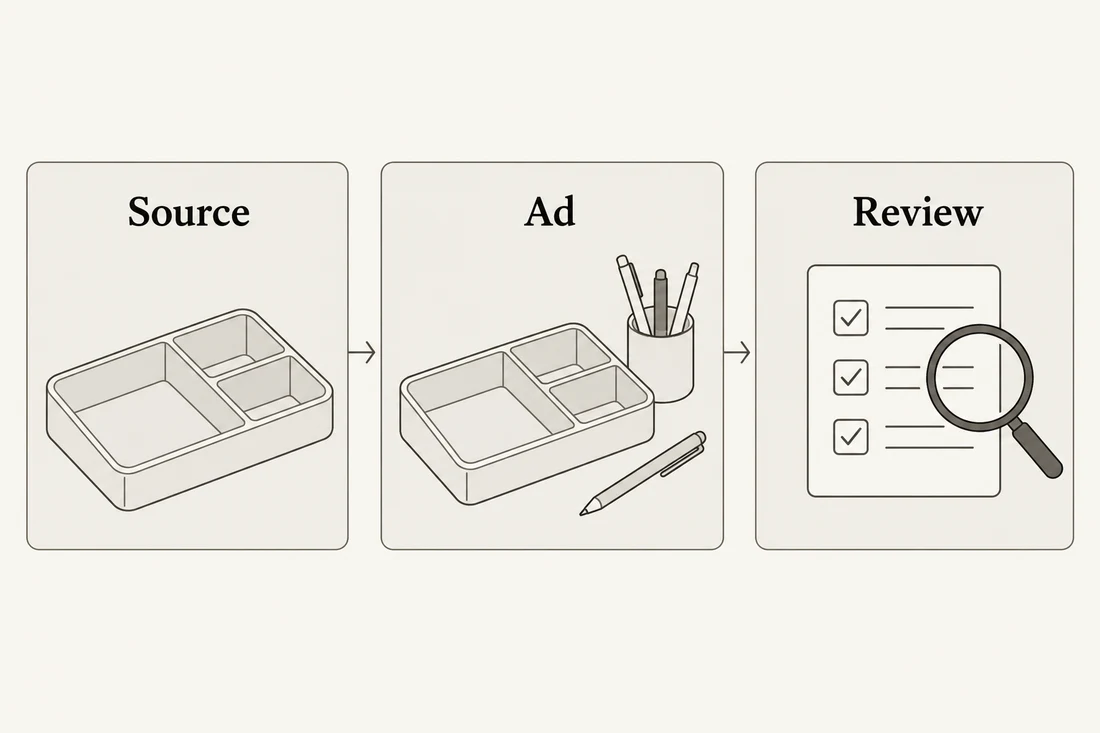
For example, adding pens may help explain the tray's intended use. It can also make the viewer think a pen set comes with it. Decide whether the composition clearly distinguishes illustrative props from the product being offered. If that distinction remains ambiguous, simplify the visual or choose another treatment instead of expecting a tiny note to explain everything.
Use the following checks on the actual export:
- Item: Is it the right variant, with the approved shape, color, and visible features?
- Quantity: Does the picture show the same number of products as the offer?
- Copy: Can every factual phrase be traced to the approved record without expanding its meaning?
- Offer: Are price, promotion, availability, and destination consistent with the current campaign?
- Visual implication: Do props, relative size, badges, or staging introduce a promise that the fact sheet does not support?
- Destination: Does the linked page present the same item and offer the ad leads someone to expect?
A useful review question is: “What would someone reasonably expect to receive after seeing this?” Write that expectation in plain language and compare it with the product information. This often exposes problems hidden by appealing styling.
Record the reason for a correction
Use specific notes that another person can act on. “Needs work” gives little direction. “The tray gained a fourth compartment; replace this candidate” identifies a factual mismatch. “The background is too warm” identifies a style revision. Keep those different reasons visible.
Retain the selected file, fact-sheet version, source links, checked date, and final wording together. When the product or offer changes, revisit the assets that depend on the changed fact. A reused ad should not inherit approval simply because it was acceptable for an earlier campaign.
This process prepares a more accurate creative asset; it does not measure advertising performance. Once the facts and layout pass review, use the ad-variation guide to prepare a separate comparison of creative choices. An accurate ad can still need a better message or composition, and a high-performing image can still contain a mistake that needs correction.
Frequently asked questions
Can an AI-generated image verify a product feature?
No. It can illustrate an idea or attempt to depict a reference, but its appearance is not independent evidence that a material, capacity, performance benefit, or included accessory is real. Use an appropriate source for each factual statement.
Is information copied from our own website automatically approved?
Check the exact page, product version, and current offer first. Websites can contain old promotions or similar variants. Save the source location and review date, then approve the wording you intend to use.
Should the fact sheet contain every product specification?
Include the facts relevant to the planned asset and enough identifying information to avoid mixing variants. Link to the fuller approved source when needed. A compact, current record is more useful than a large collection of unreviewed text.
Can I add props to an AI product ad?
Props can explain context, but inspect whether they suggest an included bundle, unusual scale, or unsupported use. Choose a composition that makes the actual offer clear, and remove props that create ambiguity you cannot resolve.
Does NanoAI automatically check my product claims?
This guide does not claim automated product-fact validation in NanoAI. Keep factual approval and final review outside the image-generation step. Use the supported workbench controls for creating or editing the visual.
Generate from an approved brief
Create a short product fact sheet, separate it from visual direction, and open NanoAI's image workbench. Generate one candidate, then compare the complete ad with its sources before preparing more versions.