
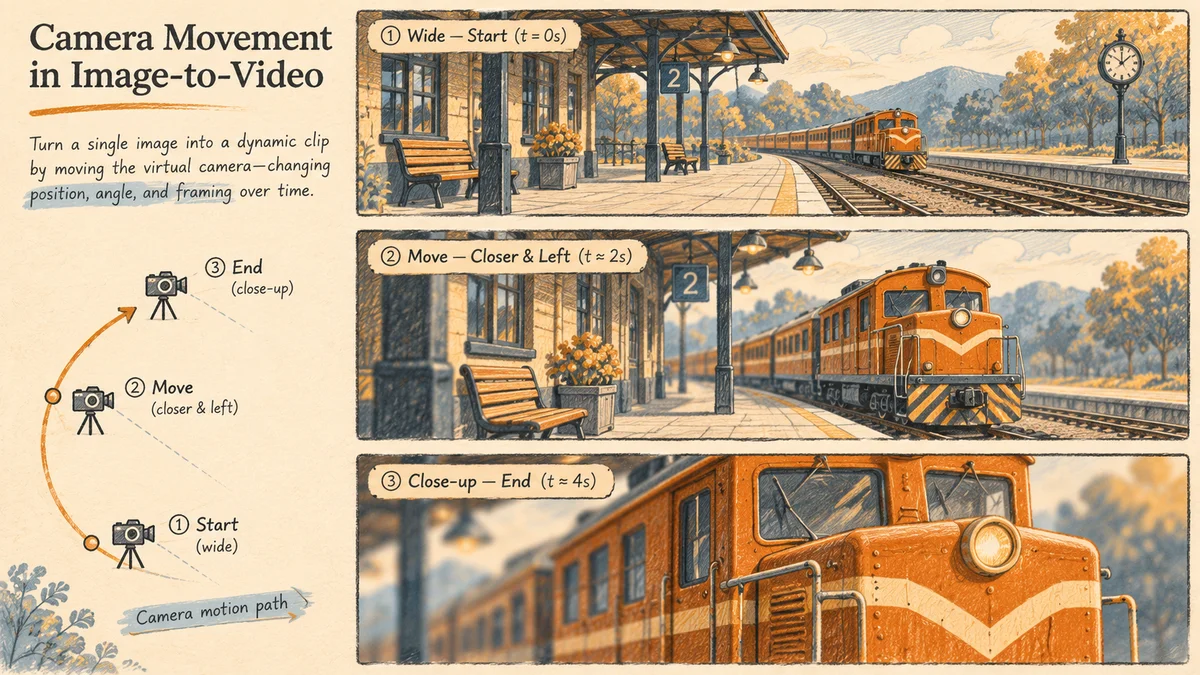
For an image-to-video camera motion prompt, describe one camera move, what the subject does during it, and where the framing should end. For example, “The camera moves slowly toward the parked orange train, keeping its front centered. The train remains parked. End in a close view of the front window.” Start with an image that gives the camera room to make that move, then check the first, middle and last frames for drift.
In its November 5, 2026 Zoo York production breakdown, Krea describes turning a set of stills into individual video shots and specifying motion in the video prompts. You can apply that approach to one shot at a time. This guide uses an illustrated model train as a practice subject.
- Choose one camera move
- Prepare the opening image
- Review the motion and fix drift
- Frequently asked questions
Choose one camera move
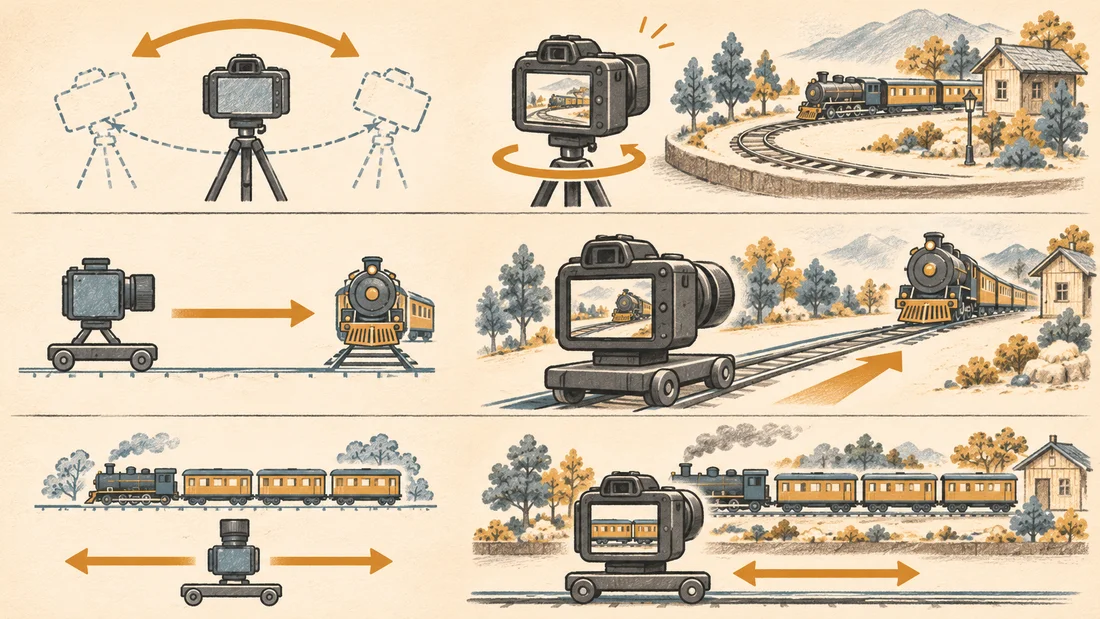
Decide what the viewer needs to notice by the end of the shot. A push-in can bring attention to the front window. A pan can shift attention from the train to a sign farther down the platform. If the important action is a door opening, a fixed camera gives that action room to read.
| Move | What the camera does | Example instruction |
|---|---|---|
| Locked shot | Holds its position and angle | The camera stays fixed as the train doors slide open. |
| Pan | Turns sideways from one position | The camera pans slowly right from the parked train toward the station sign. |
| Push-in | Moves closer to the subject | The camera moves forward toward the parked train, ending close on its front window. |
| Side track | Travels sideways alongside a subject | The camera travels left beside the rolling train, keeping the same distance from the carriage. |
Write the subject movement in a separate sentence. If the prompt only says “move slowly toward the platform,” the intended mover is unclear. Name the camera when the camera should travel. Name the train when it should travel. Runway's image-to-video prompting guide also separates the opening image from the prompt that describes motion. Luma's camera motion reference illustrates common movement terms.
A zoom narrows or widens the field of view from the same camera position. A push-in changes the camera position, so foreground and background can shift relative to each other. If depth is part of the shot, describe the forward travel and name a nearby object the camera should pass.
Prepare the opening image
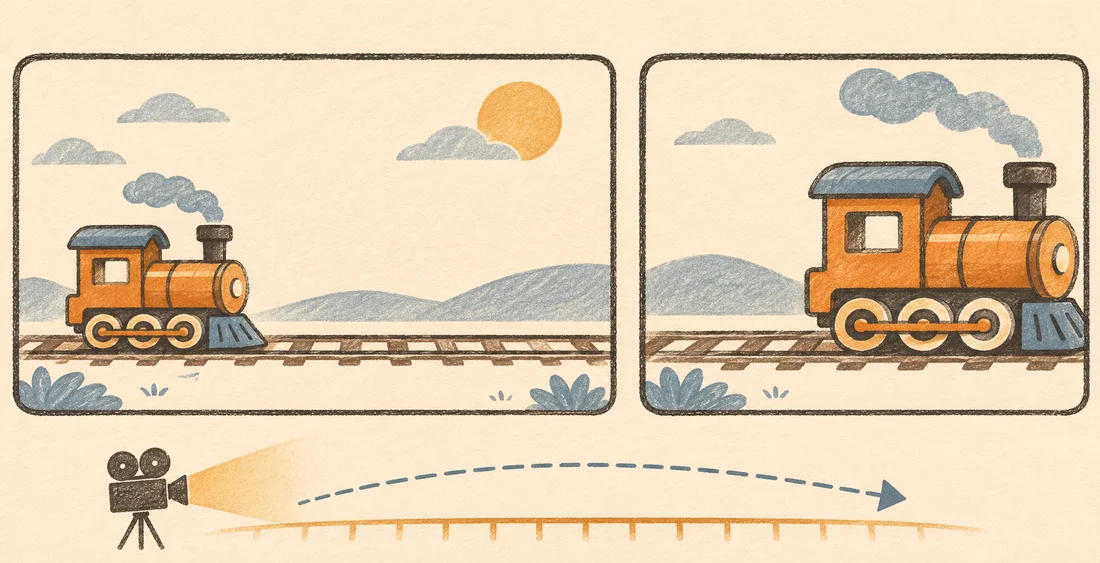
Before uploading the still, mark where the subject begins, where the eye should go and which edges need room. If the train will travel to the right, leave space on that side. If the camera should travel past a foreground pillar, start with enough of the pillar visible for its movement to read. A close crop may work for a locked shot but leave little room for a track.
For a first attempt, choose a clear silhouette and simple background. Remove motion cues that conflict with the requested action. If the train should remain still, use a frame with crisp wheels and clean platform lines. If the starting image shows a blurred train, it suggests motion before the prompt adds any direction.
- Use the aspect ratio you intend to publish and preview the still at that crop.
- Put the train and the station edge where the motion should start.
- Upload the still in NanoAI Image to Video and choose a model that accepts an opening image.
- Generate a draft with one camera instruction and one subject action.
If the first frame needs extra platform on one side, prepare another composition in the NanoAI Image Workbench and confirm the crop before using it. A clean starting image also gives you something concrete to compare against the generated frames.
Review the motion and fix drift
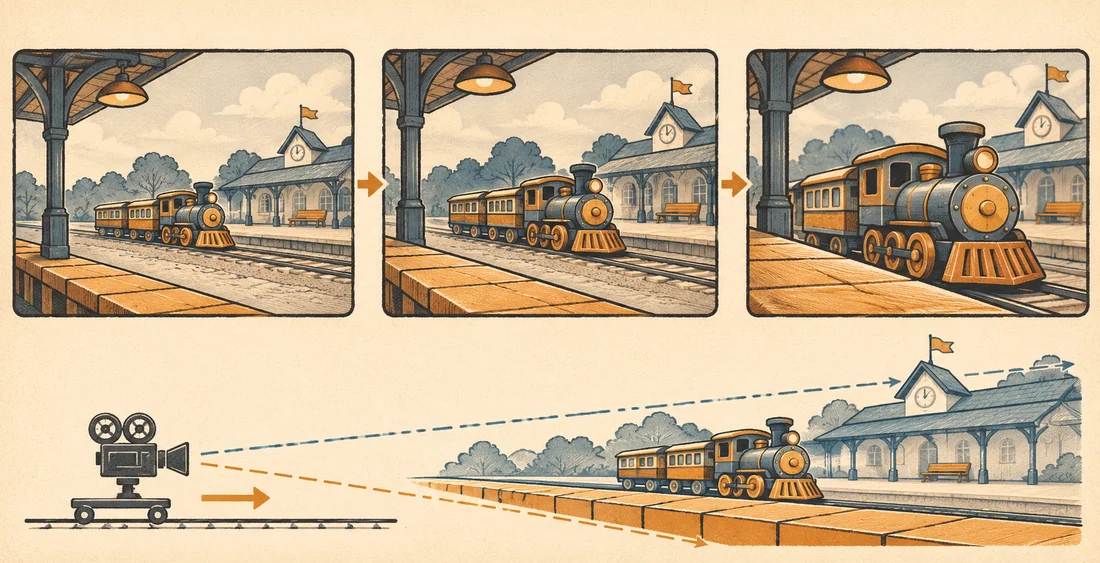
Watch the draft at normal speed, then compare three frames. The first should match the intended composition. In the middle, check what is moving relative to the platform. In the last, check whether the intended detail is visible and the subject still has the same shape. With a push-in, a near platform edge or pillar may shift more visibly than the far station backdrop. A clip that only gets uniformly larger may read like a zoom.
Change one input for the next attempt. If the model moves the train, say that it stays parked and describe the camera position more concretely. If the camera turns when you wanted a side track, describe a sideways path parallel to the platform at a constant distance. If the end crops the front window, start wider or ask for a smaller move.
For a locked shot, pick a fixed reference such as a platform sign and watch its position across the clip. A small drift may be manageable in editing. If the drift changes the framing or exposes bent rails, regenerate the shot or use an edited still where motion adds little. Keep the working prompt alongside the approved clip so you can tell which instruction produced it.
Frequently asked questions
How do I prompt a camera that stays still?
Say “Locked camera, fixed framing,” then describe what moves inside that frame. For example, “The train doors slide open. The platform sign stays in the upper right.” Check the export because a prompt guides the result and may still produce drift.
What is the difference between a pan and a tracking shot?
A pan turns the camera from one position. In a tracking shot the camera travels, so nearby objects can move across the frame at a different rate from the background. Specify the path when you need that sense of depth.
Should I put several camera moves in one prompt?
Start with one move when a shot needs a predictable endpoint. If the story needs both a wide reveal and a close detail, generating two shots separately gives you a clear edit point.
Why does the subject move when I asked the camera to move?
The prompt may leave the mover ambiguous, or the starting image may suggest action through blur, posture or framing. Name both the camera and the subject, and choose a still that supports the requested motion.