
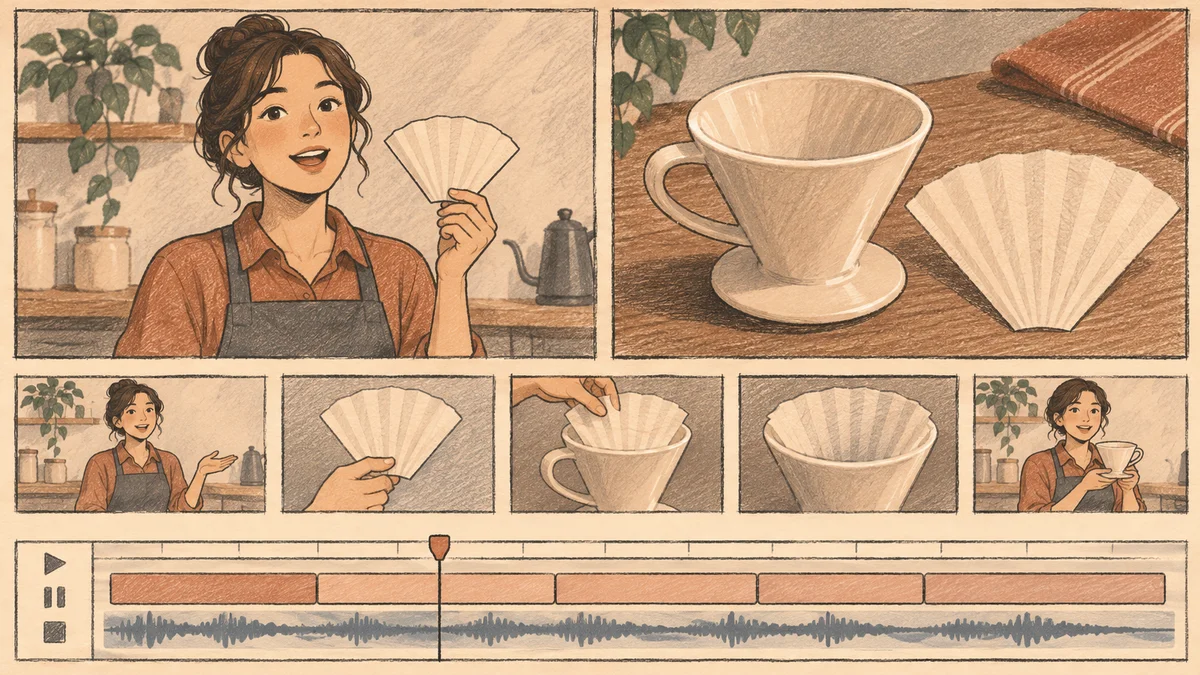
To make AI B-roll for a talking-head video, finish the spoken edit first. Mark the lines that need a visual explanation, generate one short cutaway for each of those lines, and place the cutaway above the presenter footage while keeping the original voice audible. For a coffee tutorial, a close-up of the paper filter can show what the presenter means by “fold along the seam.”
Adobe's November 10, 2026 Firefly announcement included B-roll generation among its expanded video editing features. The same editing decision applies whether you generate a cutaway inside an editor or bring in a separate clip. Each insert should help the viewer understand a specific line, object or transition. Adobe MAX Firefly announcement
- Mark the lines that need a cutaway
- Generate a shot around one detail
- Place the cutaway over the voice
- Frequently asked questions
Mark the lines that need a cutaway

Watch your edited interview or tutorial with the transcript open. Mark the exact words where an insert would help. Write down what the viewer should be able to see at that point. B-roll is supplemental footage that can illustrate the narration, establish context or cover an edit. Adobe's B-roll guide
| Spoken moment | Visual to consider | What it adds |
|---|---|---|
| “Fold the filter along the seam.” | A close-up of a real filter being folded | Shows the action and the location of the seam |
| “The filter should sit flat against the dripper.” | A close-up of the filter seated inside the dripper | Shows the final position the viewer should check |
| “Now let’s move to the kettle.” | A wider shot of the brewing setup | Shows where the kettle sits before the next step |
| “Here’s the mistake I made.” | Keep the presenter on screen | Preserves the delivery and expression |
Generate an illustrative shot when the viewer only needs to recognize a shape, setting or concept. Use recorded or approved footage when the insert needs to prove a real event, show precise operation or depict a specific product exactly. For the coffee example, you might shoot the hands folding the filter and generate a quiet cutaway of a filter already in place. Both shots have clear roles.
Generate a shot around one detail
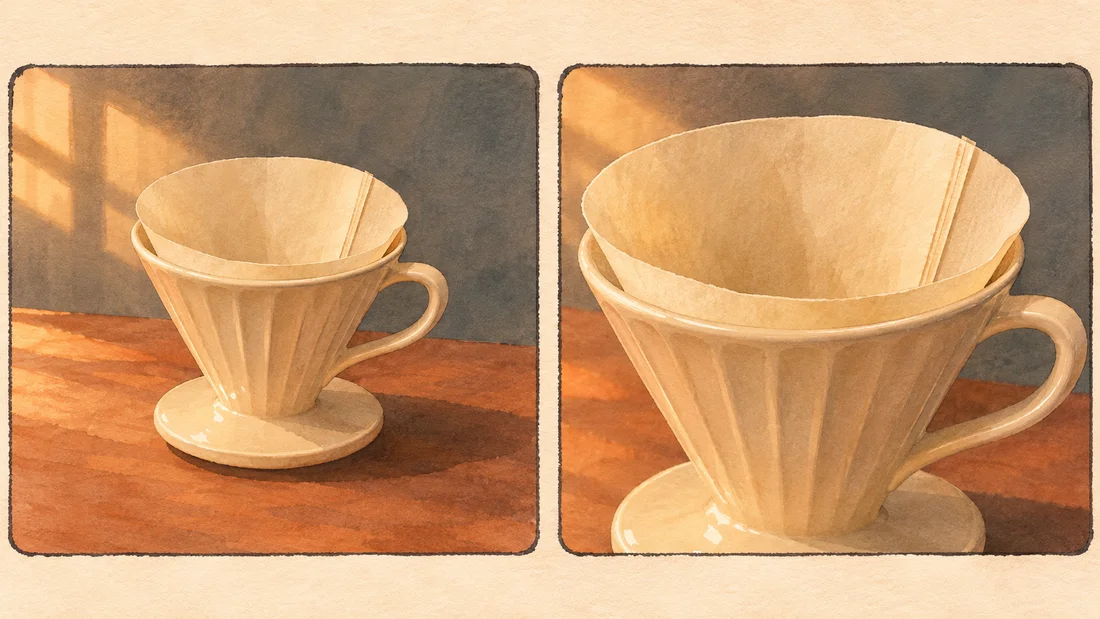
Start with a still that shows the detail clearly at the size you intend to publish. For the filter example, make the paper seam visible and leave room around the dripper. A centered object may fit several layouts, but check the actual crop for your video before generating motion. Keep the counter and light compatible with the main footage.
- Prepare a still in the intended aspect ratio. Use an approved photo when the geometry or appearance matters.
- Open the Image to Video mode and select a model that accepts the opening still. NanoAI Video Generator
- Describe one simple change during the clip, such as a gentle push toward the seam. Keep the filter, cup and dripper steady.
- Compare the opening, middle and closing frames. Choose a clean section where the seam stays visible and the shape holds.
A prompt for the illustrative insert might read as follows.
Close view of the seated paper filter inside a cream ceramic coffee dripper. Move the camera slowly closer toward the fold in the paper. The dripper and paper stay still. Keep soft side light and an uncluttered counter.
Use the NanoAI Image Workbench to prepare a concept still when you need a new composition. If you already have the exact close-up you need, try holding that still under the narration. Movement earns its place when it reveals a detail or helps the viewer follow the action. NanoAI Image Workbench
Place the cutaway over the voice
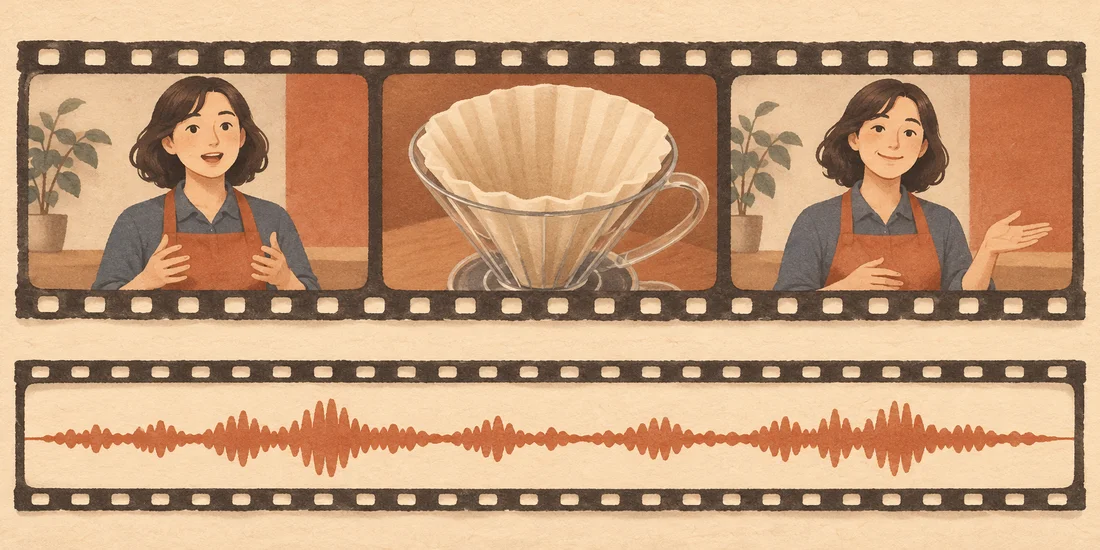
Place the B-roll on a video track above the presenter footage. Trim the insert around the words it illustrates and mute its audio if the existing voice should carry through. In the filter example, you could enter on “the filter should sit flat” and return to the presenter once the viewer has seen how the paper meets the dripper.
Play the cut once with picture and sound. Listen for a voice interruption or competing audio from the insert. Then watch it muted and see whether the close-up points your eye to the intended feature. If the close-up appears after the explanation ends, move it earlier. If the clip shows a distracting change in the object, trim to a stable section or replace it with a still or filmed detail.
Check the transition back to the presenter too. A cutaway can hide a visible jump in the main footage, but the spoken sentence still needs to flow. Give viewers enough time to read the detail before the next idea starts.
Frequently asked questions
How much B-roll does a talking-head video need?
Use the transcript to decide. A line that describes a physical step or unfamiliar object may benefit from a cutaway. A moment where the speaker's expression matters may work better on the presenter.
How long should each AI cutaway last?
Trim it to the part of the sentence it supports and leave enough time for the viewer to recognize the detail. A clip can be longer than the section you use in the edit.
Can I use an AI still as B-roll?
Yes. A still can illustrate an object, diagram or setting while the narration continues. A stable frame is especially useful when motion would make the key feature harder to see.
What if the AI footage invents a product detail?
Use an approved image or filmed insert when the detail carries a factual claim or teaches a step. Review any generated illustration against the real object before using it in a product or instructional video.