
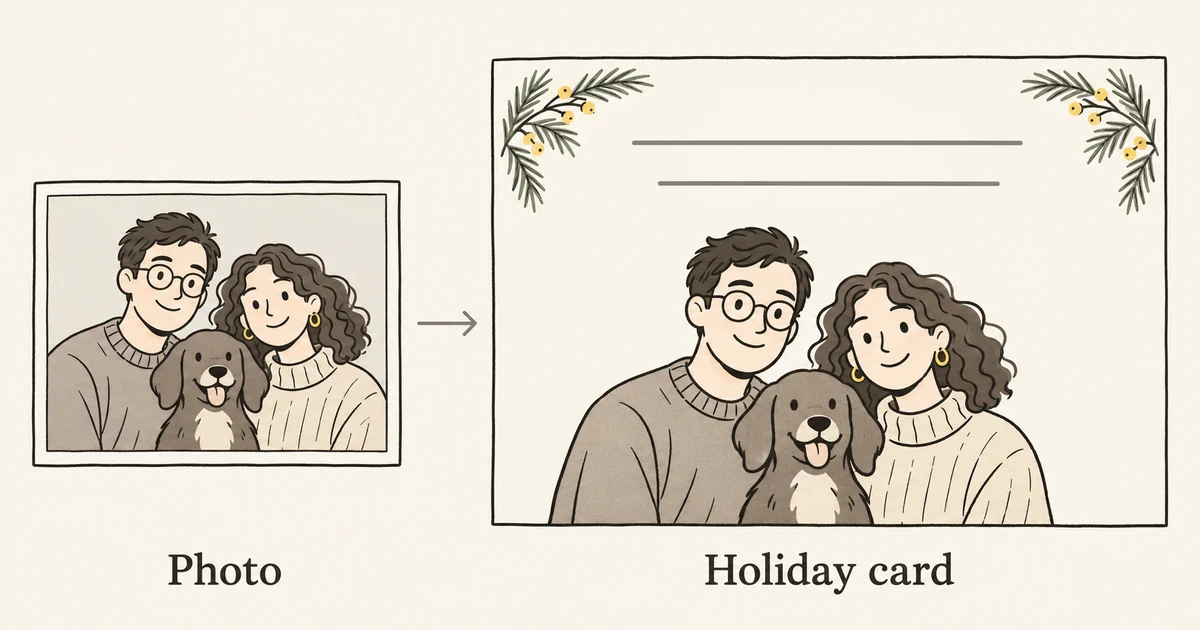
To make an AI holiday card from a photo, use the photo as an image-editing reference, choose one illustration style, and leave a clear area for your greeting. Open NanoAI's image workbench, choose Image Edit, and describe the people, pets, and arrangement you want to retain. Approve the portrait first, then add the exact greeting in your card layout and check the exported file.
On November 23, 2026, Google highlighted recent Google Photos updates, including Remix templates for scrapbook-style holiday cards and pastel illustrations. If you want to develop your own visual direction from a favorite photo, the workflow below turns that idea into a focused editing brief.
Our example is a landscape card featuring two adults and one dog. The artwork has a simple illustrated look, with open space above the group for a short seasonal message. Adapt the people, occasion, and decorative details to your own photo.
- Choose the photo and plan the card
- Create the illustrated portrait in NanoAI
- Finish the greeting and check the card
- Frequently asked questions
Choose the photo and plan the card
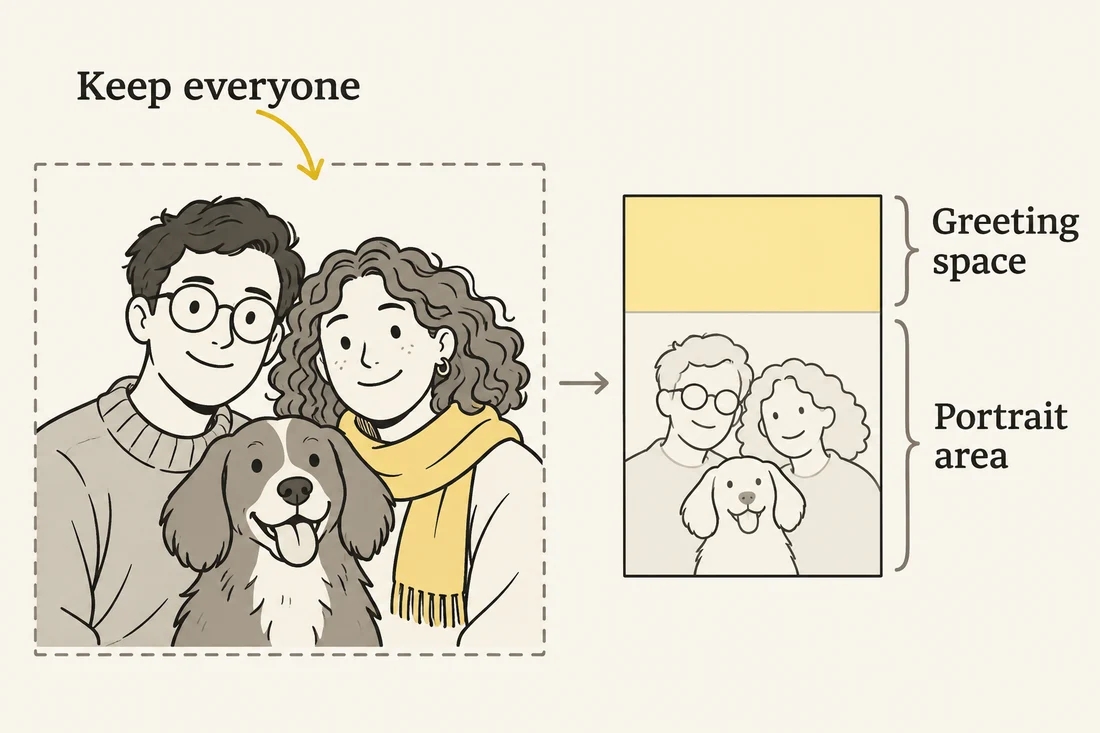
Start with a photo where everyone you want on the card is easy to see. Look for clear faces, a visible pet, and enough room around the group to adjust the crop. Use the original camera file when available, rather than a screenshot of a shared image. Shutterfly's holiday photo guide recommends clear, high-resolution photos and room for the card's design elements.
Choose the card orientation before writing the prompt. A wide group often suits a landscape layout; a tightly framed couple may fit a portrait card. If a favorite image is already close to the edges, give it a separate border or text panel instead of forcing a large greeting across someone's hair or a pet's ears.
Write a small portrait inventory
For the example, the important details are simple:
| Part of the source | What the edit should retain | What can change |
|---|---|---|
| Adult on the left | Short dark hair, glasses, position beside the other adult | Illustration treatment and simplified clothing texture |
| Adult on the right | Curly hair, expression, relative height | Illustration treatment and simplified clothing texture |
| Dog in front | Floppy ears, light chest patch, place between the adults | Simplified fur strokes |
| Background | Enough separation to read the group | A quiet seasonal backdrop |
| Card layout | Full faces and visible dog | Room above the group for a greeting |
Use details that actually appear in your photo. The inventory helps you notice a missing pair of glasses or an altered pet marking; it is more useful than asking for a beautiful card without explaining what makes the picture yours.
Choose one visual treatment for the first attempt. A flat cut-paper look can suit bold silhouettes. A soft storybook illustration can use gentler facial detail. A scrapbook layout can retain the original photo inside a decorative frame, which is a useful option when the exact faces matter more than transforming the portrait.
Create the illustrated portrait in NanoAI
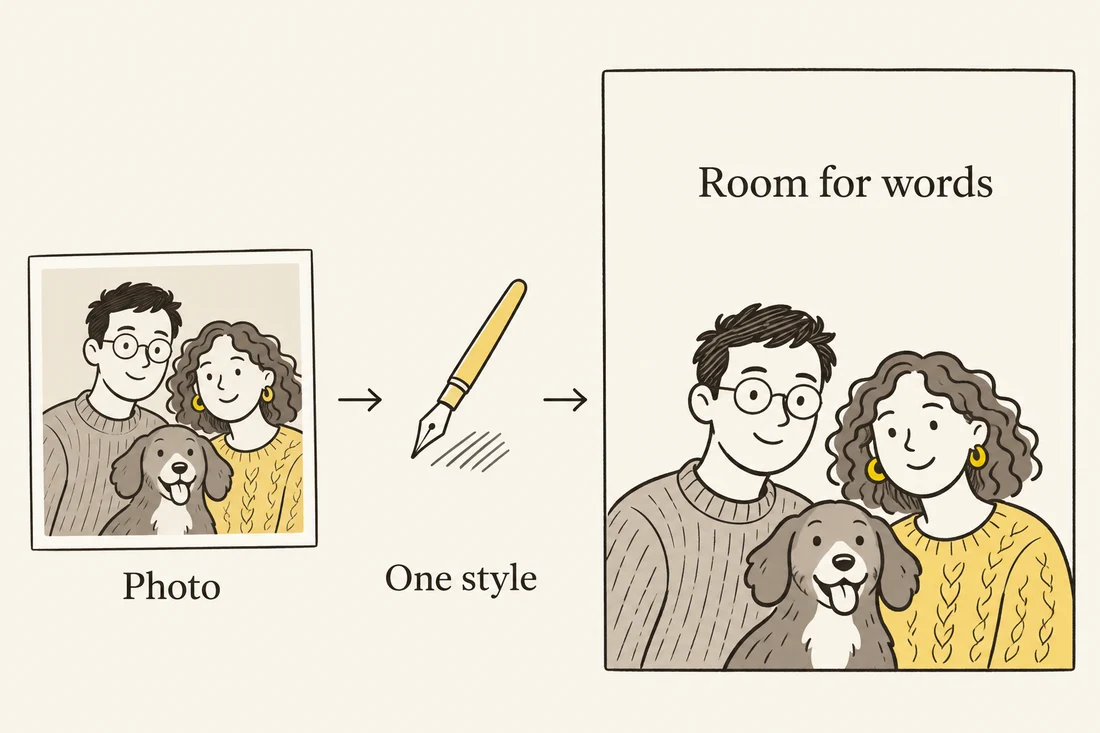
In NanoAI's image workbench, choose Image Edit and an editing-capable model. Upload the source photo, select an available image shape suited to your layout, and review the displayed credit cost. Begin with one visual direction so you can judge the portrait before comparing other styles.
Use this three-step brief:
- Keep the group: identify each person and pet, their positions, and distinctive visible details.
- Change the treatment: name one illustration style and a restrained seasonal setting.
- Reserve the layout: specify a quiet greeting area and ask for artwork without lettering.
Here is a prompt for the example:
Turn this photo into a warm, hand-drawn storybook illustration for a landscape holiday card. Keep the same two adults and one dog, in their existing left-to-right arrangement. Retain the left adult's short dark hair and glasses, the right adult's curly hair, and the dog's floppy ears and light chest patch. Keep their expressions and relative proportions recognizable. Use simple ink contours, soft muted colors, and a quiet cream background with a few small evergreen sprigs near the outer corners. Place the group in the lower portion of the image and leave a clear, calm area above them for a greeting to be added later. Keep the full faces and the dog's ears inside the frame. Include no lettering.
Replace the example's details with your own inventory before running it. For a different celebration, change the foliage and decorative motif as well as the eventual greeting. The photo supplies the people; the prompt supplies the visual direction and layout.
Review the people before the decoration
Compare the source and candidate side by side. Check that everyone is present and in the intended position. Look at faces, hair, glasses, hands, and the dog's ears and markings. Then inspect the open greeting area and the edge of the crop.
If the people look right but the foliage is too busy, ask for a quieter background. If a face or pet has changed too much, return to the source and try a lighter illustration treatment. Repeated decorative edits to a poor likeness can leave you with a polished image you still do not want to send.
A photo-frame route is another practical choice: keep the original group photo and use generated artwork around it in your layout editor. Canva's Christmas card workflow describes uploading a photo, choosing an orientation, and arranging it with card text. You can apply that layout approach to an illustrated portrait or to the untouched photo.
Finish the greeting and check the card
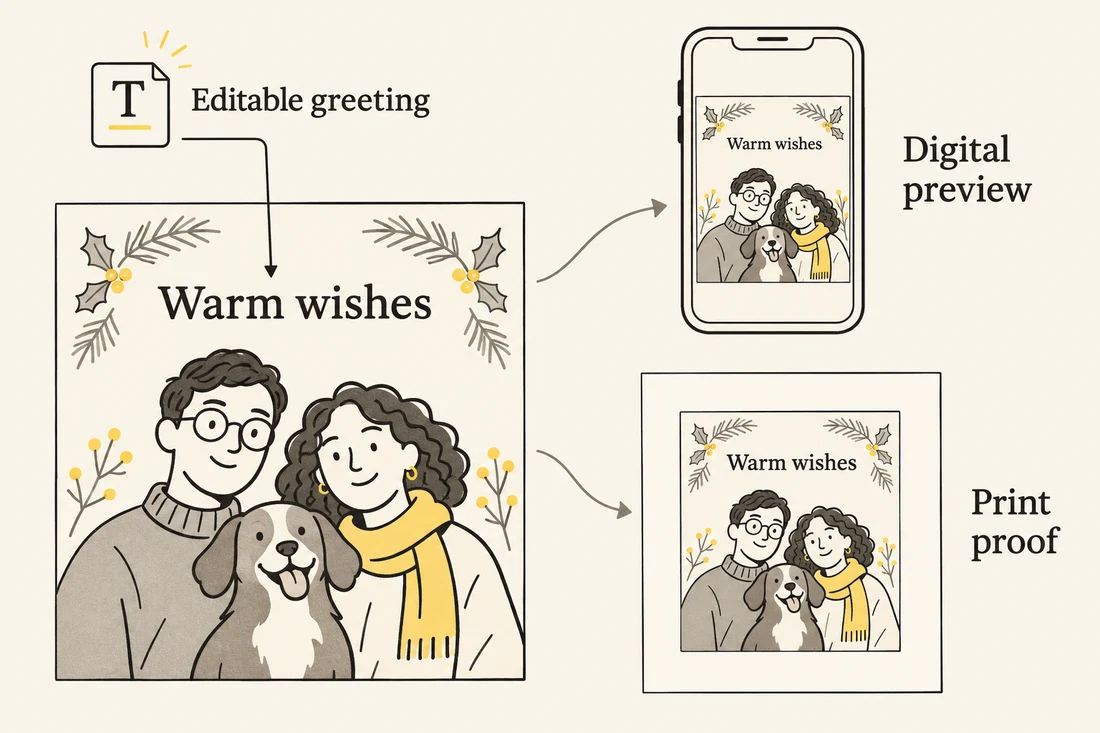
Once the portrait is approved, place it in your card layout and add the greeting as editable text. That makes names, punctuation, and later wording changes easy to manage. For the example, a short “Warm wishes” heading sits above the group. A second line can carry the sender's chosen signature.
Use a greeting that fits the occasion and the people receiving it. Let the message occupy the quiet area you planned, rather than shrinking it to fit a decorative gap. Keep a readable contrast between the lettering and background, and check the card at the size someone will actually view it.
For a longer note, put the additional message on the back or inside of the card. Adobe Express's photo-card documentation describes using a first page as the starting point for another side and downloading a digital version for sharing. A separate text layout stage gives you that flexibility without another portrait edit. Our AI poster text guide explains the same useful distinction between artwork and editable lettering.
Check the finished file in its destination
For a digital card, open the exported image on a phone at ordinary viewing size. Verify that the greeting is readable, faces remain clear, and any signature is correct. If you make a second version for a vertical story, review its crop separately; a layout that works in landscape may cut off the dog when fitted to a tall frame.
For print, use the card provider's template and its file requirements. Keep faces, pet ears, and essential wording away from trim boundaries. Review the order preview and, when practical, a physical proof before ordering a larger batch. A bright screen alone cannot show how the paper and printing will affect the illustration.
Save the original photo, approved artwork, editable card project, and final export together. If you change the greeting later, update the text layer and export again. Check that new file rather than assuming it is identical to the version you already approved.
Frequently asked questions
Can I make an AI holiday card from a normal family photo?
Yes. Use the photo as an Image Edit reference and describe the illustration treatment and card layout. A clear source with visible faces and room around the group gives you more useful detail to work with.
How do I keep everyone recognizable?
Name distinctive visible details and compare each person with the source. If the transformation changes too much, try a gentler style or keep the original photo in a decorated card frame.
Can I include my pet in the card?
Yes. Identify the pet's position, ears, markings, and other visible features in the brief. Check the result for missing or duplicated animals and keep the whole pet inside the intended crop.
Should AI generate the greeting too?
For exact names and wording, add the greeting as editable text after approving the artwork. You can revise the message without asking the image editor to redraw the group.
Choose one favorite photo, write a short portrait inventory, and create your holiday-card artwork in NanoAI. Approve the people and pet first, then finish the message and export the card.